Keyboard shortcuts: record without touching the controls
Alt+Shift shortcuts to start, pause, and stop recordings from any tab — plus how to hide on-screen controls and rely on shortcuts alone.
Keyboard shortcuts are the fastest way to run Showesome once you know your flow. You can start, pause, and stop from any Chrome tab — and if you prefer a clean screen, you can hide the floating control bar and drive everything from the keyboard.
This guide covers recording shortcuts, how to set them up in Chrome, and three common on-screen setups (full UI, controls hidden, bubble-only). Focus Mode uses separate shortcuts; we include those at the end so everything stays in one place.
Open on watch page (for search and full-screen viewing)
Recording shortcuts (default)
Showesome registers three Chrome extension shortcuts. The suggested defaults are:
| Action | Default shortcut |
|---|---|
| Start / stop recording | Alt + Shift + S |
| Pause / resume | Alt + Shift + P |
| Cancel recording | Alt + Shift + C |
Start / stop — When nothing is recording, this begins a new capture (after you pick a screen, window, or tab in Chrome’s share dialog). While recording or paused, the same shortcut stops and finishes the clip.
Pause / resume — Only applies while a recording is active. Use it to pause mid-take without ending the session, then press again to resume.
Cancel — Discards the current recording session without saving. Useful when you flub a take and want to reset quickly.
These commands are handled globally through Chrome’s extension shortcut system, so they work from whichever tab is focused — you do not need to click the Showesome popup first.
Set up or change shortcuts in Chrome
Shortcuts must be registered in Chrome before they work. If a shortcut shows as “not set” in Showesome, configure it once:
- Open the Showesome popup → Settings.
- Scroll to Shortcuts & System.
- Click Set Shortcuts (opens Chrome’s extension shortcuts page).
- Find Showesome Screen Recorder and assign keys for Start/Stop recording, Pause/Resume recording, and Cancel recording — or keep the suggested
Alt+Shiftcombinations. Activate the extension is optional (opens the popup).
You can also open chrome://extensions/shortcuts directly. On Mac, Chrome labels the modifier as Option (⌥); on Windows it shows Alt — the bindings are the same pattern (Alt+Shift+S = Option+Shift+S).
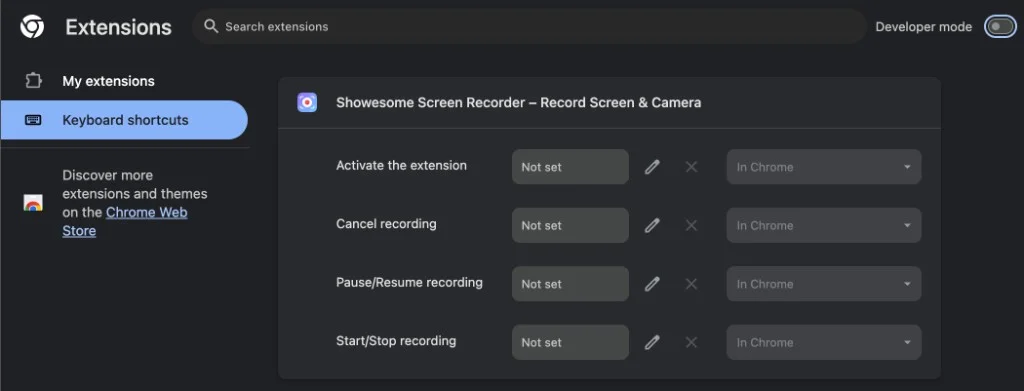
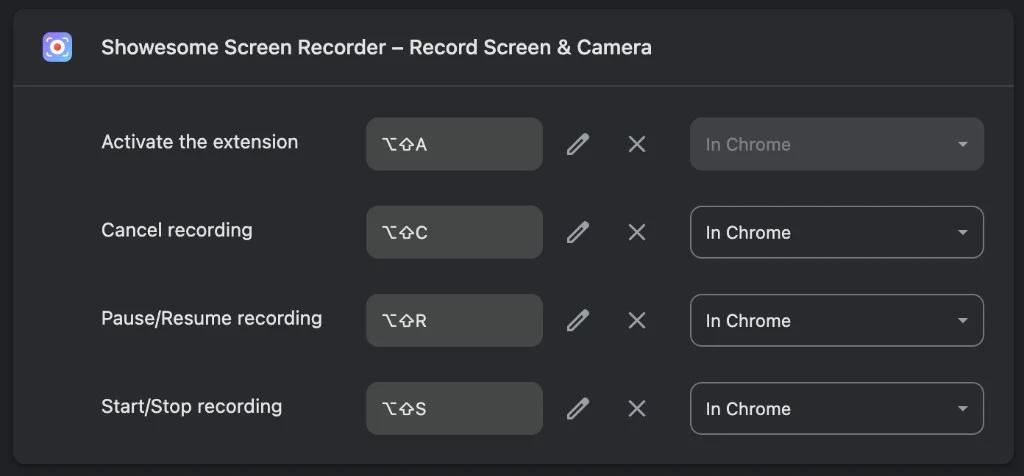
After saving, click any normal web page tab once so it has focus, then try Start/Stop. Avoid conflicting shortcuts with other extensions or system tools.
What you see on screen (three setups)
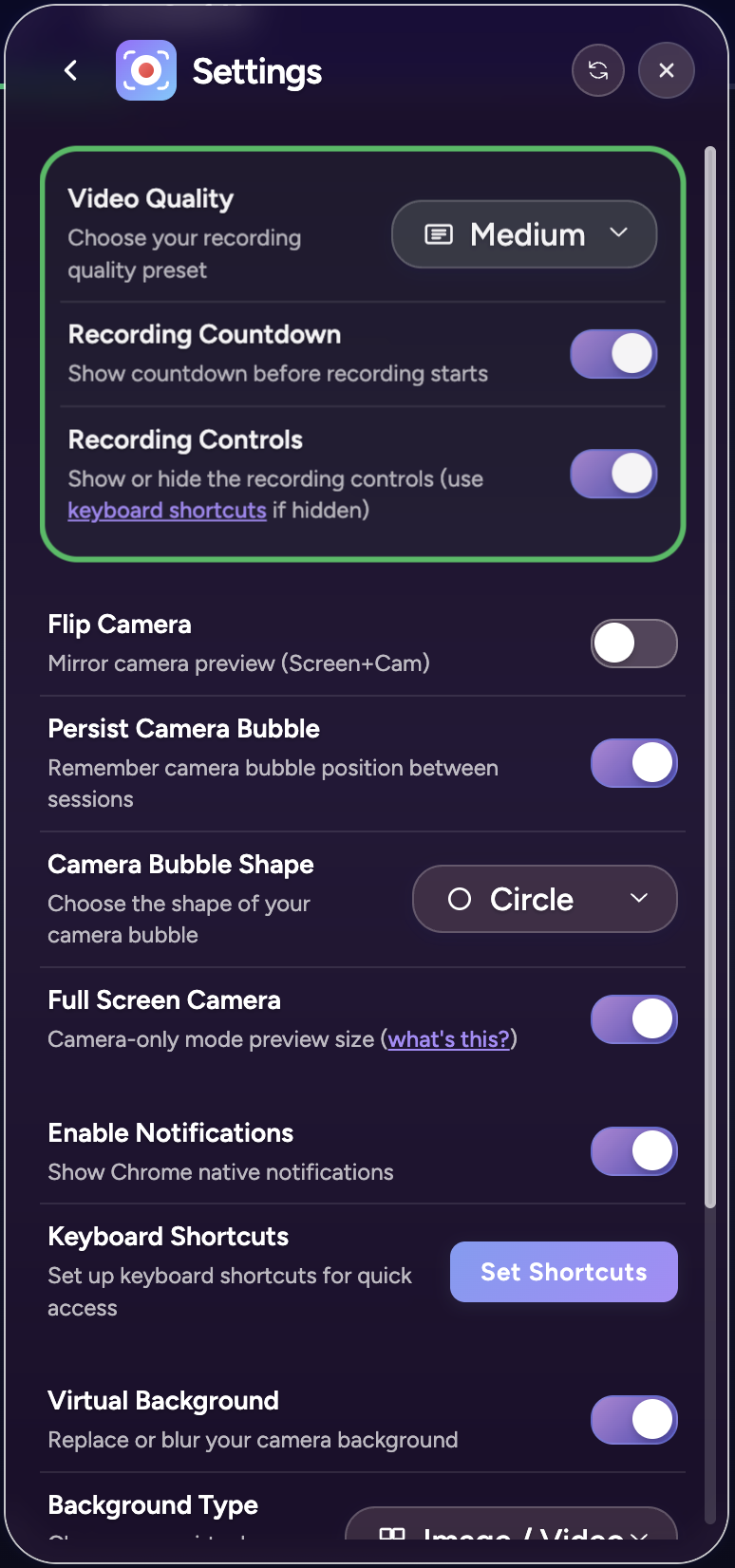
How much UI stays visible is up to you. The Recording Controls toggle in Settings (under Recording & Video) controls the floating control bar — not the popup and not Focus Mode.
1. Full interface (default)
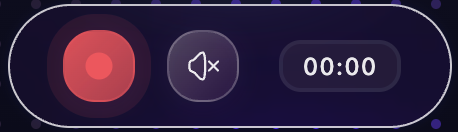
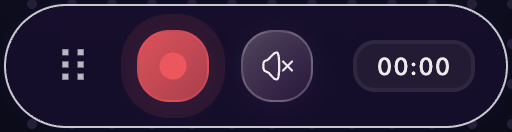
Most creators start here: the toolbar popup for mode and devices, the camera bubble (in Screen + Camera or Camera Only), and the recording controls bar for start, pause, and stop.
Use shortcuts together with the bar — same actions, less mouse travel. The bar still shows elapsed time and state when you want a visual cue.
2. Controls hidden — shortcuts only
Turn off Recording Controls in Settings → Recording & Video. The floating bar disappears; shortcuts still work for start, pause, cancel, and stop.
Ideal for Screen Only walkthroughs where you want zero chrome on the capture. In Screen Only, hiding controls also hides the camera bubble. In Screen + Camera, the bubble can stay while the bar is off.
The Getting Started tour notes: when controls are hidden, use Alt+Shift+S / P / C to manage the session.
3. Bubble visible, no control bar
With Screen + Camera (or camera-only bubble mode), disable Recording Controls. Your camera bubble stays draggable; only the bar is removed.
Pair this with shortcuts when you want a face on camera but no bottom control strip. Open the popup to choose mode and devices first; after that, shortcuts carry the session.
Where to flip “Recording Controls”
Open Settings from the popup to change how much UI appears while you record.
Recording & Video
The Recording Controls row explains that you can hide the bar and use keyboard shortcuts instead — including a link to open the shortcuts helper when controls are off.
Toggle it off for a shortcuts-only workflow. Toggle it back on anytime; Showesome restores the bar and remembers positions when possible.
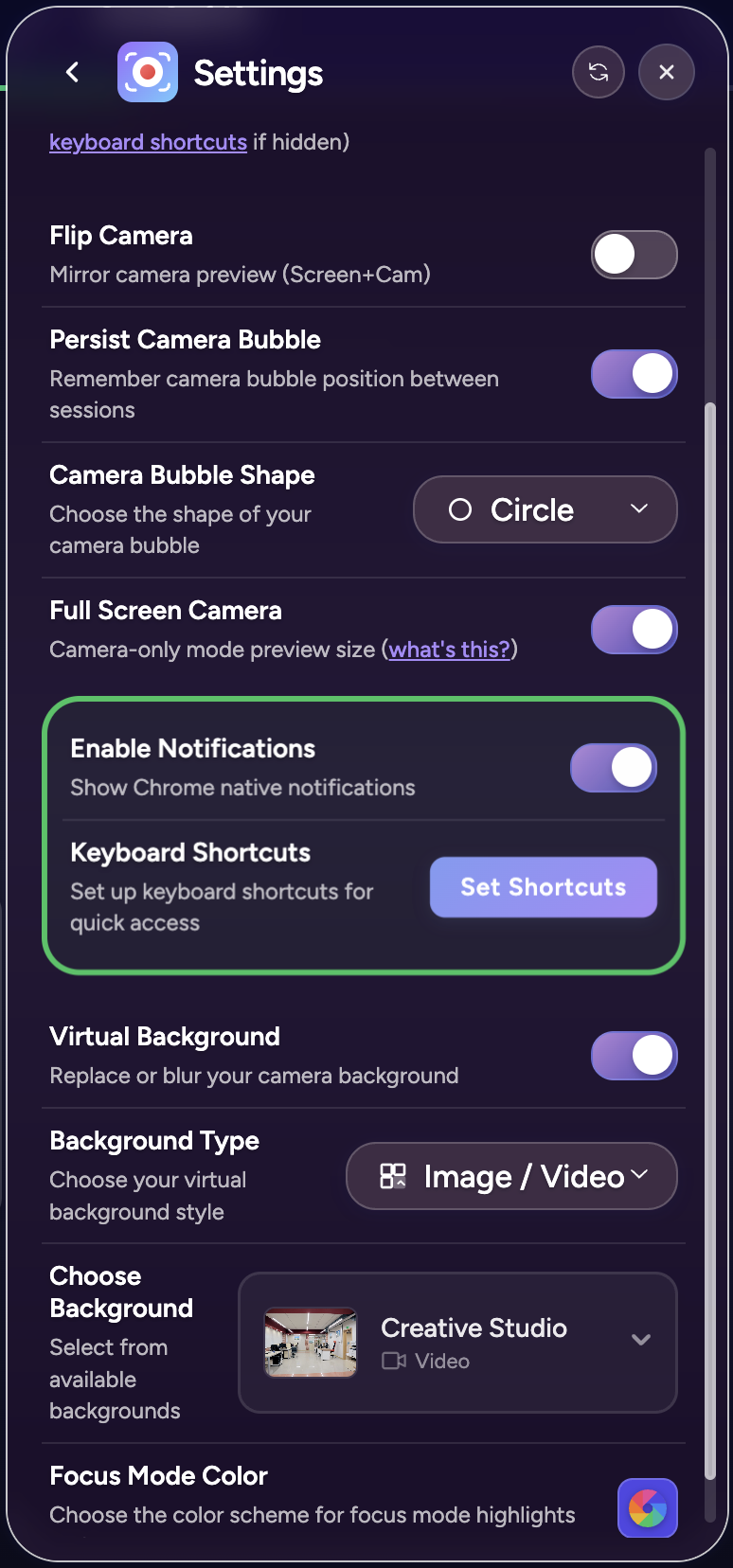
Shortcuts & System
Use this section for Enable Notifications and the Set Shortcuts button, which opens Chrome’s extension shortcuts page.
If recording shortcuts are not set yet, configure them here once — then use Alt+Shift+S / P / C from any tab.
When shortcuts shine
- Tutorials and demos — Keep hands on the app you are teaching; start and stop without hunting for the control bar.
- Clean Screen Only captures — Hide controls entirely so viewers only see the product UI.
- Retakes — Cancel (
Alt+Shift+C) and restart (Alt+Shift+S) faster than clicking through the bar. - Long sessions — Pause (
Alt+Shift+P) for breaks, resume when ready.
Shortcuts do not replace choosing what to record (screen, tab, window) — Chrome’s share picker still appears on start. They control the session after you have picked a source.
Focus Mode shortcuts (separate from recording)
Focus Mode highlights parts of the page while you record. It does not use the Alt+Shift recording bindings.
| Action | Shortcut |
|---|---|
| Enter / exit Focus Mode | Double-tap Cmd (Mac) or Ctrl (Windows/Linux) |
| Exit Focus Mode | Esc, or double-tap Cmd / Ctrl again |
| Area spotlight | Hold Shift and drag to draw a region |
Use Focus Mode during a recording (or while the focus tutorial is open) to zoom and spotlight elements. Recording start/stop still uses Alt+Shift+S and related keys.
How do I start and stop recording without clicking the control bar?
Use Alt+Shift+S to start and stop (Windows/Linux). On Mac, use Option+Shift+S. Pause with Alt+Shift+P / Option+Shift+P.
Can I hide the Showesome recording controls and use shortcuts only?
Yes — hide the control bar in Settings if you prefer a clean capture and rely on keyboard shortcuts for pause, stop, and Focus Mode.
What are the default keyboard shortcuts for Showesome?
Record: Alt/Option+Shift+S · Pause: Alt/Option+Shift+P · Cancel: Alt/Option+Shift+C. Focus Mode uses double-tap Cmd/Ctrl — separate from recording shortcuts.
Quick checklist
- Confirm shortcuts in
chrome://extensions/shortcuts(or Set Shortcuts in Settings). - Pick a recording mode in the popup.
- Optional: disable Recording Controls for a cleaner frame.
- Focus a normal tab, then Alt+Shift+S to start.
- Alt+Shift+P to pause, Alt+Shift+C to cancel, Alt+Shift+S again to stop.
Related reading
- Getting Started — walk through popup, bubble, and controls (including the hidden-controls tip).
- Focus Mode tips — spotlight and zoom shortcuts while recording.
- Choosing a recording mode — Screen + Camera, Screen Only, and Camera Only.
- Support — FAQs and troubleshooting for shortcuts, permissions, and device setup.
Was this guide helpful?
One vote per browser. No account required.
Be the first to share feedback.
Comments
Join the discussion — comments are moderated to keep things helpful. Be respectful and constructive.
Preparing sign-in…