Use Showesome in Incognito mode
Chrome disables extensions in Incognito by default. Open Manage Extensions, open Showesome Details, and enable Allow in Incognito to record in private windows.
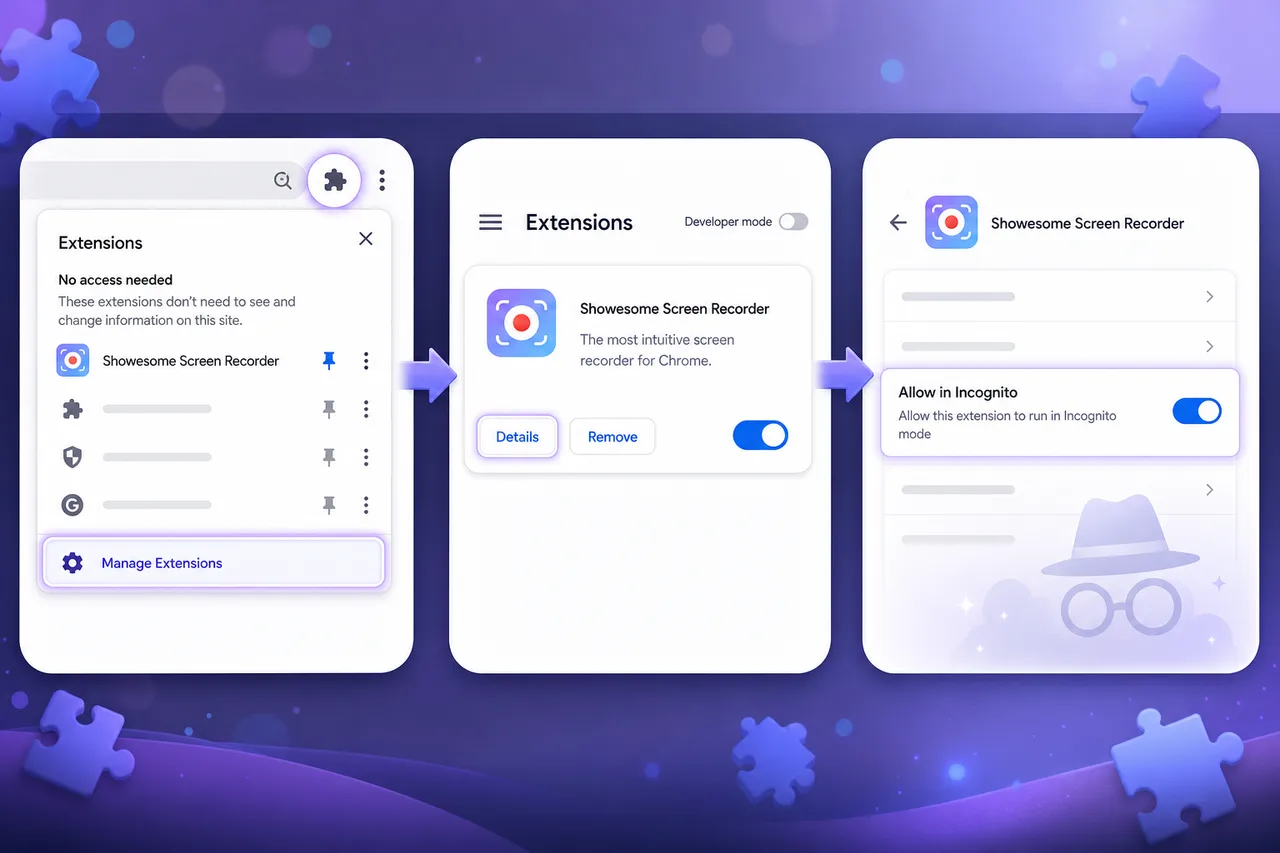
Chrome disables extensions in Incognito by default. To use Showesome in private windows, open Manage Extensions, open Showesome Details, and enable Allow in Incognito.
Extensions can have separate permissions for normal and Incognito windows — that is why Showesome may work in a regular tab but not in a private window until you allow it.
If Showesome works in a normal Chrome window but not in Incognito, this guide will help you enable it. For the toolbar icon in regular Chrome, see Enable the extension and pin it in Chrome.
Why extensions are disabled in Incognito by default
Chrome treats private windows separately from normal tabs. Extensions must be explicitly allowed in Incognito so you know they can still access page data in that mode.
That is separate from the main On/Off switch on chrome://extensions — Showesome can be enabled globally and still disabled in Incognito until you turn on Allow in Incognito.
1. Open Manage Extensions
- Click the Extensions menu (puzzle piece icon) next to the address bar.
- At the bottom of the menu, click Manage Extensions.
That opens chrome://extensions. You can also paste that URL into the address bar.
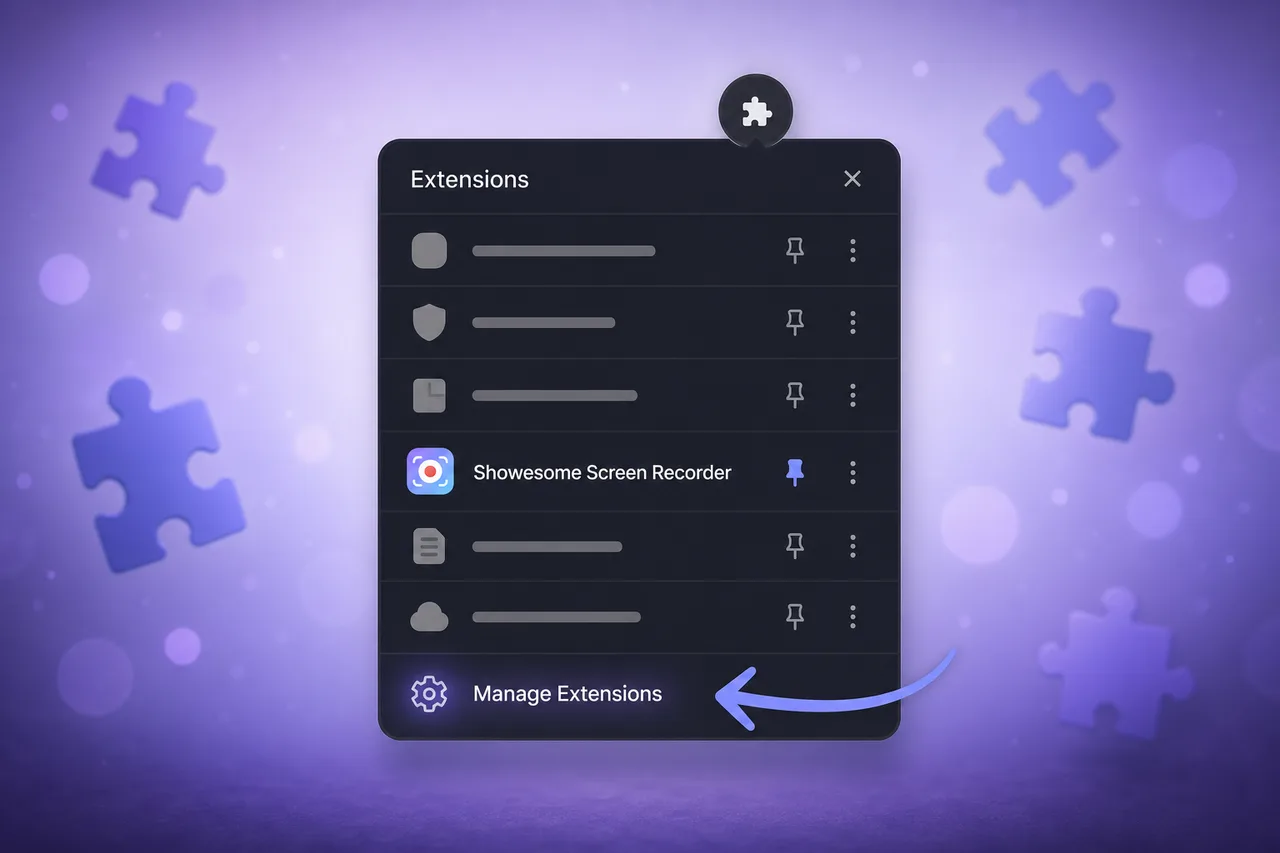
2. Open Details for Showesome
On the extensions page:
- Find Showesome Screen Recorder.
- Make sure the extension is turned on.
- Click Details.
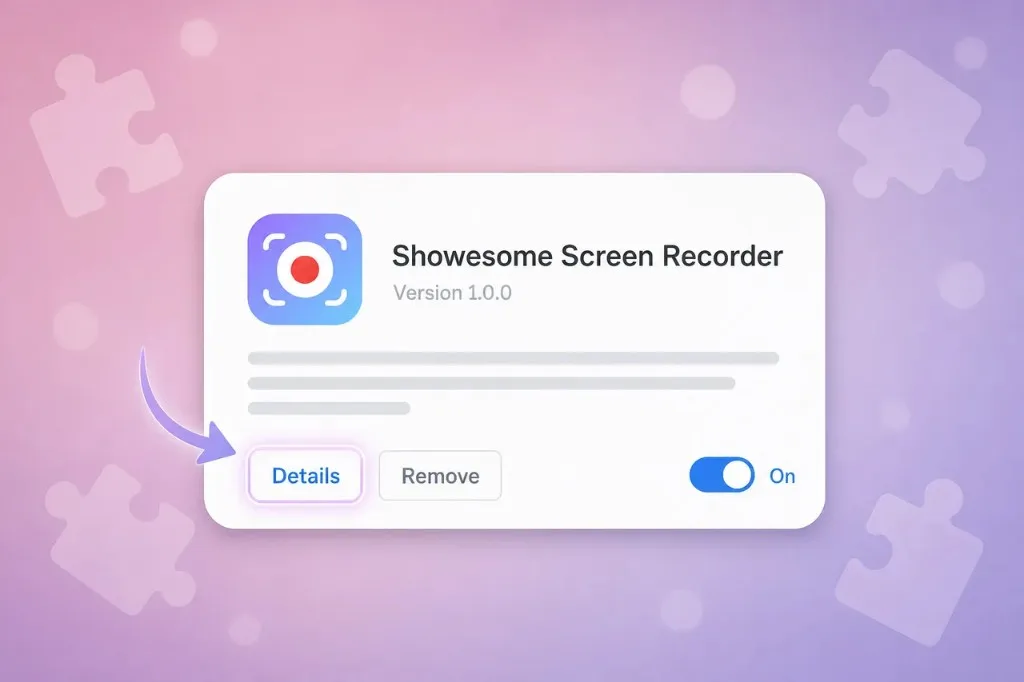
3. Turn on Allow in Incognito
On the Details page, scroll to Allow in Incognito:
- Read Chrome’s note about extensions in private windows (Chrome warns that extensions allowed in Incognito may still access browsing activity within those private windows).
- Turn Allow in Incognito on.
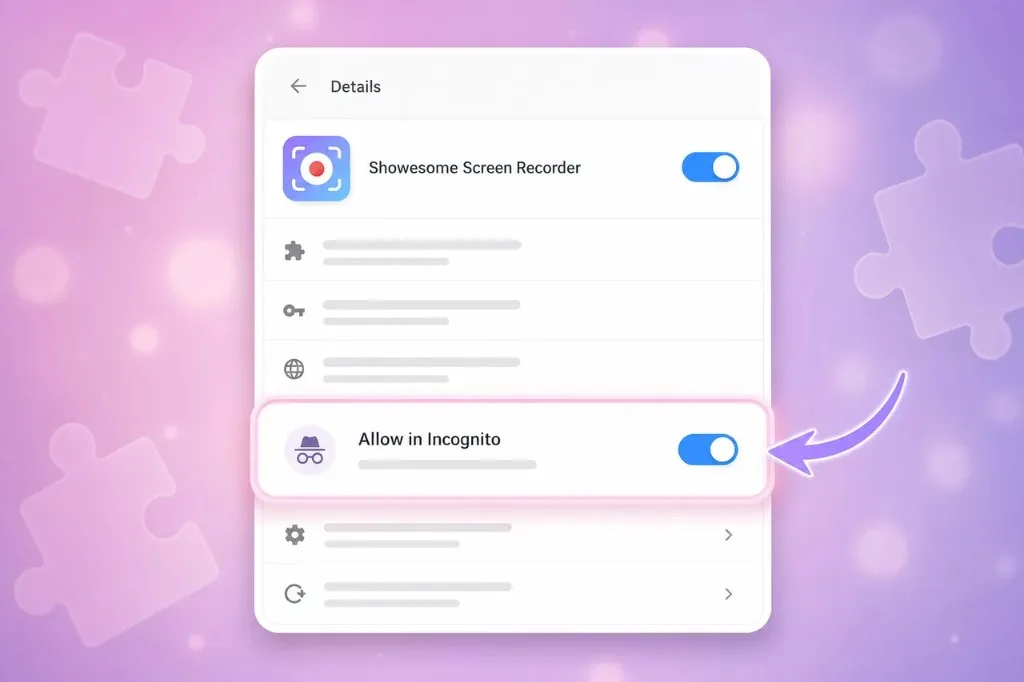
Chrome shows this toggle off by default for new installs — that is expected, not a bug in Showesome.
4. Use Showesome in a private window
- Open a new Incognito window (File → New Incognito Window, Ctrl/Cmd + Shift + N, or your browser’s menu).
- Open the Extensions menu (puzzle icon) and pin Showesome if the toolbar icon is hidden — same as in Enable and pin.
- Click the Showesome icon and start a recording.
Recordings made in Incognito are still stored locally on your device, the same as in normal windows — see Recordings library and Support.
Why doesn't Showesome work in Incognito mode?
Chrome blocks extensions in private windows by default. Enable Allow in Incognito on the Showesome extension Details page.
Where is Allow in Incognito for Chrome extensions?
chrome://extensions → Showesome → Details → Allow in Incognito. Toggle on, then open a new Incognito window and pin Showesome if needed.
Are recordings made in Incognito stored differently?
No — they use the same local Recordings History in Chrome. Incognito affects browsing privacy, not Showesome's on-device library.
Quick checklist
- Extensions menu → Manage Extensions (
chrome://extensions). - Showesome enabled (main toggle on).
- Details → Allow in Incognito on.
- Incognito window → pin Showesome if needed → start recording.
Related reading
- Enable and pin Showesome in Chrome — toolbar icon and
chrome://extensionsin normal windows. - Getting Started — interactive tour after the icon is visible.
- Support — FAQs and troubleshooting for permissions, audio, and shortcuts.
Was this guide helpful?
One vote per browser. No account required.
Be the first to share feedback.
Comments
Join the discussion — comments are moderated to keep things helpful. Be respectful and constructive.
Preparing sign-in…