Virtual backgrounds: blur, gallery backgrounds, and live preview
Webcam blur and virtual background effects for screen recording — preview in the camera bubble or full-screen camera before you record with Showesome.
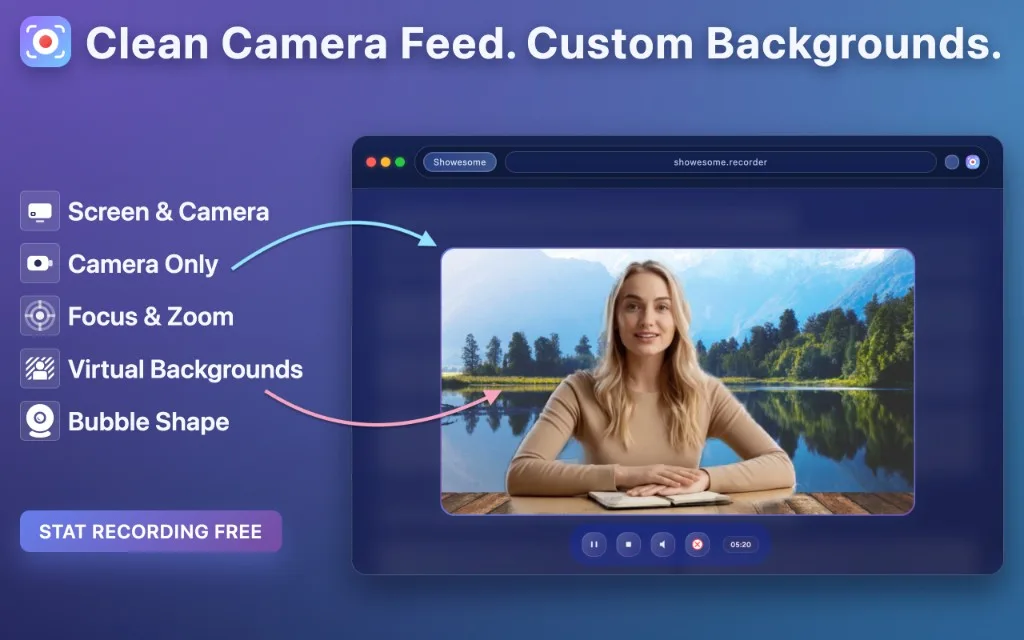
Virtual backgrounds help you hide distractions, create a cleaner setup, or keep tutorials looking professional — without worrying about what’s behind you. Showesome applies webcam blur and virtual background effects to your camera feed whenever your webcam is included in the recording — whether that’s a screen recording with a camera bubble or a camera-only clip.
When virtual backgrounds are available
Virtual backgrounds work in Screen + Camera and Camera Only. They do not apply in Screen Only mode, because there is no camera layer in the capture.
If you are choosing a recording mode, pick any mode that includes your webcam when you want blur or a gallery background.
Turn it on in Settings
Open the Showesome popup from the Chrome toolbar, then open Settings. Enable Virtual Background, then open the Background Gallery.
From there you can:
- Use blur to soften what’s behind you
- Choose from 8+ image and video backgrounds for a polished or creative look
- Preview changes in the camera bubble or full-screen view before you record
Preview before you record
You get a real-time preview in the camera bubble (or in full-screen camera view) before you hit record. That way you can check framing, lighting, and how the background looks with your face — not after export.
Set your background before you start recording. For camera-only clips you can also change backgrounds during preview while you are getting ready.
Virtual backgrounds are designed to be chosen before recording starts — plan the look in preview, then record. Test your setup in preview before you hit Start; that’s the best way to confirm everything looks right without guessing.
Bubble vs full-screen camera
Virtual backgrounds work in both layouts:
- Camera bubble — picture-in-picture over your screen in Screen + Camera, or over the page in camera-only bubble mode
- Full-screen camera — full-frame talking-head recording when you want the webcam to fill the frame
The same gallery and blur options apply in either layout.
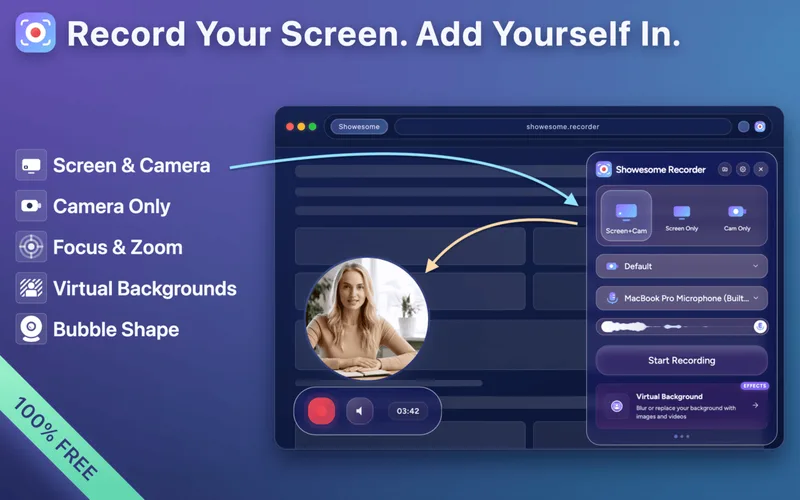
Good uses for blur vs a gallery background
Blur is ideal when you want privacy or a cleaner frame but still look natural — great for quick updates, webcam blur in everyday tutorials, and screen recordings where you only need to soften the room behind you.
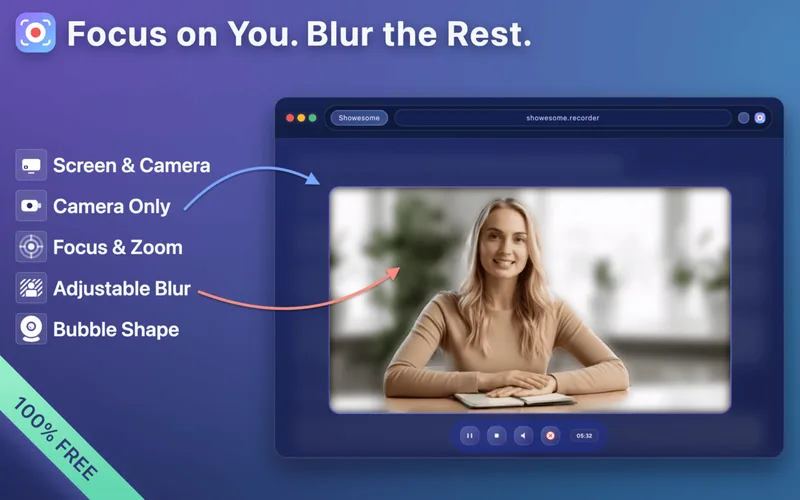
Gallery backgrounds (images or looping videos) help when you want a consistent branded look, a neutral studio feel, or a bit of personality without showing your real room — useful for background effects that match your content style.
Camera-only: change the background after you record
For most recordings, pick blur or a gallery background before you start — especially in Screen + Camera, where the camera layer is set up at record time.
Camera Only is different. If you already captured a clip and want a cleaner frame before you share it, open the recording from Recordings History and use the same gallery in the preview tab. Showesome applies blur or a backdrop on your device; when processing finishes, you have an updated MP4 ready to download — no need to record again.
Open on watch page (for search and full-screen viewing)
Post-recording backgrounds work only for Camera Only clips. Screen + Camera and Screen Only still rely on virtual backgrounds chosen before you hit Start.
For export, optional cloud upload, and the rest of the preview workflow, see preview and optional cloud backup.
Which recording modes support virtual backgrounds in Showesome?
Screen + Camera and Camera Only — blur or gallery backgrounds apply to the camera feed. Screen Only has no camera layer to replace.
Can I use blur instead of a gallery background?
Yes. Blur is the default virtual background option — good when your room is fine but you want less distraction behind you.
Can I change the virtual background after I stop recording?
Yes on Camera Only clips — preview page lets you try blur or gallery backgrounds before MP4 export. Live VB during capture works in Screen + Camera and Camera Only.
Related reading
- Walk through controls in the interactive Virtual Background Tutorial.
- Learn when to use each recording mode — Screen + Camera, Screen Only, and Camera Only.
- Your recordings library — open clips from Recordings History.
- Preview, export, and optional cloud backup — watch, apply post-recording backgrounds, and export MP4.
- Focus Mode tips help you spotlight what matters on screen while you present.
- Support — FAQs and troubleshooting for blur, gallery backgrounds, preview, and MP4 export.
Was this guide helpful?
One vote per browser. No account required.
Be the first to share feedback.
Comments
Join the discussion — comments are moderated to keep things helpful. Be respectful and constructive.
Preparing sign-in…