Preview, export, and optional cloud backup for your recordings
Preview Chrome recordings in-browser, convert WebM to MP4 in Chrome, and optionally upload screen recordings to Google Drive, Dropbox, or YouTube — save recordings locally by default.
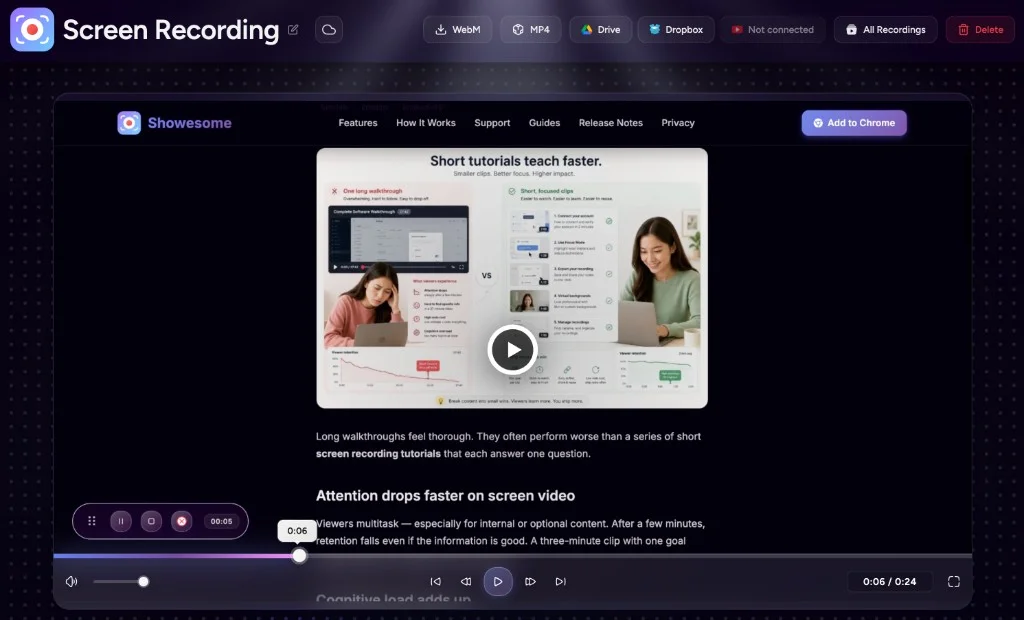
You found a clip in Recordings History — now what? Showesome’s preview tab is where you watch, rename, export, or remove a recording.
Preview is the fastest way to review a recording before you export, convert, or share it. Clips are already kept in your Showesome library in Chrome after you record — Download MP4 / Download WebM saves an extra copy outside the library if you need one.
This guide continues the recordings series — part one covers statistics, search, and library views.
Open preview from the library or statistics panel
- Recordings History — click any Compact, Large, or List tile/row.
- Popup statistics — tap Last Recording or a Most Recent row.
Preview opens in a new extension tab. Playback starts automatically so you can confirm you have the right take before sharing.
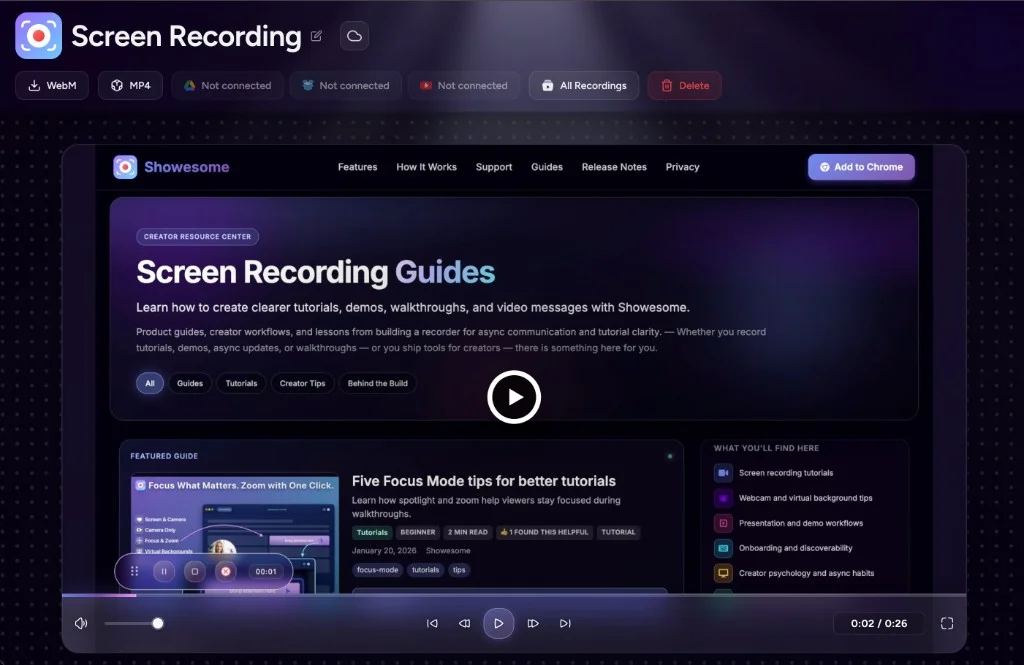
What you can do on the preview page
Everything below lives in the preview header or player — one screen, no extra menus.
| Action | What it does |
|---|---|
| Watch | Full player — seek, volume, fullscreen |
| Edit title | Pencil next to the name — easier to find later in Recordings History |
| Download WebM | Save the original capture from the header |
| Convert to MP4 | Convert the clip locally, then use Download MP4 when ready |
| Download MP4 | Shareable file after conversion (or after camera-only background processing) |
| Upload to Cloud | Send a copy to Google Drive, Dropbox, or YouTube when accounts are connected |
| Virtual background | Camera-only recordings — apply blur or a gallery backdrop after recording |
| All Recordings | Jump back to Recordings History |
| Delete | Remove this clip from local storage |
Recorded several similar takes? Watch once in preview, remove the extra clips, then Convert to MP4 and Download MP4 for the version you want to keep.
Export to MP4 (and download WebM)
Chrome saves recordings as WebM by default, but many apps and editors work better with MP4. You can convert WebM to MP4 in Chrome from preview — no separate desktop app required. Full walkthrough: Convert WebM to MP4 in Chrome (locally).
On preview:
- Click Convert to MP4 in the header.
- Wait for conversion to finish; progress stays in the tab.
- Use Download MP4 or Download WebM to export a copy to your computer (the recording remains in your library until you delete it).
You can also download from Recordings History without opening preview, but preview is the best place to watch first, then export the version you actually want.
Tip: Convert once, download, then share. Screen and Screen + Camera clips usually need Convert to MP4 first. Camera-only virtual background works differently — see below.
Camera-only: change virtual background after you record
For Camera Only recordings, preview is more than playback — you can add or change virtual background after the recording is finished.
That matters when you recorded in a hurry but want a blur or gallery backdrop before sending the clip. Open preview, pick a background from the same gallery as in Virtual backgrounds, and let Showesome apply it locally. When processing finishes, the clip is already MP4 — use Download MP4 or Upload to Cloud without a separate export step.
Open on watch page (for search and full-screen viewing)
Post-recording virtual background editing is available only for Camera Only recordings. For Screen + Camera or Screen Only, set the background before you record.
Optional cloud backup
Showesome does not upload recordings by default. We do not store your videos on our servers. If you want a copy in Google Drive, Dropbox, or YouTube, you connect accounts yourself and upload when you choose.
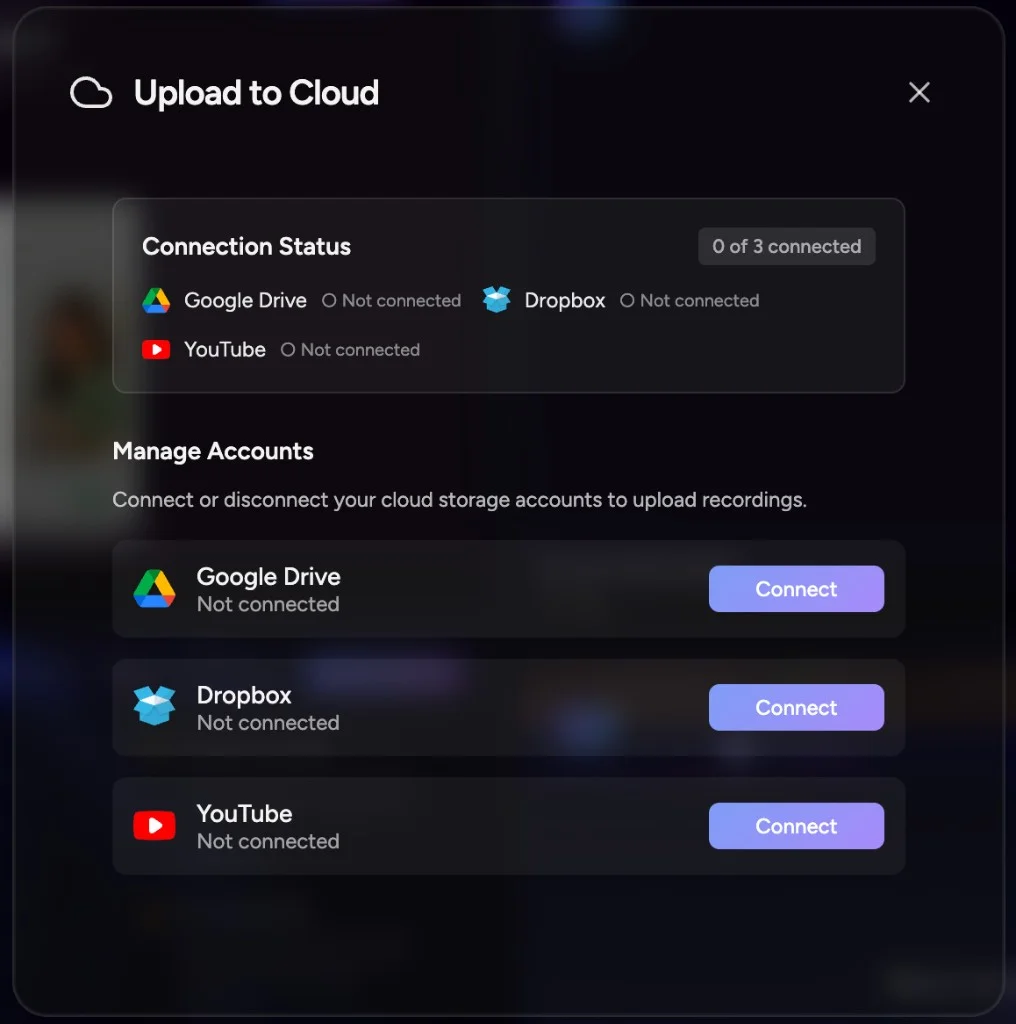
Open Upload to Cloud from:
- The cloud icon on Recordings History, or
- Cloud actions on the preview header (Drive, Dropbox, YouTube).
How it works
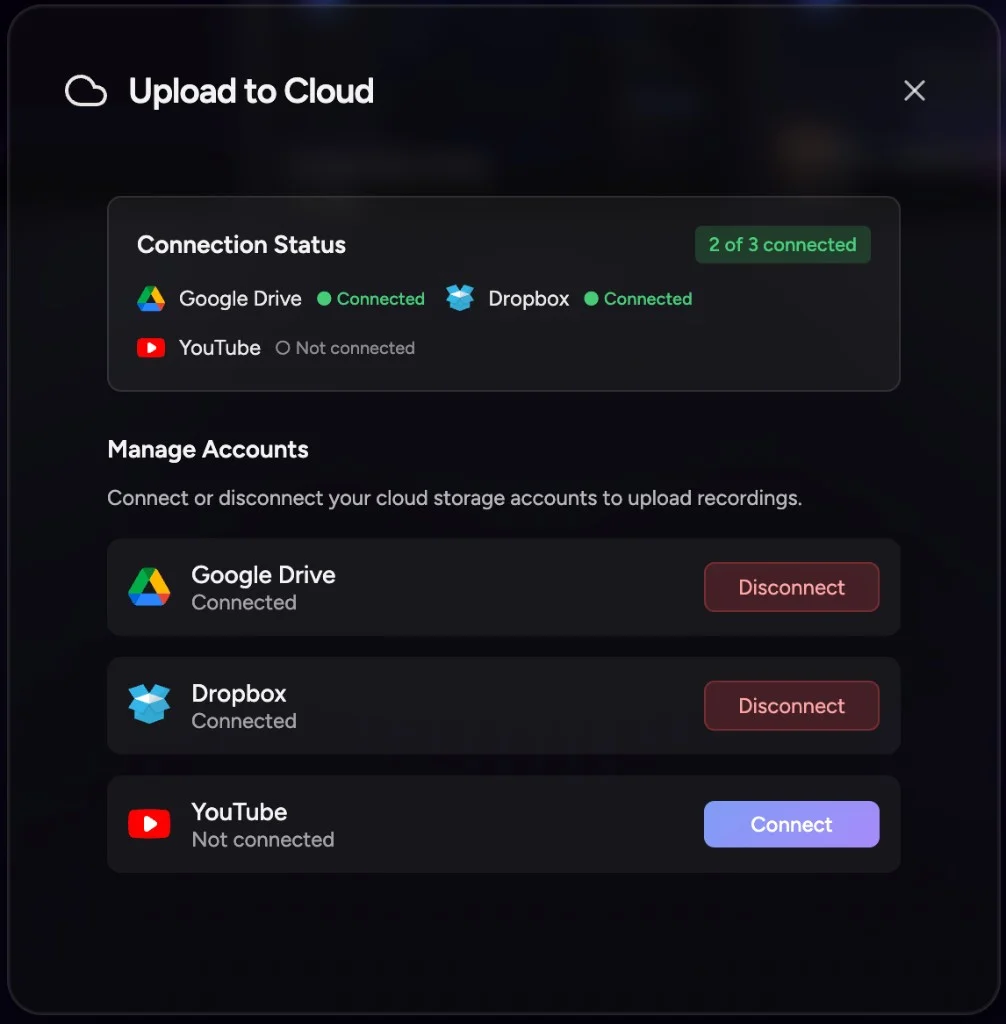
- Open Upload to Cloud and tap Connect only for the services you want (a “not connected” row is normal).
- Sign in through the provider’s OAuth flow in Chrome.
- From preview or the library, upload a recording when you choose — progress and sync badges show status.
- Disconnect anytime from the same modal; local files stay unless you delete them.
Many people save Chrome recordings locally and never connect a cloud account. Upload is there when you want an extra copy in Drive, Dropbox, or YouTube.
How do I convert a recording to MP4 in Chrome?
Open the clip in preview → Export MP4. Showesome converts WebM captures locally in the browser — see WebM to MP4 guide.
Does Showesome upload my videos automatically?
No. Upload to Google Drive, Dropbox, or YouTube only when you connect a service and choose to send a clip.
Can I change the virtual background after recording?
Yes for Camera Only clips — apply blur or gallery backgrounds on the preview page before export. Live backgrounds during capture work in Screen + Camera and Camera Only.
Quick checklist
- Open a clip from the library guide flow.
- Watch in preview — confirm it is the right take.
- Convert to MP4 when you need a shareable file; Download WebM if you prefer the original.
- Camera only? Apply a virtual background in preview — the updated clip is MP4 when processing finishes.
- Optional: connect a cloud account and upload copies you care about.
- Return to All Recordings for the next clip.
Related reading
- Convert WebM to MP4 in Chrome (locally) — dedicated export walkthrough and local vs cloud converters.
- Your recordings library — stats, search, Compact / Large / List.
- Virtual backgrounds — gallery and setup before recording.
- Getting Started — step 8 statistics & recordings.
- Support — FAQs on preview, MP4, and cloud upload.
Was this guide helpful?
One vote per browser. No account required.
Be the first to share feedback.
Comments
Join the discussion — comments are moderated to keep things helpful. Be respectful and constructive.
Preparing sign-in…