How to record better software tutorials without editing
Practical ways to record clearer software tutorials in one take — spotlight UI, zoom text, pace your cursor, and use your camera intentionally with Showesome.
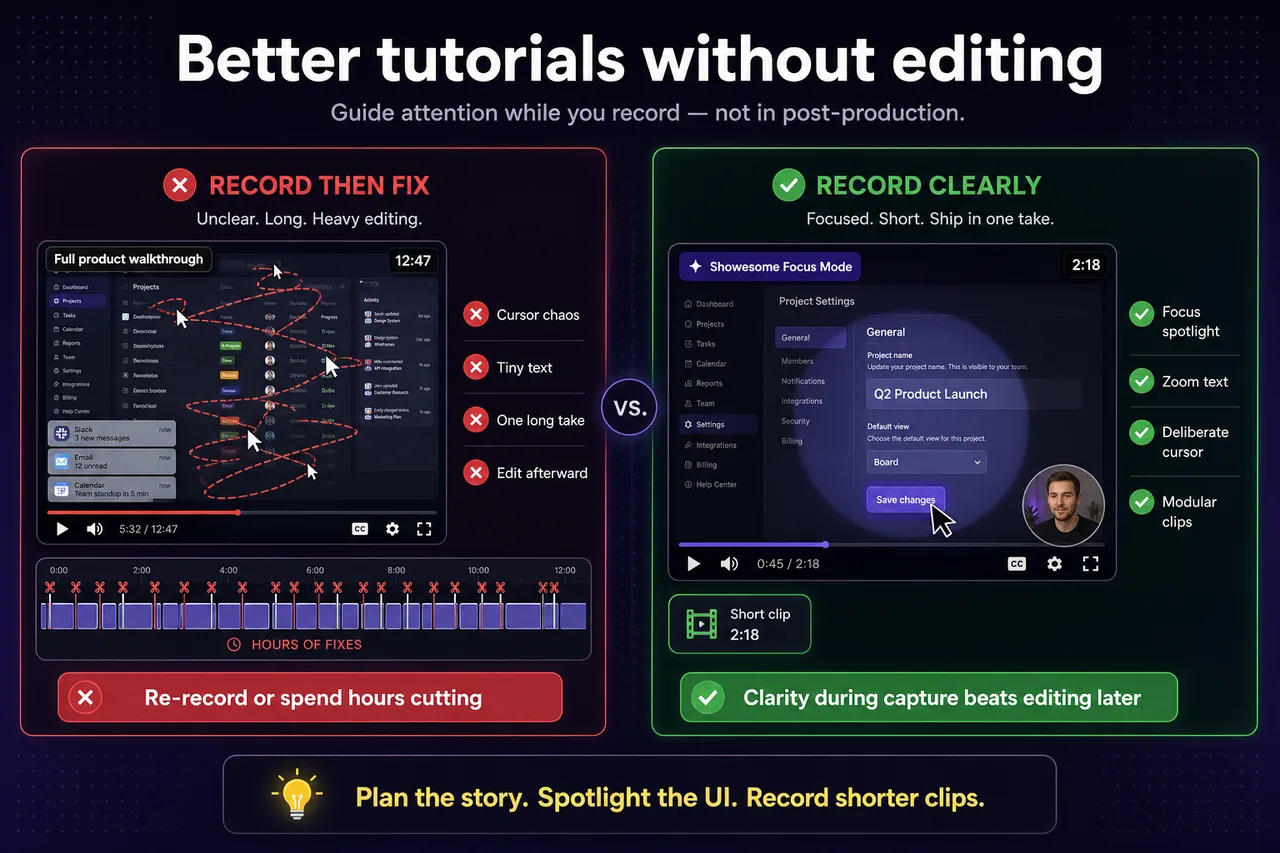
Most tutorial creators do not lack editing skill — they lack clarity while recording. If you guide attention on screen during the capture, you can ship useful tutorials without cutting together dozens of fixes afterward.
Plan the story before you hit record
Decide what the viewer should understand in the first 30 seconds. Open the right tab, close unrelated windows, and know which three steps you will show. A short outline beats a long improvisation.
Spotlight the UI, not the whole desktop
Viewers get lost when everything on screen competes for attention. Use Focus Mode to click an element and spotlight it, or hold Shift and drag to highlight a region when several controls belong together.
That is faster than re-recording because “they could not see the button.” See Focus Mode tips for shortcuts.
Zoom text instead of apologizing for small fonts
Select labels, error messages, or settings values and zoom in while you explain. A five-second zoom often replaces a minute of narration.
Reduce cursor chaos
Move deliberately. Pause on the control before you click. Avoid circling the screen or flicking between corners unless the workflow requires it. Your cursor is part of the presentation.
Use your camera with purpose
For walkthroughs, Screen + Camera adds presence without hiding the product. Drag the bubble so it does not cover the UI you are explaining. For quick intros, Camera Only can work — see choosing a recording mode.
Record shorter clips
One ten-minute ramble is harder to follow than three focused two-minute segments. Shorter clips are easier to re-record when you miss a step.
Do I need a video editor if I use Focus Mode while recording?
Usually no for software walkthroughs. Focus Mode spotlights buttons, text, and custom areas while you record — replacing many post-production arrows and zooms. Save editing for trimming mistakes or stitching modular clips.
Which Showesome recording mode works best for software tutorials?
Screen + Camera for most SaaS and app demos — viewers see your screen and your face in the draggable bubble. Use Screen Only when the UI alone tells the story.
How do I highlight a button without re-recording the whole clip?
Double-tap Cmd/Ctrl to enter Focus Mode, then click the element. Showesome zooms in on that control in one take. See auto zoom without editing.
Related reading
Was this guide helpful?
One vote per browser. No account required.
Be the first to share feedback.
Comments
Join the discussion — comments are moderated to keep things helpful. Be respectful and constructive.
Preparing sign-in…