How to record Zoom or Google Meet in Chrome (your own tab + audio)
Record your own Zoom or Google Meet presentation tab in Chrome with audio — consent-safe workflow, tab audio toggle, microphone setup, and MP4 export.
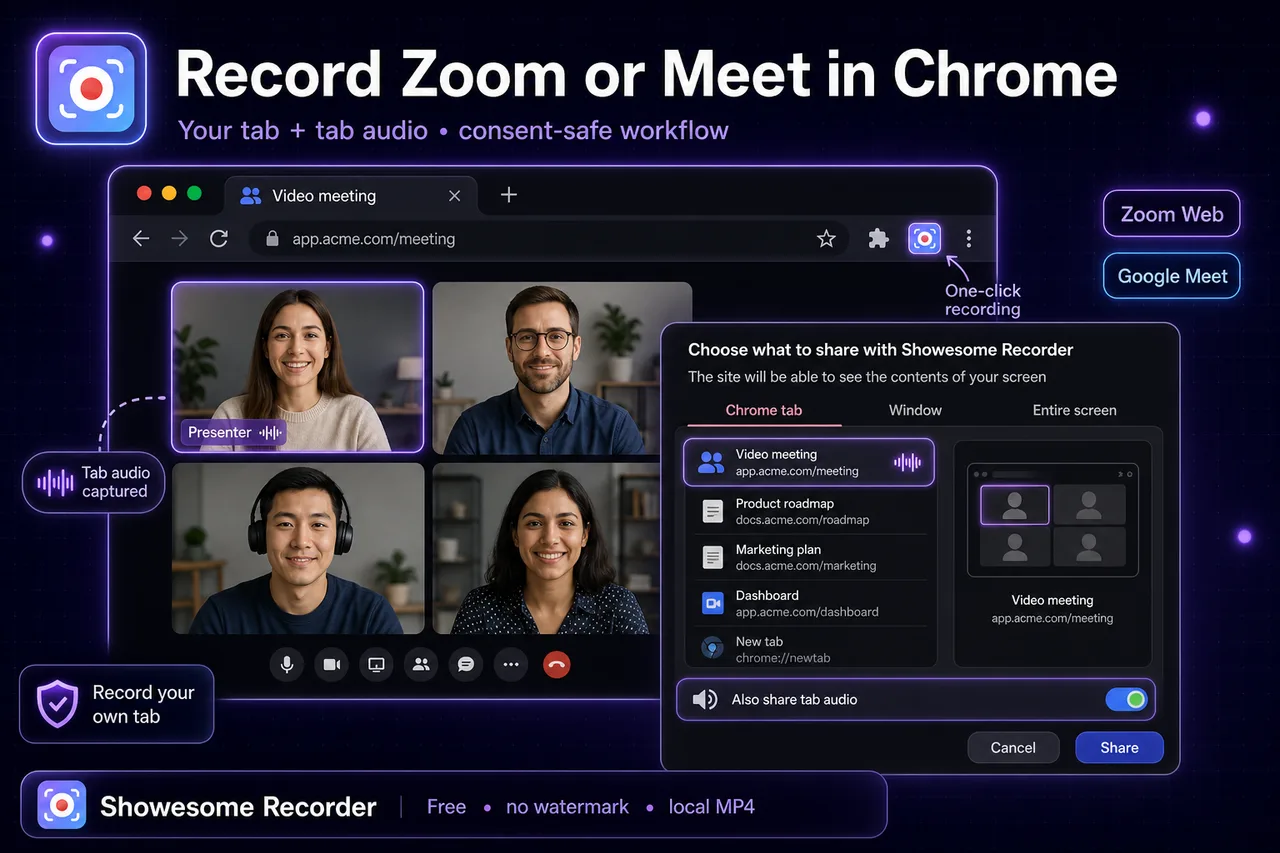
Yes - you can record Zoom or Google Meet in Chrome when you record your own shared tab and follow your organization rules. In Showesome, choose a recording mode, pick your mic, select Chrome tab, enable Also share tab audio, and export MP4 locally.
This guide focuses on consent-safe recording of your own meeting presentations, demos, and training sessions.
Open on watch page (for search and full-screen viewing)
First: consent and policy (important)
Before recording any meeting content:
- Follow your company/school policy and local law
- Tell participants when recording is active if policy requires it
- Prefer recording your own presentation tab or content you own
- Avoid recording private discussions without clear permission
This article is about recording workflows in Chrome, not legal advice.
Quick setup for Meet/Zoom tab recording
- Open Showesome in Chrome.
- Choose Screen Only or Screen + Camera.
- Select your microphone.
- Click Start Recording.
- In Chrome's share dialog, pick Chrome tab and select the Meet or Zoom tab.
- Enable Also share tab audio.
- Click Share.
If the meeting platform opens a desktop app instead of a tab, this guide does not apply; use your platform's native recorder or desktop tools.
Meet vs Zoom in Chrome: what actually matters
| Scenario | Recommended capture |
|---|---|
| You present slides in Meet | Share the Meet tab + enable tab audio |
| You demo a web app during Zoom in browser | Share the demo tab directly when possible |
| You need full desktop + many sources | Consider OBS or platform-native tools |
| You just need a recap clip | Chrome tab recording is usually enough |
For full tab-audio fundamentals, see How to record a Chrome tab with audio.
Audio: tab sound vs microphone
These are separate inputs:
- Tab audio toggle captures sound coming from the tab
- Microphone captures your narration
Most silent meeting recordings happen because Also share tab audio was off.
If audio is still missing, use Screen recording has no sound.
Meet workflow (consent-safe)
- Join in Chrome.
- Start Showesome.
- Select the Meet tab in Chrome's share picker.
- Turn on tab audio.
- Narrate with your mic as needed.
- Stop recording and review in preview.
For Slides-heavy classes, pair this with Record Google Slides presentation in Chrome.
Zoom workflow in Chrome
- Use Zoom Web (browser tab), not the desktop app, for this method.
- Start Showesome and select the Zoom tab.
- Enable tab audio and mic.
- Record your hosted segment or training demo.
- Export MP4 locally.
If your team uses the desktop Zoom app only, use desktop capture workflows instead.
Troubleshooting
| Problem | Fix |
|---|---|
| No meeting sound | Re-record with Also share tab audio enabled |
| You hear yourself doubled | Mute one monitoring path/headphones; avoid loopback |
| Wrong tab recorded | Re-open share dialog and pick the correct tab |
| Camera missing | Check Chrome camera permissions and selected device |
| Choppy long sessions | Close heavy tabs, reduce background load, record shorter segments |
Should I use OBS instead?
Use OBS when you need streaming, multi-scene layouts, or complex routing.
Use Chrome extension recording when you need fast, clear, browser-first captures.
See OBS vs Chrome screen recorder for a full side-by-side.
Can I record Google Meet or Zoom with tab audio in Chrome without the desktop app?
Yes — when the meeting runs in a Chrome tab (Zoom Web or Meet in browser). Select that tab in Chrome's share dialog and enable Also share tab audio. The desktop Zoom/Meet apps need a different workflow.
Related reading
- How to record a Chrome tab with audio
- How to record your screen on Chrome (2026)
- Record a product demo in Chrome
- Support
Quick checklist
- Confirm your policy/consent requirements.
- Record your own Chrome meeting tab.
- Turn on Also share tab audio and mic.
- Keep clips focused; split long sessions.
- Export MP4 locally from preview.
Was this guide helpful?
One vote per browser. No account required.
Be the first to share feedback.
Comments
Join the discussion — comments are moderated to keep things helpful. Be respectful and constructive.
Preparing sign-in…