How to record a Chrome tab with audio
Record a Chrome tab with tab audio and microphone narration — modes, share dialog settings, and tips for clean browser recordings.
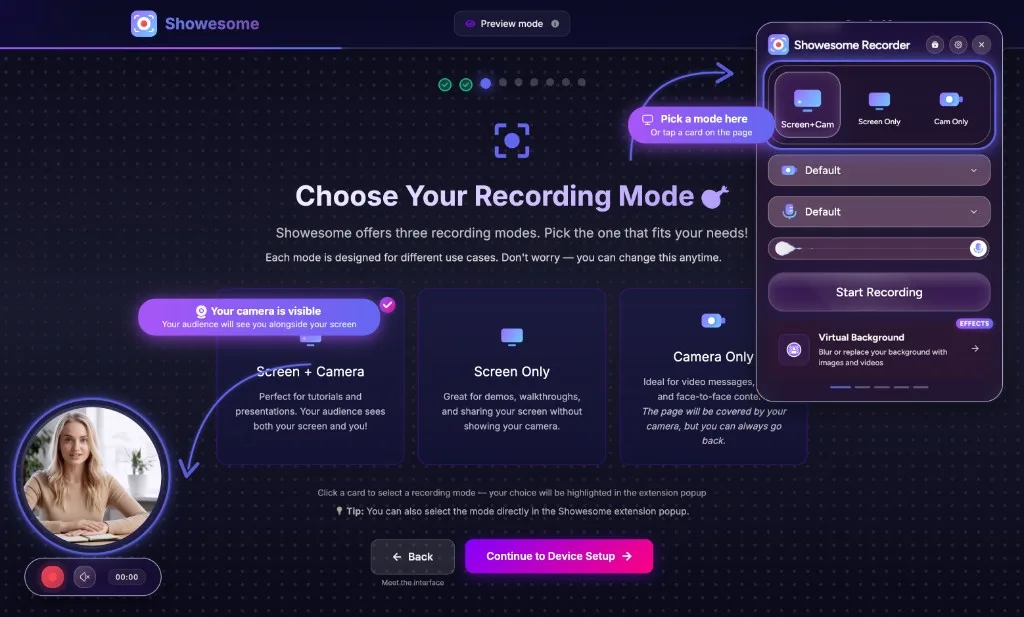
Recording a Chrome tab is one of the most common screen recording jobs: demos, tutorials, bug reports, and async updates. The goal is simple: capture the tab clearly, with audio viewers can actually hear.
For microphone setup, mute, and how tab sound fits with screen capture overall, start with Record your screen with audio.
Tab audio missing on a recording you already made? Share tab audio missing in Chrome. No sound at all (mic or tab)? Screen recording has no sound?.
Open on watch page (for search and full-screen viewing)
Quick setup
- Open Showesome from the Chrome toolbar
- Choose Screen Only or Screen + Camera
- Select your microphone (and camera if needed)
- Click Start Recording
- In Chrome’s share dialog, pick Chrome tab and select the tab
- Enable Also share tab audio when the tab has sound you need
- Start recording
Pick the right recording mode
In Showesome, choose Screen Only when the tab content alone should tell the story, or Screen + Camera when you want your face in a bubble while showing the tab. Compare recording modes for tutorials vs quick demos.
Start from the extension popup
Open Showesome from the Chrome toolbar, select your mode, choose mic (and camera if needed), then click Start Recording. Chrome’s share dialog lets you pick Chrome tab and the specific tab to capture.
Enable tab audio when you need it
If the recording should include sound from the tab (video, app audio, meeting playback), select the tab in Chrome’s picker and turn on Also share tab audio before you click Share. Mic audio is separate — useful for narration over what plays in the browser.
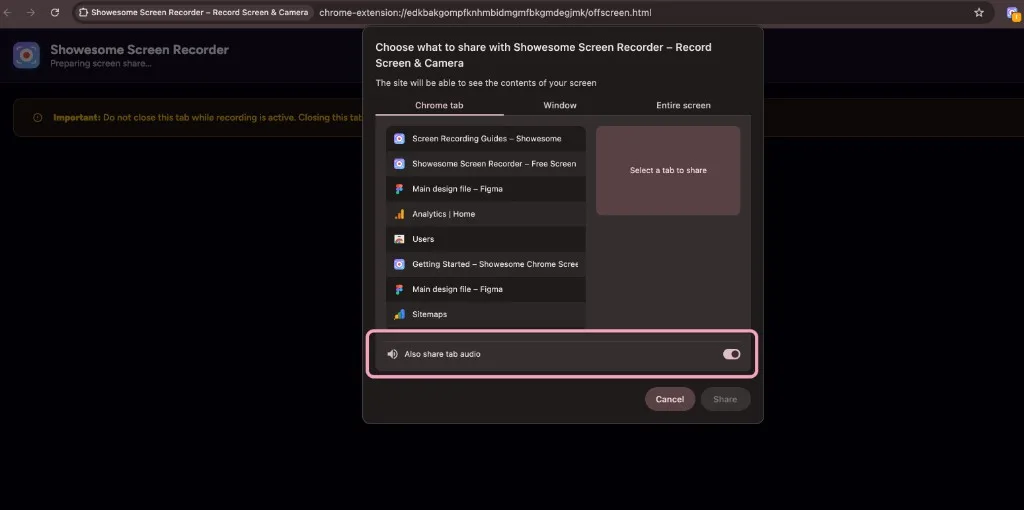
Common mistake: If viewers cannot hear tab audio, the most common cause is forgetting to enable Also share tab audio in Chrome’s picker. Tab sound and microphone narration are two different toggles — turn on both when you need both.
Narrate with a clear microphone
Built-in mics work for short clips; a dedicated mic helps for tutorials. Check levels in the popup before you record so narration is not too quiet compared to tab audio.
Keep the recording focused
Close unrelated tabs in the same window when possible, or record a single tab so viewers are not distracted by other titles flashing in the background.
Export locally when you are done
Showesome saves recordings locally and exports to MP4 — useful for attaching recordings to tickets, docs, or team chats without relying on a hosted platform.
How do I record a Chrome tab with sound?
Start Showesome → pick a mode → Start Recording → choose Chrome tab → enable Also share tab audio → Share. Tab audio and your mic are separate inputs — turn both on when you need narration plus page sound.
Why is tab audio missing from my recording?
Also share tab audio was off in Chrome's share dialog, or you shared a window/screen instead of the tab. Re-open the picker, select Chrome tab, and toggle tab audio on. Full troubleshooting: Share tab audio missing in Chrome?.
Do I need Screen Only or Screen + Camera to record a tab?
Either works. Use Screen + Camera when viewers should see you; Screen Only when only the tab content matters.
Related reading
- Record Zoom/Google Meet in Chrome (your own tab + audio) - consent-safe workflow for meeting tabs.
- How to record a screen recording bug report — Screen Only repros and MP4 for tickets
- Record a Google Slides presentation in Chrome — Slides tab + Focus Mode on charts and bullets
- Record your screen with audio — mic, mute, and tab sound overview.
- How to record better software tutorials without editing
- Screen recording tips for remote teams
- Common screen recording mistakes
- Support — FAQs and troubleshooting for tab audio, permissions, and mic setup.
Was this guide helpful?
One vote per browser. No account required.
Be the first to share feedback.
Comments
Join the discussion — comments are moderated to keep things helpful. Be respectful and constructive.
Preparing sign-in…