Share tab audio missing in Chrome? Fix tab recording (2026)
Tab audio not in your Chrome recording? Fix missing Also share tab audio — pick Chrome tab not window, unmute the tab, handle DRM sites, and record tab sound with Showesome.
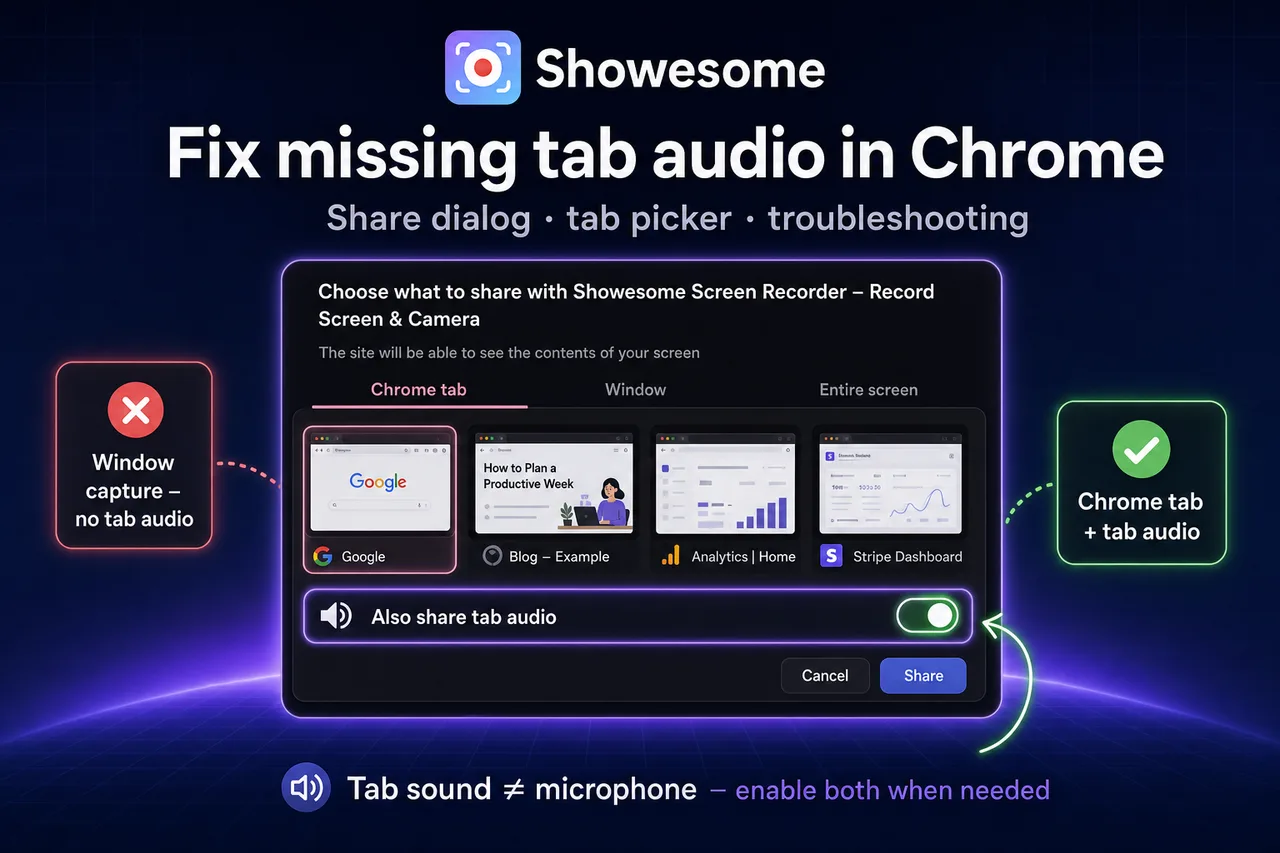
Tab audio is missing when you share the wrong target, leave Also share tab audio off, or the tab itself is muted — not because Showesome failed to export. Chrome only routes tab sound when you pick Chrome tab in the share dialog and enable Also share tab audio before you click Share.
This guide is the troubleshooting companion to How to record a Chrome tab with audio — symptom → fix, plus how tab recording works without a separate desktop app.
Match your symptom (30 seconds)
| What you hear on playback | Likely cause | Jump to |
|---|---|---|
| Your voice only, no YouTube / tab sound | Also share tab audio off, or you shared Window / Entire screen | Enable tab audio |
| Tab sound only, no narration | Mic muted in popup or wrong input | Mic fixes |
| Nothing at all | Permissions, mute, or wrong mode | No sound guide |
| Tab audio checkbox missing | Wrong share target or outdated Chrome | Checkbox missing |
| Some sites silent (Netflix, Spotify) | DRM — browsers block capture | DRM limits |
Quick test: Open a YouTube video in the tab you will share. Record 10 seconds with narration. If you hear yourself but not the video, tab audio is the problem — not the mic.
1. Enable Also share tab audio (Chrome tab only)
Tab audio only appears when you share a Chrome tab — not a window or full screen.
- Click Start Recording in Showesome (or your Chrome recorder).
- In Chrome’s picker, select Chrome tab (not Window, not Entire screen).
- Click the tab thumbnail that plays the sound you need.
- Turn Also share tab audio on.
- Click Share.
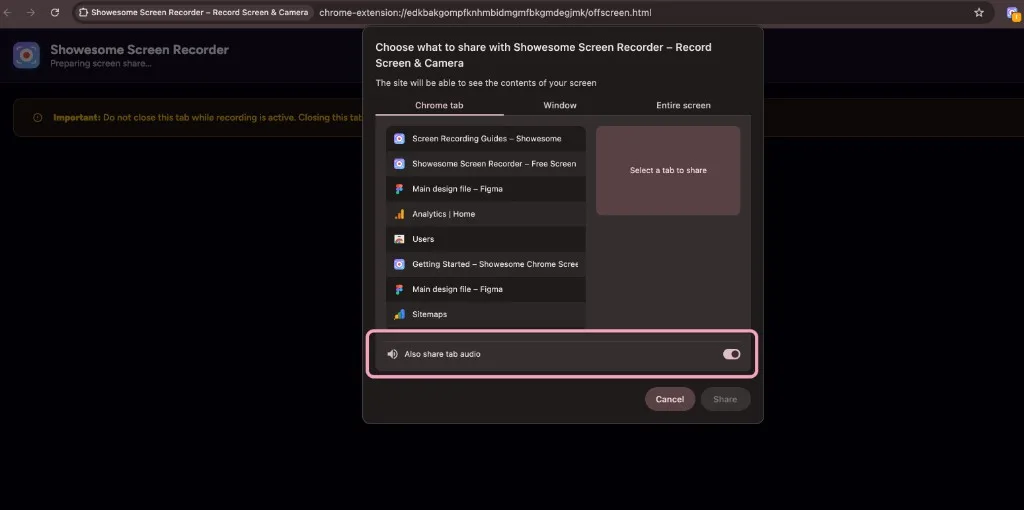
Common mistake: Picking Entire screen captures video but not reliable tab audio for browser playback. Switch to Chrome tab for YouTube, web apps, Google Slides embeds, and Meet/Zoom tabs you control.
Step-by-step setup (modes, export): Record a Chrome tab with audio.
2. Unmute the tab and check site playback
Chrome cannot record tab audio from a muted tab.
| Check | How |
|---|---|
| Tab muted? | Right-click the tab → Unmute site (or click the speaker icon on the tab) |
| Video paused? | Press play before you click Share |
| Autoplay blocked? | Click the page once so audio starts — then record |
| System volume | Confirm OS volume and browser are not muted — volume mixer on Windows, Mac menu bar on macOS |
Reload the tab after changing mute state, then open the share dialog again.
3. Window vs tab vs entire screen
| Share target | Tab audio from browser playback |
|---|---|
| Chrome tab | Yes — when Also share tab audio is on |
| Window | Unreliable for tab sound — use tab share instead |
| Entire screen | Unreliable for Chrome tab audio — use tab share instead |
If you need desktop app audio (Spotify desktop, native Zoom client), Chrome tab capture will not help — see system audio on Mac and Windows.
4. Tab audio toggle missing or greyed out
If you do not see Also share tab audio:
- Confirm you selected Chrome tab — the toggle often does not appear for Window or Entire screen.
- Update Chrome — Settings → About Chrome → restart when prompted.
- Try a normal (non-Incognito) window first — extensions need Allow in Incognito for private windows.
- Managed Chrome (school/work): IT may restrict screen capture — ask whether tab recording is allowed.
On Chromebook, tab audio depends on your Chrome OS build — see record screen on Chromebook.
5. Can I record a Chrome tab without an extension?
Chrome does not ship a built-in “record this tab with audio” button. Any tab recording goes through Chrome’s getDisplayMedia share dialog — usually opened by:
- A Chrome extension (for example Showesome) — Chrome Web Store
- Developer tools or scripts (not practical for most users)
Without installing anything in Chrome, your options are OS-level recorders:
| Tool | Tab audio in browser? |
|---|---|
| Mac QuickTime / Screenshot | No tab audio by default — Mac guide |
| Windows Game Bar | App audio, not the same as Chrome tab audio toggle — Windows guide |
| Showesome in Chrome | Yes — native Chrome tab + Also share tab audio |
For web tutorials, a free Chrome extension is the straightforward path — one share dialog for tab video + tab audio + mic.
6. DRM and protected content will not record
Netflix, Disney+, Spotify Web, some paid course players, and other DRM-protected streams intentionally block capture. Symptoms:
- Black video in the recording
- Silent audio even with Also share tab audio on
- Share dialog works but playback is empty
Workarounds (legitimate content only):
- Record a non-DRM demo (your own slide deck, sandbox app, public YouTube)
- Use the provider’s official download or share feature instead of screen capture
- For tutorials, re-create the clip in a Google Slides or docs tab you control
7. Still broken? Extension and permission checks
| Step | Action |
|---|---|
| Pin Showesome | Enable and pin the extension |
| Allow mic | Popup mic toggle + OS permission for Chrome — permissions guide |
| Correct mode | Screen Only or Screen + Camera — not Camera Only |
| Fresh share dialog | Stop recording → start again — Chrome remembers the last share choice |
| Test site | Try youtube.com in a dedicated tab to isolate site-specific blocks |
Recording tab + mic with Showesome (recap)
- Pin Showesome → Screen Only or Screen + Camera.
- Select Microphone → unmute.
- Start Recording → Chrome tab → pick tab → Also share tab audio on → Share.
- Stop → Convert to MP4 from Recordings History.
Open on watch page (for search and full-screen viewing)
Why is Also share tab audio missing from my recording?
You shared Window/Entire screen, left the toggle off, or the tab was muted. Re-record with Chrome tab selected and Also share tab audio enabled.
Can I capture tab audio without a Chrome extension?
Not through a built-in Chrome button. OS recorders (QuickTime, Game Bar) do not replace Chrome’s tab-audio toggle. Use Showesome or another extension to open the native tab share dialog.
Does tab audio include my microphone?
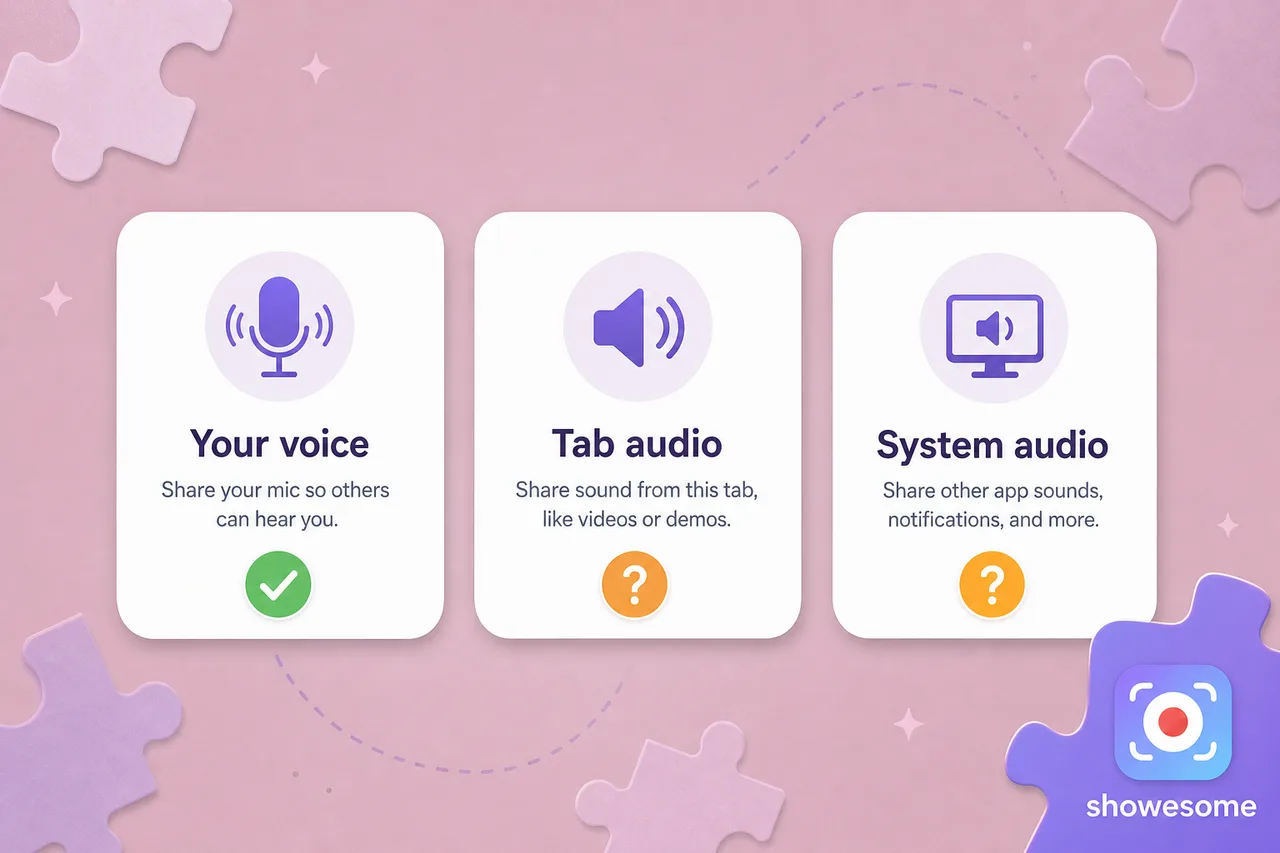
No — they are separate. Also share tab audio captures page playback; the Microphone setting in Showesome captures your voice. Enable both for narration over a video.
Related reading
- How to record a Chrome tab with audio — setup walkthrough and export.
- Screen recording has no sound? — mic vs tab vs system audio.
- Record Zoom / Google Meet in Chrome — meeting tab workflow.
- Record your screen with audio — mic, mute, and tab sound overview.
- Support — FAQs and troubleshooting.
Quick checklist
- Chrome tab — not Window or Entire screen.
- Also share tab audio — on before Share.
- Tab unmuted — site playing audio before you record.
- Mic — separate toggle in Showesome for narration.
- DRM sites — expect silence; use non-protected demo content.
Was this guide helpful?
One vote per browser. No account required.
Be the first to share feedback.
Comments
Join the discussion — comments are moderated to keep things helpful. Be respectful and constructive.
Preparing sign-in…