Chrome won't let me record — fix permissions & camera blocked (Mac and Windows)
Screen recording blocked in Chrome? Fix camera, microphone, and screen capture permissions on Mac and Windows — Chrome site settings, OS privacy, pin the extension, and run a test clip.
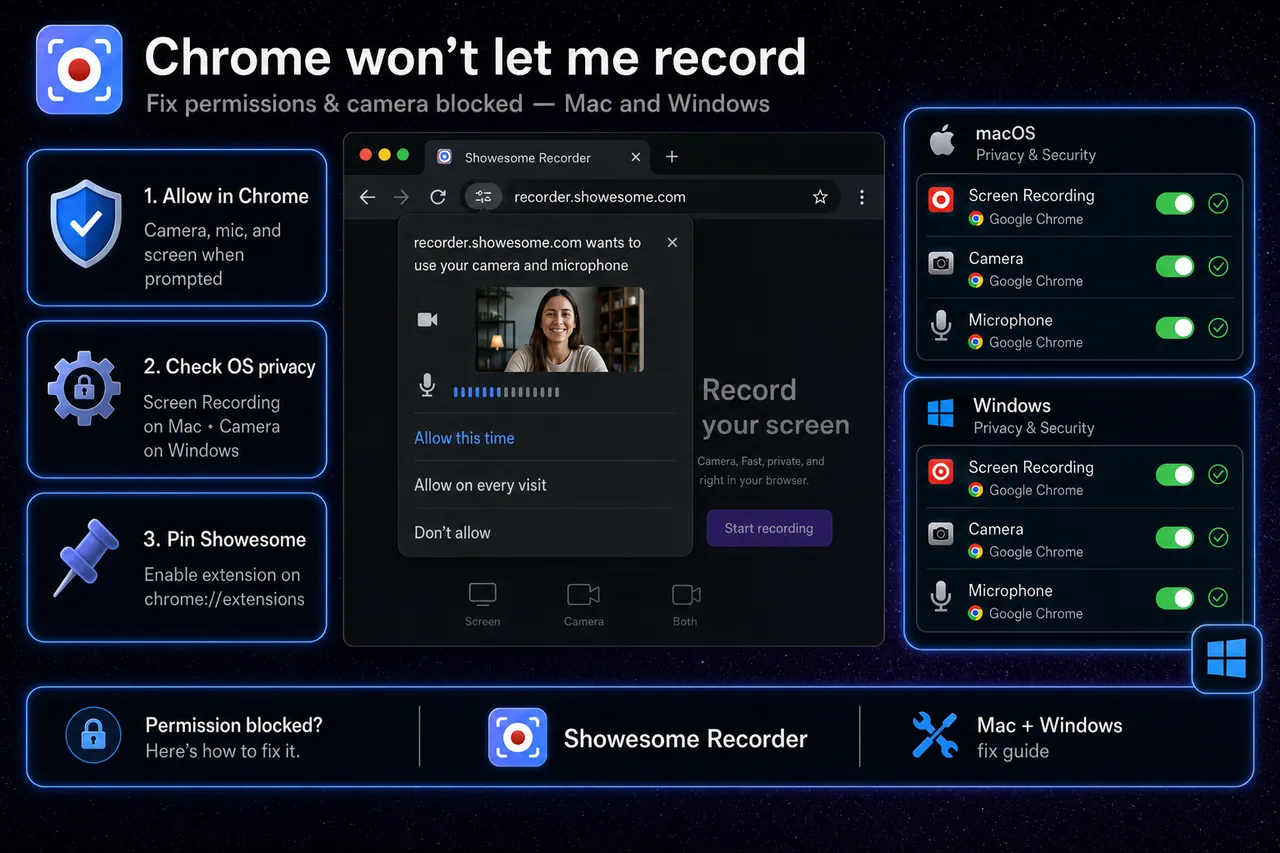
Chrome blocks screen recording when camera, microphone, or screen-capture permission is denied — at the OS level, in Chrome site settings, or because the extension is disabled. Fix the layer that matches your symptom: allow Google Chrome in Mac or Windows privacy settings, reset camera / mic / screen in chrome://settings/content, enable and pin Showesome, then record a 10-second test clip.
This guide is for permission and access blocks, not silent audio after a successful recording. If playback has no sound, see Screen recording has no sound?.
1. Match your symptom (30 seconds)
| What you see | Likely layer | Jump to |
|---|---|---|
| Nothing happens when you click Start Recording | Extension disabled or not pinned | Enable & pin Showesome |
| Chrome says permission denied or blocked | Chrome or OS privacy setting | Chrome site settings + Mac / Windows |
| Black camera bubble or no webcam preview | Camera blocked for Chrome | Camera fixes |
| Share dialog never appears | Screen capture blocked or popup blocked | Screen capture |
| Works in normal Chrome but not Incognito | Incognito extension access off | Incognito |
| Recording starts but no voice (not a block) | Audio setup, not permissions | No sound guide |
Quick test: After each fix, record 10 seconds with narration (“testing one two”). Success means permissions are working — tune audio separately if needed.
2. Enable and pin the extension
Before OS settings, confirm Showesome is actually running:
- Open
chrome://extensions(or Extensions menu → Manage Extensions). - Turn Showesome Screen Recorder on.
- Click the puzzle icon → pin Showesome so the toolbar icon stays visible.
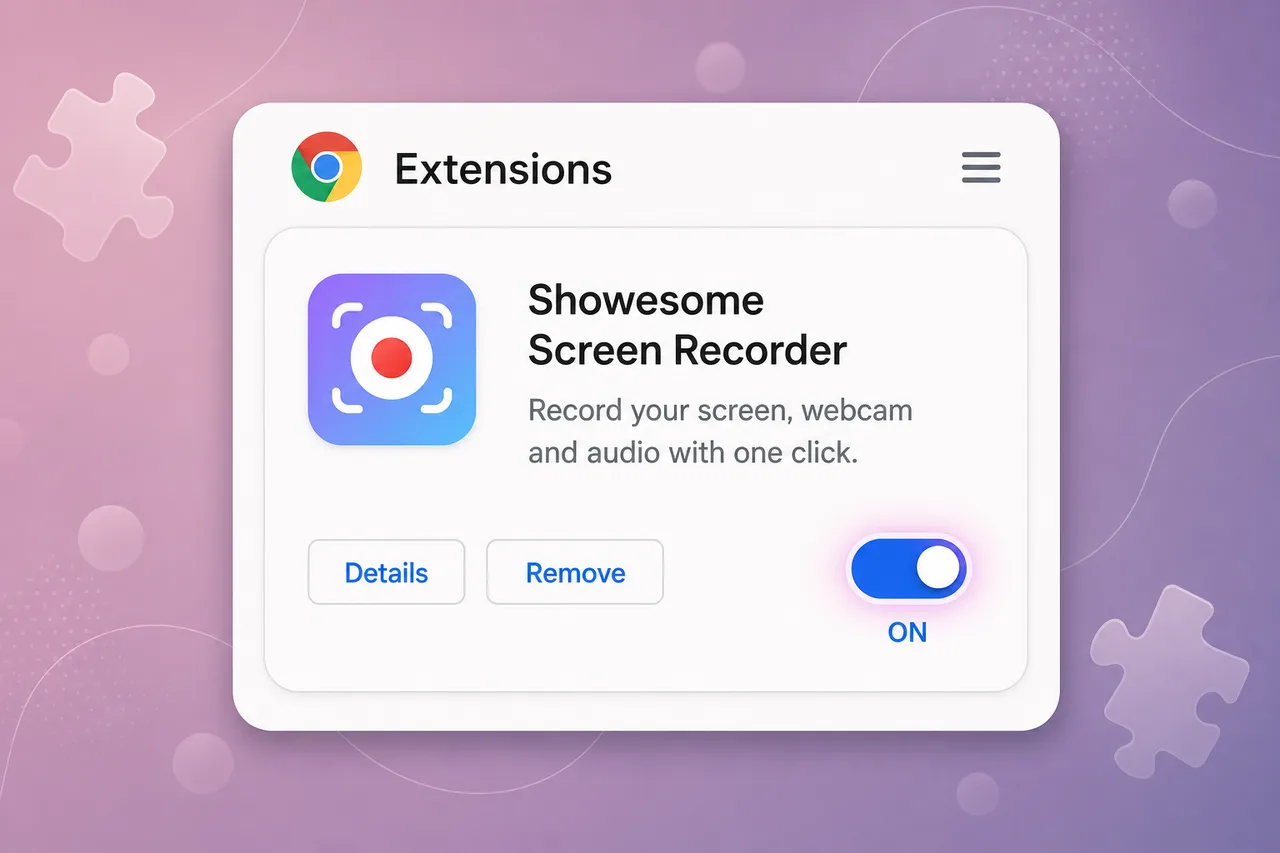
Full walkthrough: Can't find Showesome? Enable and pin it.
On the Showesome card, open Details and confirm the extension can use screen recording, camera, and microphone when you record.
3. Reset Chrome camera, mic, and screen permissions
Chrome remembers allow/block per site and per extension workflow.
Open Chrome content settings
- Go to
chrome://settings/content(or Settings → Privacy and security → Site settings). - Check these sections:
| Setting | What to do |
|---|---|
| Camera | Remove blocked entries for sites you record; set default to Sites can ask to use your camera |
| Microphone | Same — allow sites to ask; unblock anything you need |
| Additional permissions → Screen sharing | Ensure nothing policy-wide blocks capture (managed Chrome may restrict this) |
Reset permissions for one site
If recording fails on a specific page:
- Click the lock icon (or tune icon) in the address bar.
- Open Site settings.
- Set Camera, Microphone, and Sound to Allow (or Ask).
- Reload the tab and try again.
When you click Start Recording in Showesome, Chrome should prompt for screen, camera, and microphone — choose Allow. If you clicked Block before, reset using the steps above.
4. macOS: Screen Recording, Camera, and Microphone
Showesome runs inside Google Chrome. macOS permissions apply to Chrome, not a separate Showesome app.
- Open System Settings → Privacy & Security.
- Enable Google Chrome (or Chromium) in each section you need:
| Privacy section | Required for |
|---|---|
| Screen Recording | Chrome share dialog / screen capture |
| Camera | Webcam bubble and Camera Only mode |
| Microphone | Voice narration |
- Quit Chrome completely (Cmd + Q), reopen, and try a test clip.
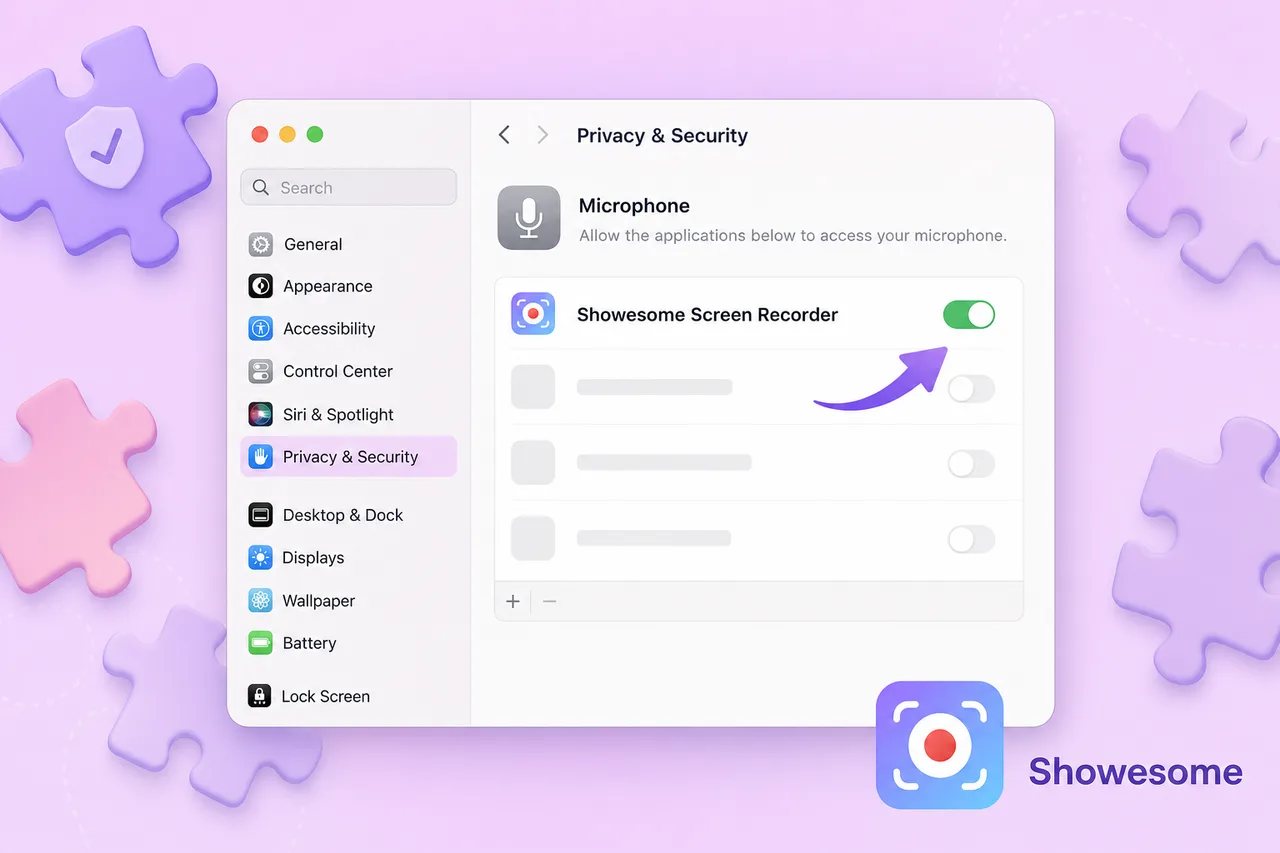
Tip: On recent macOS versions, Screen Recording is separate from Camera. If the share picker is empty or recording never starts, Screen Recording for Chrome is the usual fix.
5. Windows: Camera, Microphone, and screen capture
- Open Settings → Privacy & security.
- Under App permissions, open Camera and Microphone.
- Turn Camera access and Microphone access On.
- Enable access for Google Chrome (desktop app list).
For screen capture, Windows usually prompts through Chrome’s share dialog — there is no separate “Screen Recording” toggle like macOS. If the dialog never opens:
- Close other overlays that capture the screen (some gaming or security tools block share).
- Update Chrome to the latest version.
- Restart Chrome after changing privacy settings.
Check the Volume mixer (right-click speaker icon) so Chrome is not muted — that affects playback tests, not permission blocks.
6. Fix camera blocked or black preview
| Check | Action |
|---|---|
| Wrong camera selected | In the Showesome popup, pick the correct Camera device (USB vs built-in) |
| Camera in use elsewhere | Close Zoom, Teams, or other apps holding the webcam |
| OS blocked Chrome | Allow Camera for Chrome in Mac/Windows privacy (sections 4–5) |
| Chrome blocked the site | Reset site camera permission (section 3) |
| Lens cover / hardware switch | Physical privacy shutter on some laptops |
For Screen + Camera setup after the bubble works, see Record screen + webcam in Chrome.
7. Fix screen capture blocked
If Start Recording works but Chrome’s Share dialog never appears, or every option is grayed out:
- Confirm Screen Recording (Mac) or Windows privacy allows Chrome (sections 4–5).
- Try sharing a Chrome tab first — often the most reliable target.
- Disable pop-up blockers for
chrome-extension://flows temporarily, or allow popups for the site you are recording. - On managed work/school Chrome, IT may block screen capture — ask whether extensions can share screen.
After the share dialog works, pick Chrome tab, Window, or Entire screen depending on your clip — recording modes guide.
8. Incognito and managed Chrome profiles
Incognito: Chrome disables extensions in private windows until you allow them.
- Open
chrome://extensions→ Showesome Details. - Turn on Allow in Incognito.
- Pin Showesome from the puzzle menu in the Incognito window.
Guide: Use Showesome in Incognito mode.
Managed profiles: Company or school policies can disable extensions, screen capture, or camera access. If settings are grayed out, contact IT — local fixes may not be enough.
9. Still blocked? Last checks
- Reinstall Showesome from the Chrome Web Store if the extension card is missing or corrupted.
- Restart the computer after changing macOS Screen Recording — some permission changes need a full logout.
- Try another Chromium browser (Edge, Brave) only if your workflow allows — permissions are per browser.
- Antivirus or screen-privacy tools sometimes block capture; pause them for a test clip.
Open on watch page (for search and full-screen viewing)
Why does Chrome say permission denied when I try to record?
Chrome or the OS blocked camera, microphone, or screen capture. Reset site permissions for the extension, then check macOS Privacy & Security → Screen Recording / Camera / Microphone or Windows Settings → Privacy for the same toggles.
Why is my webcam preview black in Showesome?
Usually a camera permission or another app holding the device. Close apps that might lock the webcam, confirm Chrome can use the camera, and pick the correct device in the Showesome popup.
Why doesn't Showesome work in Incognito mode?
Chrome disables extensions in Incognito unless you allow it. Open chrome://extensions → Showesome Details → enable Allow in Incognito. See Incognito mode guide.
Quick checklist
- Showesome enabled and pinned on the toolbar.
- Allow when Chrome prompts for screen, camera, and mic.
- macOS: Chrome allowed under Screen Recording, Camera, and Microphone.
- Windows: Camera and mic access on for Google Chrome.
- Reset site settings if you previously clicked Block.
- 10-second test clip before a long recording.
Related reading
- Screen recording has no sound? — mic mute, tab audio, system audio (after capture works)
- Enable and pin Showesome — extension not visible
- Record screen + webcam in Chrome — bubble and devices
- Record your screen with audio — mic and tab sound setup
- Getting Started — full walkthrough after permissions work
- Support — FAQs and troubleshooting
Was this guide helpful?
One vote per browser. No account required.
Be the first to share feedback.
Comments
Join the discussion — comments are moderated to keep things helpful. Be respectful and constructive.
Preparing sign-in…