How to screen record on Mac (2026)
Record your screen on Mac with QuickTime, macOS Screenshot, or Showesome in Chrome — fix QuickTime no audio, capture tab sound, allow Screen Recording permissions, and export MP4.
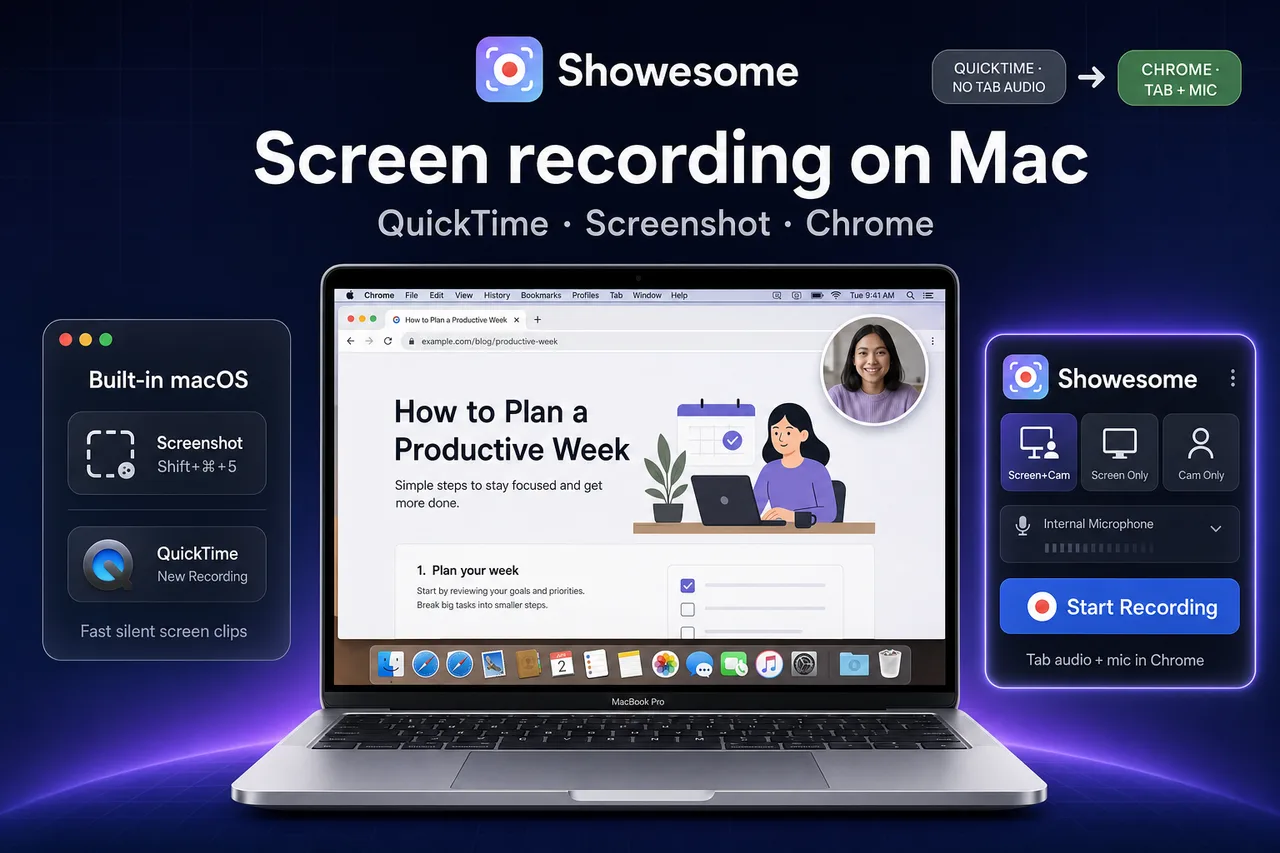
Yes — you can screen record on Mac with built-in tools (Screenshot, QuickTime) or with Showesome in Chrome for tab audio, webcam overlay, and local MP4 export. Native Mac capture is fastest for silent screen clips; Chrome is better when you need browser tab sound, narration, or tutorial features without virtual audio drivers.
This guide covers all three paths, why QuickTime often has no audio, and when to switch to Chrome.
Open on watch page (for search and full-screen viewing)
Built-in Mac tools vs Showesome in Chrome
| Screenshot / QuickTime | Showesome (Chrome on Mac) | |
|---|---|---|
| Install | Already on macOS | Chrome Web Store — free |
| Fastest path | Shift + Command + 5 or QuickTime New Screen Recording | Pin extension → Start Recording |
| System / tab audio | Not by default — video-only unless you add virtual audio routing | Also share tab audio in Chrome’s share dialog (guide) |
| Webcam bubble | QuickTime New Movie Recording only (separate from screen) | Screen + Camera in one clip |
| Click-to-zoom tutorials | No | Focus Mode |
| Export | .mov to Desktop / chosen folder | Local in Chrome → preview → Convert to MP4 |
| Watermark | None on Apple tools | No watermark on Showesome |
| Best for | Bug clips, silent demos, offline screen capture | Lessons, async updates, tab tutorials with sound |
For a wider Chrome comparison, see best free Chrome screen recorders (2026).
Record with macOS Screenshot (fastest)
When you only need a short, silent capture:
- Press Shift + Command + 5 — the Screenshot toolbar appears.
- Choose Record Entire Screen or Record Selected Portion.
- Click Record → do your demo → click Stop in the menu bar.
- The clip saves to Desktop (or your configured location) as .mov.
Limitations: No built-in tab audio or meeting sound from other apps. Add voiceover in a separate tool, or use Chrome tab recording below.
Record with QuickTime Player
QuickTime is the classic Mac screen recorder:
- Open QuickTime Player (Applications or Spotlight).
- Choose File → New Screen Recording.
- Click the Record button → select entire screen or drag a region.
- Click Stop in the menu bar when finished.
Why QuickTime has no audio (most common Mac complaint)
QuickTime screen recordings do not capture system audio or Chrome tab sound by default — only the video (and optionally microphone narration if you enable the mic dropdown on the record control).
| What you expected | What QuickTime actually records |
|---|---|
| YouTube / tab sound in the browser | Not included in screen recording |
| Zoom / Meet audio from another app | Not included by default |
| Your voice while narrating | Yes — if you pick a mic on the record control before you start |
Fixes if you need sound:
- Web tutorials: Record the Chrome tab with Showesome and enable Also share tab audio — tab audio guide.
- Advanced Mac routing: Virtual audio drivers (for example BlackHole) — more setup; overkill for most Chrome tutorials.
- Silent clip was intentional: Export from QuickTime, add voiceover in an editor.
Full audio troubleshooting: Screen recording has no sound?.
Record with Showesome in Chrome on Mac
For tab audio + mic + webcam in one workflow:
1. Install and pin Showesome
- Open Showesome in the Chrome Web Store.
- Click Add to Chrome → Add extension.
- Pin Showesome from the Extensions puzzle piece.
Details: Enable and pin the extension.
2. Allow macOS privacy permissions for Chrome
Showesome runs inside Google Chrome. macOS must allow Chrome to capture screen, camera, and mic:
- System Settings → Privacy & Security.
- Enable Google Chrome under Screen Recording, Camera, and Microphone (as needed).
- Quit Chrome completely (Cmd + Q), reopen, and record a 10-second test clip.
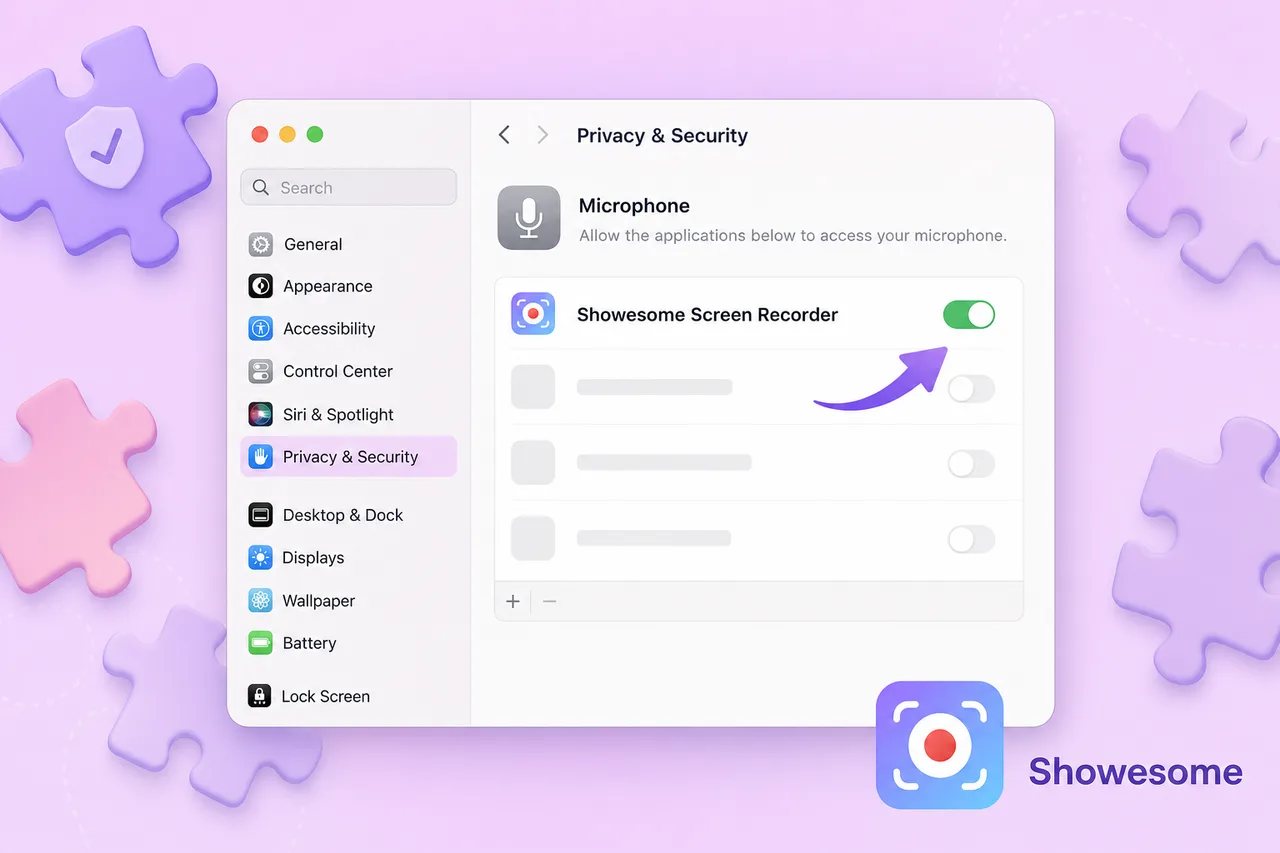
Full permission symptom table: Chrome won't let me record — fix permissions.
3. Start recording with tab audio
- Open Showesome → pick Screen Only or Screen + Camera.
- Select your Microphone if you are narrating.
- Click Start Recording.
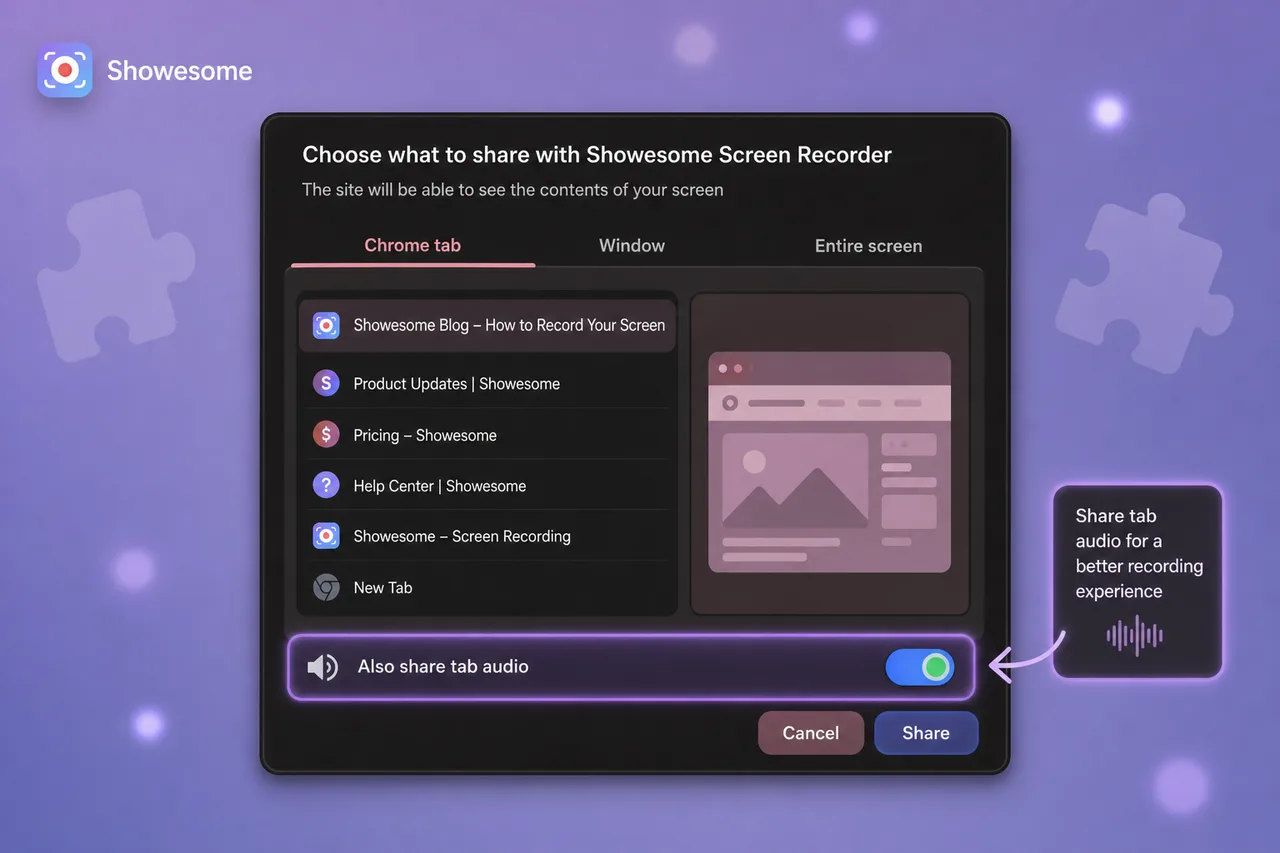
- In Chrome’s share dialog, choose Chrome tab (or window / screen).
- Turn on Also share tab audio when the tab plays sound.
- Click Share → Stop when done → Convert to MP4 from Recordings History.
Same flow as desktop Chrome — How to record your screen on Chrome (2026).
Common Mac workflows
| Goal | Suggested approach |
|---|---|
| Silent bug report clip | Shift + Command + 5 — fastest |
| Screen + your voice only | QuickTime with mic on, or Showesome Screen Only + mic |
| YouTube / web app with sound | Showesome + Chrome tab + tab audio |
| Google Slides lesson | Showesome Screen + Camera + Focus Mode |
| Meet / Zoom you host in a tab | Tab recording + tab audio — Meet/Zoom guide |
| Polished tutorial, no OBS | Showesome + webcam bubble |
Mac troubleshooting
| Problem | What to try |
|---|---|
| QuickTime video has no sound | Expected for screen capture — use tab audio in Chrome or mic-only narration (above) |
| Chrome share dialog missing | Screen Recording for Chrome in System Settings — permissions guide |
| Black camera bubble | Camera permission for Chrome + correct device in popup |
| Tab sound missing in Chrome clip | Also share tab audio in share dialog — no sound guide |
| Recording stutters on older Mac | Close heavy apps; lower quality preset — 4K & presets |
Do I need OBS on Mac?
Usually no for standard web tutorials. OBS vs Chrome screen recorder — OBS wins for live streaming and multi-scene production; a Chrome extension matches how most Mac users already work in the browser.
Can I use Safari instead of Chrome?
Showesome is a Chrome extension — it does not run in Safari. Safari has its own screen capture limits. For Showesome’s feature set (Focus Mode, VB, local library), use Google Chrome on Mac.
Does Showesome work on MacBook Air and Apple Silicon?
Yes. Any Mac that runs current Google Chrome can use Showesome the same way as on Windows — permissions and share dialog are the only Mac-specific steps.
Related reading
- How to screen record on Windows 11 — Game Bar vs Chrome on Windows.
- Screen recording has no sound? — mic vs tab vs system audio on Mac and Windows.
- Chrome permissions fix guide — Screen Recording, camera, mic blocked.
- Record screen + webcam in Chrome — picture-in-picture bubble.
- How to record your screen on Chrome (2026) — full first-recording walkthrough.
- Getting Started — interactive install tour.
- Support — FAQs and troubleshooting.
Quick checklist
- Silent clip? Shift + Command + 5 or QuickTime — fastest.
- Need tab or web sound? Showesome in Chrome + Also share tab audio.
- Permissions — allow Google Chrome under Screen Recording, Camera, Microphone.
- QuickTime no audio? Normal for screen capture — switch to Chrome tab recording or add mic only.
- Export — QuickTime .mov or Showesome MP4 from preview.
Was this guide helpful?
One vote per browser. No account required.
Be the first to share feedback.
Comments
Join the discussion — comments are moderated to keep things helpful. Be respectful and constructive.
Preparing sign-in…