4K screen recording in Chrome — what actually matters
Does Chrome screen recording support 4K? What resolution, bitrate, and quality presets actually change in Showesome — and when ultra-sharp capture is worth the file size.
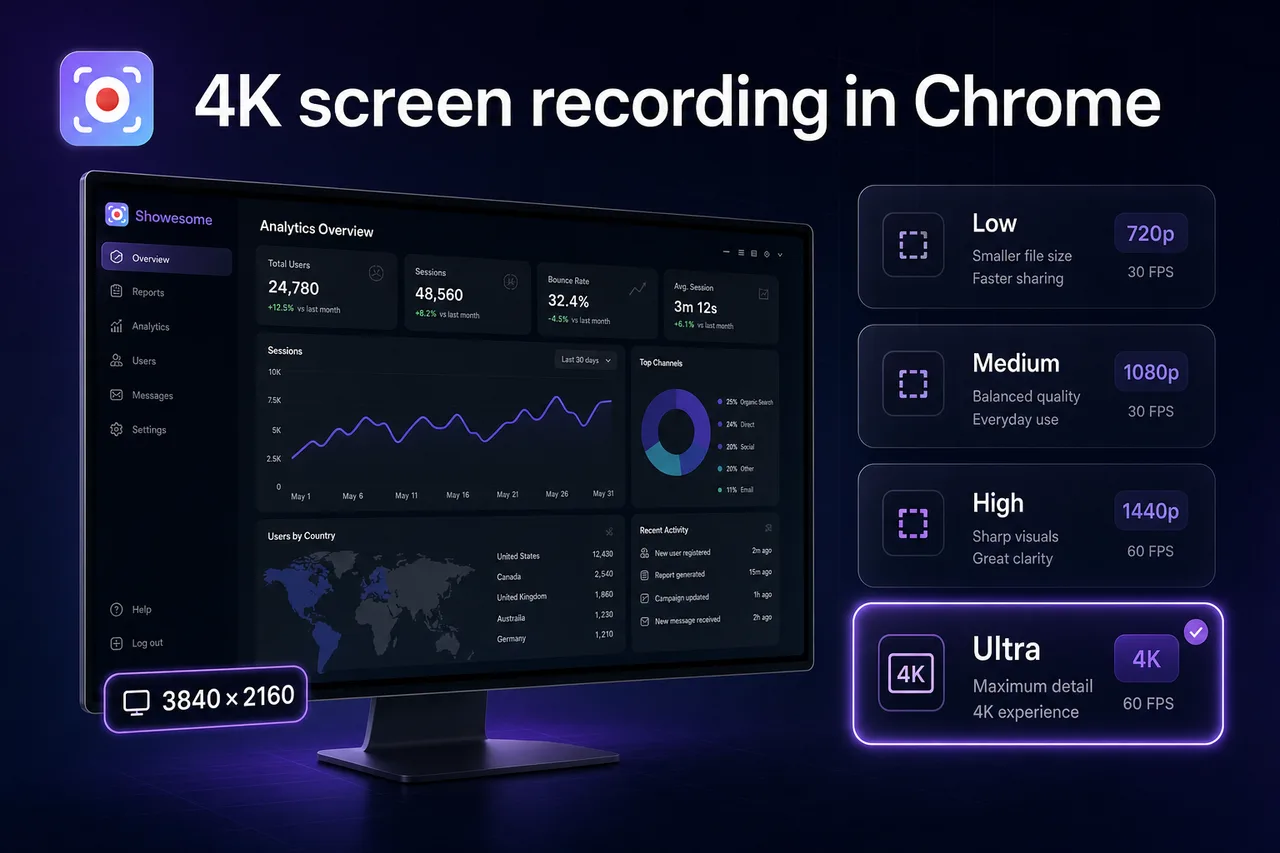
Yes — Chrome screen recording can capture up to 4K when your display and share target support it. Showesome records at your screen’s native resolution (not upscaled fake 4K) and lets you pick a quality preset in Settings to balance sharpness, frame rate, and file size. For most tutorials, Medium or High is enough; Ultra makes sense when fine text and UI detail must survive YouTube or a cropped zoom.
This guide explains what “4K recording” actually means in Chrome, how Showesome’s presets work, and when to turn quality up or down.
Open on watch page (for search and full-screen viewing)
What “4K screen recording” really means
People search 4K screen recording for two different things. They are related but not the same:
| Term | What it usually means |
|---|---|
| Resolution | Pixel dimensions of the capture — e.g. 3840×2160 on a 4K monitor |
| Quality / bitrate | How much detail the encoder keeps per second — affects sharpness and file size |
A clip can be 1080p with a high bitrate (crisp) or 4K with a low bitrate (large files, soft detail). Both matter.
Showesome captures at the native resolution of what Chrome shares — your monitor, window, or tab — up to 4K on supported displays. The Recording & Video preset controls encoding bitrate and frame rate, not a fake resolution bump.
Does Showesome record in 4K?
Yes, when your setup allows it.
- 4K external monitor shared as Entire screen or Window → capture can be 3840×2160 (or your panel’s native size).
- 1080p laptop → capture is 1920×1080 — Showesome does not invent extra pixels.
- Chrome tab → resolution follows the tab’s captured area, not necessarily your full desktop.
Check the exported file in your player or OS inspector if you need proof for a client brief.
Quality presets in Showesome (what each changes)
Open the Showesome popup → Settings → Recording & Video → Quality preset.
| Preset | Typical use | Bitrate / fps (product defaults)* |
|---|---|---|
| Low | Quick internal clips, slow machines | ~2.5 Mbps |
| Medium | Everyday tutorials and updates | ~8 Mbps |
| High | Sharper UI, longer retention on YouTube | ~12 Mbps |
| Ultra | Maximum detail at 60 fps when you need it | ~20 Mbps @ 60fps |
*Presets ship with these defaults in Showesome 1.0.8+ — verify in release notes if you are on an older build.
Presets do not replace a 4K panel. They control how hard the encoder works at whatever resolution Chrome captured. Ultra is the right knob when text, icons, and zoomed crops must stay legible — not when you only need a five-minute stand-up.
When 4K (or Ultra) is worth it
Turn quality up when:
- You record dense UI — dashboards, code, spreadsheets, design tools
- Viewers will fullscreen or crop the video later
- You present on a 4K display and want pixels to match the source
- You export to YouTube or a client who expects sharp master files
Medium or High is usually enough when:
- The clip is 720p-friendly async feedback (Slack, Loom-style workflows)
- You record long sessions and disk space matters
- Your machine already struggles with many Chrome tabs
- The subject is slides with large type — resolution above 1080p adds little
See Screen recording mistakes for clarity habits that matter as much as bitrate.
When 4K does not help
More pixels will not fix:
- Blurry source content — low-res images inside the page stay low-res
- Wrong share target — sharing a small window then upscaling in an editor
- Heavy compression downstream — some LMS players re-encode aggressively
- Silent or bad audio — see Screen recording has no sound?
4K also costs more: larger WebM files, longer Convert to MP4 jobs, and more CPU during capture. That is normal.
How to get the sharpest capture in Chrome
- Use a display at the resolution you want — 4K out requires 4K (or native) in.
- In Chrome’s share dialog, pick the correct surface — entire screen vs tab changes dimensions.
- In Showesome Settings, set Quality preset to High or Ultra for detail-heavy work.
- Close heavy tabs and pause sync apps during long 4K takes.
- Record a 10-second test, open preview, then export MP4 before a long session.
For camera-only talking-head clips, resolution is webcam-limited — see Professional webcam recordings.
Chrome and OS limits (honest expectations)
| Factor | Effect |
|---|---|
| Chrome MediaRecorder | Browser extension capture — excellent for tutorials, not a replacement for OBS on every edge case |
| Retina / scaled displays | macOS scaled UI may report logical vs physical pixels — check your exported file |
| Tab capture | Captures the tab viewport; not the same as full desktop 4K |
| Performance | Ultra @ 60fps on 4K stresses CPU — drop preset before dropping resolution if stutter appears |
If Chrome blocks capture entirely, fix permissions first — Chrome won't let me record.
Does recording quality affect Focus Mode or virtual backgrounds?
Focus Mode (auto zoom guide) runs on the same capture pipeline — a sharper base recording keeps zoomed regions cleaner.
Virtual backgrounds on Camera Only follow the camera processing path (VB guide); screen resolution presets apply to screen + tab captures.
Can I change quality mid-project?
Set the preset before you record. Showesome applies the chosen preset to new recordings. Re-exporting WebM → MP4 does not upsample resolution — conversion is for format compatibility, not magic enhancement (WebM to MP4 guide).
Related reading
- Best free Chrome screen recorders (2026) — compare tools on watermark, caps, and export.
- Which screen recorder is right for you? — browser vs desktop when quality is the priority.
- Preview, export, and optional cloud backup — download after a high-res take.
- Support — FAQs on quality, storage, and download.
Quick checklist
- Match display + share target to the resolution you need.
- Pick Medium for daily work; High / Ultra for detail-heavy demos.
- Run a short test clip → preview → Convert to MP4 before the long session.
- If files are huge, lower preset first; only drop resolution if you must.
Was this guide helpful?
One vote per browser. No account required.
Be the first to share feedback.
Comments
Join the discussion — comments are moderated to keep things helpful. Be respectful and constructive.
Preparing sign-in…