Best free Chrome screen recorder (2026) — no watermark, no time limit
Compare the best free Chrome screen recorder extensions in 2026 — watermark, recording length, local MP4 export, webcam, tab audio, and tutorial features like Focus Mode.
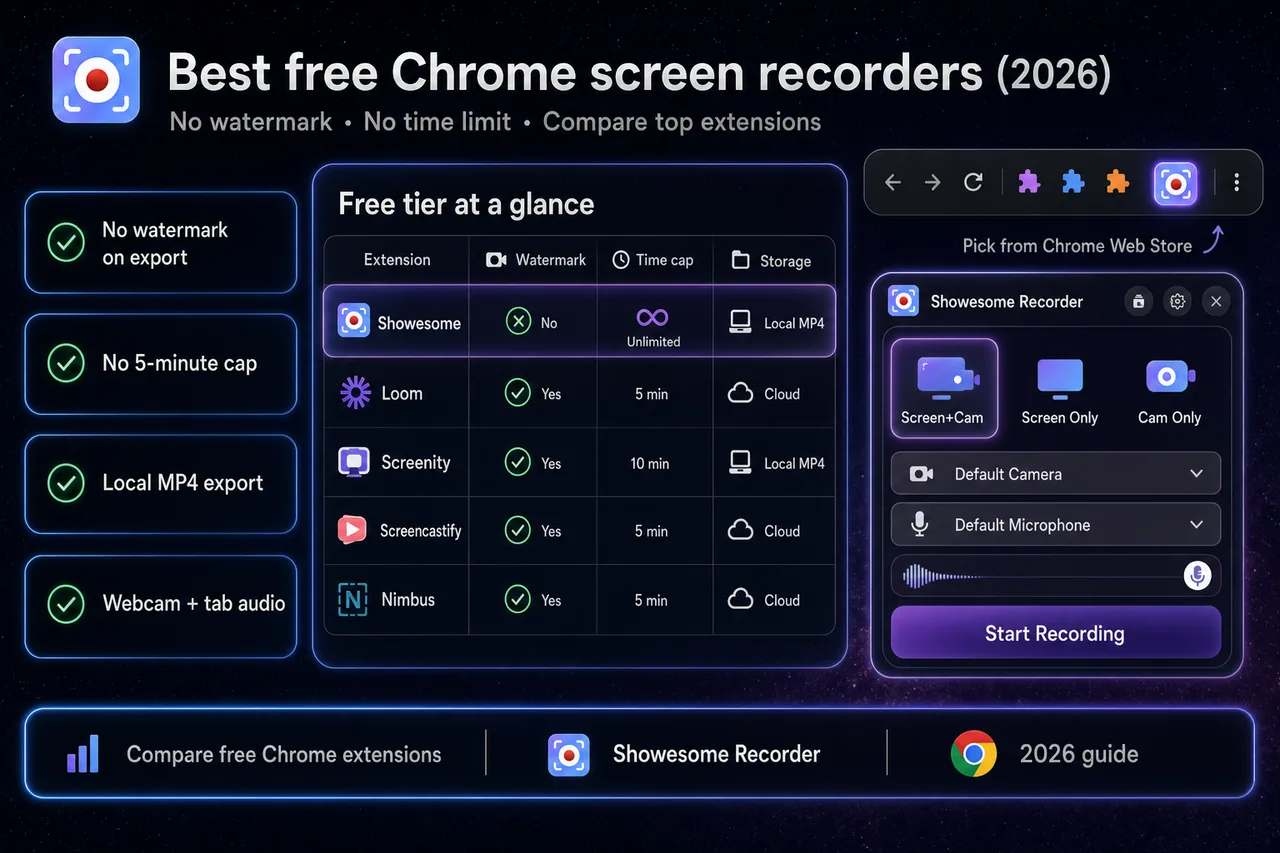
The best free Chrome screen recorder depends on what you optimize for — instant share links, unlimited length, no watermark, or tutorial clarity. For long walkthroughs with local MP4 export and no watermark, Showesome, Screenity, and OBS (desktop, not an extension) are common picks. For sub-five-minute async drops with a hosted link, Loom Starter still wins on workflow.
This guide compares seven Chrome-friendly options as of mid-2026. Plans change — verify limits on each vendor’s site before you commit.
Need step-by-step install and first recording? Start with how to record your screen on Chrome (2026). Want cloud vs desktop vs browser explained first? Choosing a screen recorder.
Open on watch page (for search and full-screen viewing)
What we looked at (and what we skipped)
We focused on tools people actually install for screen + voice capture in Google Chrome:
- Watermark on free exports
- Recording length on the free tier
- Where files live — local device vs cloud library
- Webcam overlay and tab / system audio
- Tutorial helpers — click-to-zoom, annotations, virtual backgrounds
We did not rank desktop studios like OBS or Camtasia here — they are excellent but a different install path. See Which screen recorder is right for you? for cloud vs desktop vs browser.
Quick comparison — free Chrome screen recorders (2026)
Limits change — verify each vendor’s pricing page. As of mid-2026, these are the free-tier differences that matter most:
| Tool (free tier) | Recording time | Watermark | Storage / library |
|---|---|---|---|
| Showesome | No fixed duration cap in the extension* | No watermark on exports | Local in Chrome; optional Drive, Dropbox, or YouTube |
| Loom Starter | 5 minutes per video (docs) | Check Loom pricing | Cloud — 25 videos on Starter |
| Screenity | Verify on screenity.io | Verify current free tier | Local / export-oriented |
| Screencastify | Plan-specific | Plan-specific | Often cloud / Google Drive |
| Nimbus Capture | Plan-specific | Plan-specific | Cloud workspace |
| Awesome Screenshot | Verify free plan | Verify free plan | Cloud |
| Chrome built-in (tab capture) | N/A | N/A | Downloads to disk |
Capture features on free tiers (layout and depth vary by product):
| Tool | Webcam + screen | Tab audio | Tutorial focus / zoom |
|---|---|---|---|
| Showesome | Yes — draggable bubble | Yes — tab audio guide | Focus Mode click-to-zoom |
| Loom Starter | Yes | Yes | Limited in-capture focus |
| Screenity | Yes | Yes | Drawing / highlights — verify version |
| Screencastify | Yes | Yes | Annotation-focused |
| Nimbus Capture | Yes | Yes | Capture + annotation suite |
| Awesome Screenshot | Yes | Verify | Lightweight |
| Chrome built-in | No built-in bubble | Tab only — no mic mix | None |
*No artificial duration cap like Loom’s five-minute Starter limit; very long sessions still depend on your device, Chrome, and disk space.
Showesome is our product — we still list competitors honestly. If your must-have is a company video inbox with comments on every clip, a cloud tool may beat any local-first extension.
1. Showesome — best for long, local Chrome tutorials
Pick Showesome when you record software walkthroughs in Chrome, need more than five minutes without upgrading, want no watermark on exports, and care about guiding attention while you capture.
Standout free features:
- No watermark and no five-minute-style cap on the extension
- Recording modes — Screen + Camera, Screen Only, Camera Only
- Focus Mode — spotlight and auto zoom on click, text, or area
- Virtual backgrounds for camera recordings
- Local recordings library with MP4 conversion on your device
- Optional upload to Google Drive, Dropbox, or YouTube when you choose (cloud guide)
Tradeoff: not a hosted team library with viewer analytics on every record by default. Many teams pair Showesome with Slack/email/LMS file sharing or optional YouTube upload.
Install from the Chrome Web Store → Getting Started.
2. Loom Starter — best for instant share links (short clips)
Pick Loom when your clips are usually under five minutes, you want a link immediately, and your team already lives in Loom’s library.
Free tier highlights (mid-2026):
- 5 minutes per recording, 25 videos in library (Atlassian help)
- Strong async workflow — record, upload, share, comment
Tradeoff: the free cap breaks full product tours and long training in one take. See our free Loom alternative guide if length is the blocker.
3. Screenity — best open-source-style free extension
Pick Screenity when you want a popular free recorder with a straightforward record-and-export path and you are comfortable managing files locally.
Typical strengths: screen + webcam, annotations, local export orientation, active open-source community.
Tradeoff: feature depth and UX differ from paid suites — run your real workflow (mic + tab + camera) before switching. Compare Focus Mode-style guidance if viewers get lost on busy UIs.
4. Screencastify — best when your school already uses it
Pick Screencastify when your district or organization standardized on it, or you need education-specific sharing and admin tools.
Typical strengths: long classroom presence, Google ecosystem familiarity, assignment-friendly workflows.
Tradeoff: free limits and watermarks are plan-specific — check Screencastify pricing for current caps. Teachers comparing options: Screencastify alternative for teachers (Chrome).
5. Nimbus Capture — best as a capture suite
Pick Nimbus when you want screenshots, clips, and workspaces from one vendor, not only a single-purpose recorder.
Typical strengths: broader capture toolkit, team workspaces on paid tiers.
Tradeoff: screen video may be one piece of a larger product — confirm export formats and free storage match your flow.
6. Awesome Screenshot — best for quick clips next to screenshots
Pick Awesome Screenshot when you already use it for still captures and only need occasional short screen videos.
Tradeoff: not built for long tutorial production — verify free plan limits for length, watermark, and audio.
7. Chrome without an extension
Chrome can record a tab from developer tools or OS-level shortcuts in some setups, but there is no polished free extension workflow — no webcam bubble, mixed mic + tab audio, or tutorial focus tools out of the box.
Pick an extension when you record often enough that setup friction matters.
Which free Chrome screen recorder should you choose?
| Your priority | Start here |
|---|---|
| No watermark + no 5‑minute cap + local MP4 | Showesome or verify Screenity’s current free terms |
| Instant hosted link for short internal updates | Loom Starter |
| Outgrew Loom’s free limits | Free Loom alternative → Showesome |
| Click-to-zoom / auto spotlight while recording | Showesome Focus Mode |
| Screen + webcam bubble in one Chrome flow | Showesome screen + webcam guide |
| District already on Screencastify | Stay unless admin opens alternatives |
| Screenshot + video from one tool | Nimbus Capture |
| Maximum production control (not Chrome-only) | OBS — see choosing a screen recorder |
Record the same three-minute demo in your top two picks. The winner is usually obvious from viewer clarity and your own stress — not feature bullet counts.
Is there a free screen recorder for Chrome with no watermark?
Yes. Several extensions export without a watermark on their free tier — Showesome and Screenity are common answers for local export. Loom Starter optimizes for hosted sharing; check Loom pricing for watermark rules on your plan.
Always confirm on the vendor’s site — “free” tiers change.
Is there an unlimited screen recorder for Chrome?
No tool is literally unlimited — disk space, RAM, and browser stability still apply. What people mean is no artificial five- or ten-minute cap on the free plan.
Showesome does not enforce Loom-style five-minute limits in the extension. Loom Starter does (5 minutes per video). Screenity and others — verify current terms.
Do free Chrome screen recorders include webcam and microphone?
Most listed extensions support mic narration and webcam overlay on free tiers, but layout differs:
- Showesome — draggable camera bubble over screen capture
- Loom — camera bubble in recorder UI
- Screenity / Screencastify / Nimbus — check current UI for bubble placement and size
For tab sound + voice together, see record screen with audio and Chrome tab with audio.
Quick checklist
- Decide: hosted link vs local file vs both.
- Check watermark and time cap on the free plan you will actually use.
- Record one real task — not a test page — with your current tool.
- Try a second tool from the table above if viewers still miss which button you meant.
- Pin the extension and grant camera / mic / screen permissions once — enable and pin guide.
Related reading
- OBS vs Chrome screen recorder — when OBS beats a Chrome extension and when it does not.
- Record your screen on a Chromebook — Chrome OS built-in vs extension on school devices.
- 4K screen recording in Chrome — when Ultra quality is worth the file size
- Which screen recorder is right for you? — cloud vs desktop vs Chrome (broader than this list)
- Free Loom alternative for Chrome — when the five-minute cap is the problem
- Record screen + webcam in Chrome — picture-in-picture bubble
- Auto zoom without editing — Focus Mode for tutorials
- Getting Started — install through first export
- Support — FAQs and troubleshooting
Products named here are trademarks of their respective owners. Limits and pricing reflect our understanding in mid-2026; verify on official sites.
Was this guide helpful?
One vote per browser. No account required.
Be the first to share feedback.
Comments
Join the discussion — comments are moderated to keep things helpful. Be respectful and constructive.
Preparing sign-in…