Free Loom alternative for Chrome: longer screen recordings without the 5-minute cap
Need a free Loom alternative in Chrome? Compare Loom Starter limits with Showesome — no five-minute cap, no watermark, local recordings, and optional Drive, Dropbox, or YouTube upload.
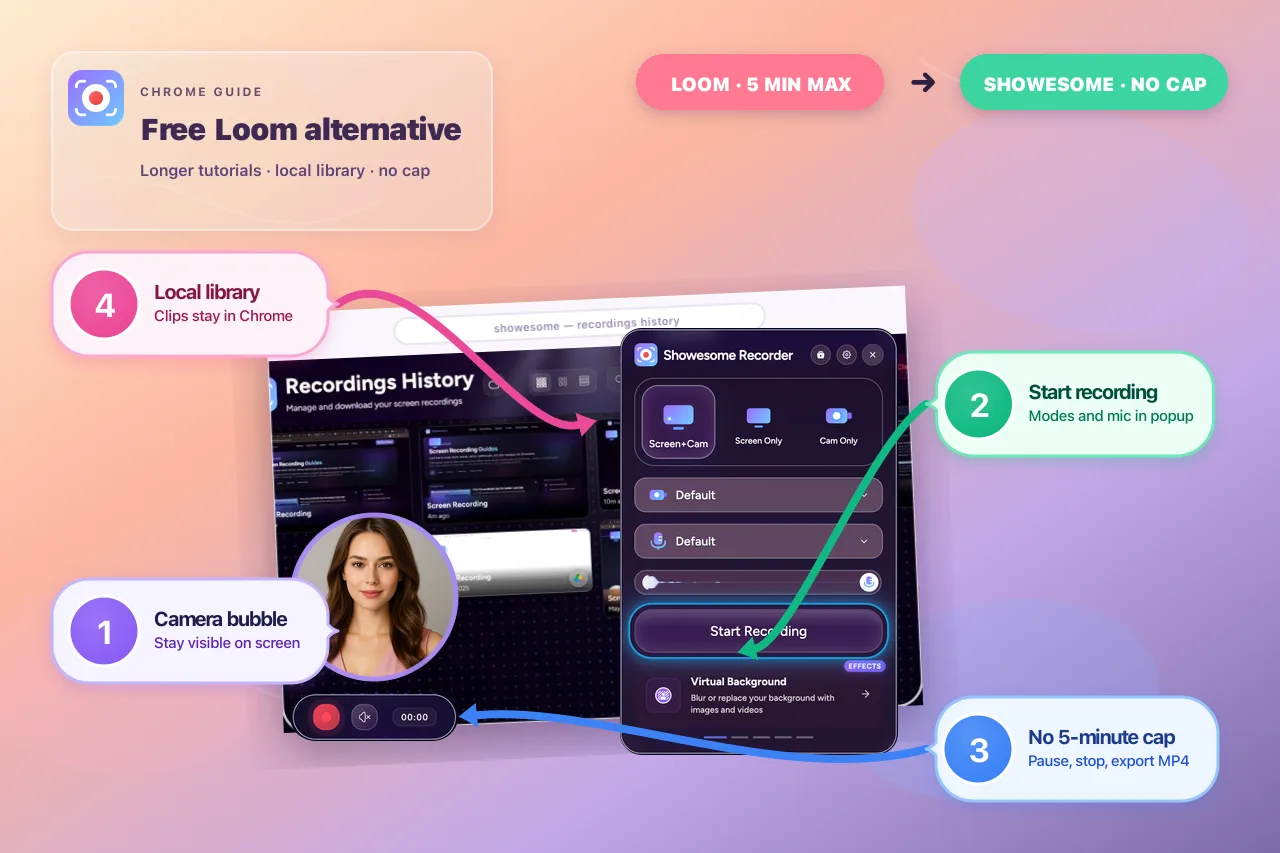
If you search for a free Loom alternative, you usually want the same core job — record your screen, add your voice, share with teammates — without hitting Loom Starter’s limits on every clip. Many people outgrow the five-minute recording cap or the 25-video library limit long before they want a paid team plan.
This guide is for that moment: you like async video, but you need longer walkthroughs in Chrome, files you control, and no watermark on exports. Showesome is one option built for that workflow. We will stay honest about when Loom is still the better fit.
What Loom Starter is great at
Loom popularized “record → instant link.” On the free Starter plan, that workflow is hard to beat for short internal updates:
- Record, upload, and share a hosted link without managing a file
- A team library where people comment on videos (on paid plans, limits expand)
- Habits and notifications built around async video inside companies
If your clips are almost always under five minutes and you live inside Loom’s library, switching tools may not be worth the friction.
Where Loom Starter often breaks down
As of mid-2026, Atlassian’s help docs describe these Starter limits (Loom recording limits):
| Limit | Starter (free) | Why it matters |
|---|---|---|
| Recording length | 5 minutes per video | Product tours, onboarding walkthroughs, and bug repros often need more time in one take |
| Library size | 25 videos in your Loom library | Active recorders fill the cap quickly; older clips must be deleted or upgraded |
| Workflow | Cloud-first — record uploads to Loom | Fine for links; less ideal if you need local files, strict data policies, or edit-before-share |
Paid plans remove those caps. If you are not ready to upgrade, a Chrome extension with local recording is a common second tool — not because Loom failed, but because the free tier optimized for short drops.
For a wider comparison (OBS, Screenity, Screencastify, and more), see Which screen recorder is right for you? or the focused best free Chrome screen recorders (2026) list.
Why Showesome is a practical free Loom alternative in Chrome
Showesome is a Chrome extension for people who record to explain software — tutorials, demos, support clips, and async updates — mostly inside the browser.
| What you might miss on Loom Starter | Showesome (free) |
|---|---|
| Clips longer than 5 minutes | No artificial duration cap in the extension; practical limits are your device, Chrome, and disk |
| Watermarked exports | No watermark on exported files |
| Always uploading before you share | Local-first — recordings stay in Chrome until you download, convert, or optionally upload |
| “Point at the UI” with a busy screen | Focus Mode — spotlight elements, zoom text, or draw an area while you record |
| Face + screen in one flow | Recording modes — Screen + Camera, Screen Only, or Camera Only |
| Tab sound + narration | Record screen with audio and record a Chrome tab with audio |
Showesome is not a full replacement for a company-wide hosted video hub with viewer analytics and comments on every clip. It is a strong free Loom alternative when your blocker is length, local control, or tutorial clarity in Chrome.
A simple workflow: record locally, share when ready
1. Install and pin Showesome
Add Showesome from the Chrome Web Store, enable it on chrome://extensions, and pin it from the puzzle icon so the toolbar button stays visible. If the icon is missing, see Enable the extension and pin it in Chrome.
2. Pick a recording mode
Open the popup and choose:
- Screen + Camera — walkthroughs with a draggable camera bubble
- Screen Only — UI-only demos and bug reports
- Camera Only — quick face-to-camera updates
Set your microphone (and camera if needed) before you start. Mute in the popup when you are still setting up the tab.
3. Record without the five-minute clock
Click Start Recording, pick tab, window, or screen in Chrome’s share dialog, and record your full walkthrough. Use Focus Mode when viewers need help seeing which button you mean — double-tap Cmd or Ctrl to enter focus, click or select text, press Esc to exit.
4. Preview, export, or upload optionally
When you stop, the clip appears in Recordings History. From preview you can:
- Play back with full controls
- Download WebM or MP4 (convert locally with Convert to MP4 — nothing leaves your machine for conversion)
- Optionally connect Google Drive, Dropbox, or YouTube and upload only the clips you choose (preview & cloud guide)
Nothing uploads automatically. That is intentional for teams who want a Loom-style message without a Loom-style default cloud.
5. Share the file your way
Send the MP4 in Slack, email, Notion, a ticket, or your LMS. If you connected YouTube, upload from preview when a public or unlisted link fits better than a file attachment. Many teams keep Loom for sub-five-minute internal pings and Showesome for longer Chrome tutorials — both patterns work.
When to keep Loom (or use both)
Stay on Loom — or use it beside Showesome — when:
- You need a default team video inbox with hosted links on every record
- Comments on the hosted video are part of your review process
- Clips are short and the instant link matters more than local files
- Your org already standardized on Loom licenses and permissions
Switch or add Showesome when:
- You regularly hit the 5-minute or 25-video Starter limits
- You record long product tours, courses, or support walkthroughs in Chrome
- You want Focus Mode-style zoom and spotlight during capture, not only in an editor
- Local storage or optional cloud (Drive, Dropbox, YouTube) fits your policy better than auto-upload everything
Make longer clips watchable (not just possible)
A longer recording is only useful if people finish it. Borrow habits from async teams:
- Lead with the outcome in the first ten seconds (async video updates)
- Spotlight the UI instead of waving the cursor (Focus Mode tips)
- Split huge topics into short modules when one file still feels long (short tutorial clips)
Is Showesome free with no watermark?
Yes. Showesome is free to use with no watermark on exported MP4s — local export by default.
Can Showesome record longer than Loom Starter's five-minute limit?
Yes. Showesome does not enforce Loom Starter's five-minute cap; practical limits are your device, Chrome, and disk space.
Does Showesome auto-upload recordings like Loom?
No — recordings stay local until you share or upload. Optional backup to Google Drive, Dropbox, or YouTube when you connect accounts. See preview and cloud guide.
Quick checklist
- Confirm whether Loom Starter limits (5 min / 25 videos) are actually blocking you — if not, Loom may stay primary.
- Install Showesome, pin it, and complete Getting Started once with your real mic and mode.
- Re-record one real task you previously capped at five minutes — same script, longer take.
- Use Focus Mode on the busiest screen so viewers see what you mean.
- Export MP4 from preview and share through your usual channel — or upload to Drive / YouTube if you connected accounts.
- Decide: replace Loom, or use Showesome only for long Chrome tutorials.
Related reading
- Which screen recorder is right for you? — fair comparison across Loom, OBS, and Chrome extensions
- Record your screen with audio — microphone, mute, and tab sound
- How to record a Chrome tab with audio
- Your recordings library — search, filters, and views
- Preview, export, and optional cloud backup
- How to make async video updates your team actually watches
- Support — FAQs and troubleshooting
Loom is a trademark of its respective owner. Limits and pricing change — verify current plans on loom.com and Atlassian’s Loom help.
Was this guide helpful?
One vote per browser. No account required.
Be the first to share feedback.
Comments
Join the discussion — comments are moderated to keep things helpful. Be respectful and constructive.
Preparing sign-in…