Screencastify alternative for teachers (Chrome)
Compare Screencastify and Showesome for classroom screen recording in Chrome — free tier limits, watermarks, Google Slides lessons, local MP4 export, and optional Drive upload.
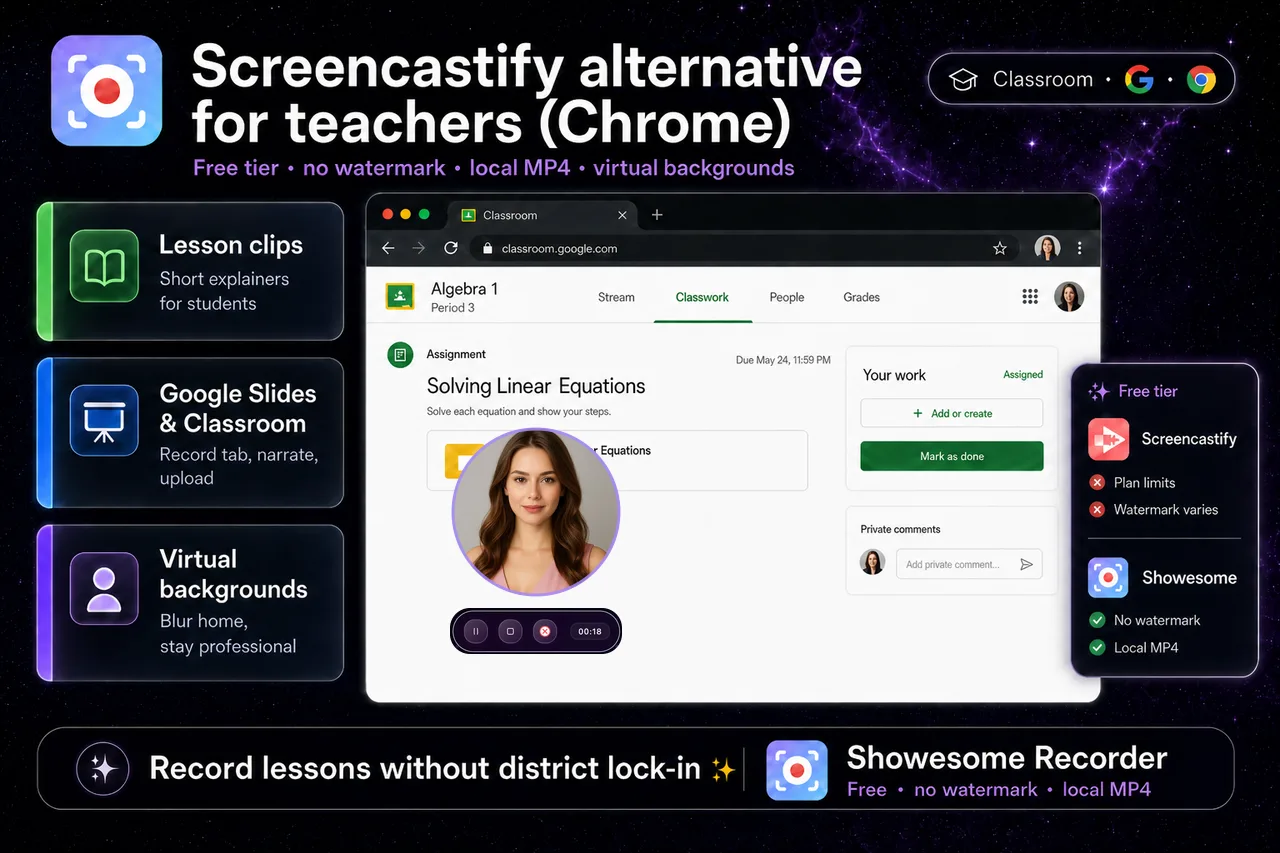
Yes — teachers can use a Screencastify alternative in Chrome. If your district license, free-tier time cap, or watermark is the blocker, Showesome records lesson clips locally in Chrome with no watermark on exports, virtual backgrounds for camera recordings, and optional Google Drive upload when you connect your account. If your school standardized on Screencastify, staying on the org tool is often the right call.
This guide compares when each tool fits, how Google Slides and Classroom workflows map to Showesome, and what to verify before you switch.
Open on watch page (for search and full-screen viewing)
When teachers look for a Screencastify alternative
Common triggers:
| Situation | What you might need |
|---|---|
| Free tier ran out | Longer clips, more exports, or no watermark |
| Personal side projects | Tool outside the district bundle |
| Home recording setup | Virtual background or blur without a studio |
| Tutorial clarity | Focus Mode to spotlight part of a slide or web page |
Screencastify remains strong when your organization already paid for it — assignment flows, admin controls, and familiar Google sharing. Showesome fits when you want local-first Chrome recording without a hosted library requirement.
Quick comparison — classroom Chrome recording (mid-2026)
Plans change — check each vendor’s pricing page before you commit.
| Showesome (free extension) | Screencastify (typical free / edu) | |
|---|---|---|
| Watermark on exports | No watermark | Plan-specific — verify Screencastify pricing |
| Recording length | No fixed duration cap in the extension* | Plan-specific caps |
| Where files live | Local in Chrome by default | Often cloud / Google Drive integration |
| Google Drive upload | Optional when you connect (cloud guide) | Core workflow for many schools |
| Virtual backgrounds | Yes — VB guide | Verify current plans |
| Click-to-zoom / spotlight | Focus Mode | Annotation-focused tools |
| District admin / roster | Extension install — not an LMS suite | Education bundles and admin |
*Very long sessions still depend on device, Chrome, and disk space — not a magic “unlimited forever” guarantee.
For a wider Chrome list, see best free Chrome screen recorders (2026).
When to stay on Screencastify
Keep Screencastify when:
- Your district or IT requires it for compliance or support
- You rely on built-in assignment / submission flows tied to Screencastify
- Admin dashboards, roster sync, or org storage are non-negotiable
- Colleagues share clips only inside the Screencastify library
Switching tools mid-year without IT approval can create more friction than it saves.
When Showesome is a better fit for teachers
Consider Showesome when:
- You need no watermark on free exports for public or portfolio clips
- You want local MP4 on your device before anything goes to the cloud
- You record Google Slides lessons or Chrome tab tutorials and want Focus Mode during capture
- You teach from home and want virtual backgrounds without re-recording
- You optionally upload finished clips to Google Drive, Dropbox, or YouTube — your choice, not automatic cloud storage
Install from the Chrome Web Store → Getting Started.
Typical teacher workflows in Showesome
Record a Slides lesson
- Open the deck in Chrome → Showesome → Screen Only (or Screen + Camera for a talking head).
- Start Recording → share the Slides tab.
- Narrate; use Focus Mode on charts or bullets — record Google Slides in Chrome.
- Export MP4 from Recordings History.
Short “office hours” clip
- Screen + Camera → place the bubble in a corner.
- Record a 2–3 minute answer to one student question — short tutorial clips.
- Upload to Drive or post the file in Classroom if your school allows third-party extensions.
Camera-only announcement with a clean background
- Camera Only → pick Virtual Background in Settings.
- Record → preview → export MP4 — virtual backgrounds guide.
Open on watch page (for search and full-screen viewing)
Google Drive and Classroom — what to expect
Showesome does not replace Google Classroom. It records in Chrome; you share the file the way your school allows:
- Download MP4 → attach to Classroom assignment or Drive folder
- Optional Upload to Cloud → connect Google Drive in Showesome and send a copy when you choose (preview & cloud guide)
Check your district Chrome extension policy before installing any new recorder for student-facing content.
Is Showesome FERPA / COPPA compliant for my district?
Showesome records locally in the browser by default — we do not host your video library on Showesome servers. Compliance is still your district’s call: IT policies, student privacy rules, and whether an extension is allowlisted. Share our Privacy Policy with your admin if they review third-party tools.
Can I use both Screencastify and Showesome?
Yes. Many teachers use Screencastify for official submissions and Showesome for personal prep, long exports, or Focus Mode demos. They are separate extensions — pick the tool per task.
Do I need tab audio for a normal lesson?
Usually no — narration comes from your microphone. Enable Also share tab audio when the lesson includes embedded video or sound in the slide or page — record a Chrome tab with audio.
Related reading
- Best free Chrome screen recorders (2026) — wider comparison table.
- Which screen recorder is right for you? — cloud vs local vs desktop.
- Record a Google Slides presentation in Chrome — deck + Focus Mode.
- Support — modes, export, and cloud upload FAQs.
Quick checklist
- Confirm district policy allows the extension.
- Install Showesome → pin the icon → Getting Started.
- Pick Screen Only (slides) or Screen + Camera (face + UI).
- Record → Focus Mode on key slide elements if needed.
- Export MP4 → upload to Drive or Classroom per school rules.
Was this guide helpful?
One vote per browser. No account required.
Be the first to share feedback.
Comments
Join the discussion — comments are moderated to keep things helpful. Be respectful and constructive.
Preparing sign-in…