OBS vs Chrome screen recorder — which should you use?
Compare OBS Studio and Chrome extension screen recorders like Showesome — setup time, tab audio, webcam overlay, Focus Mode, streaming vs tutorials, and when to use both.
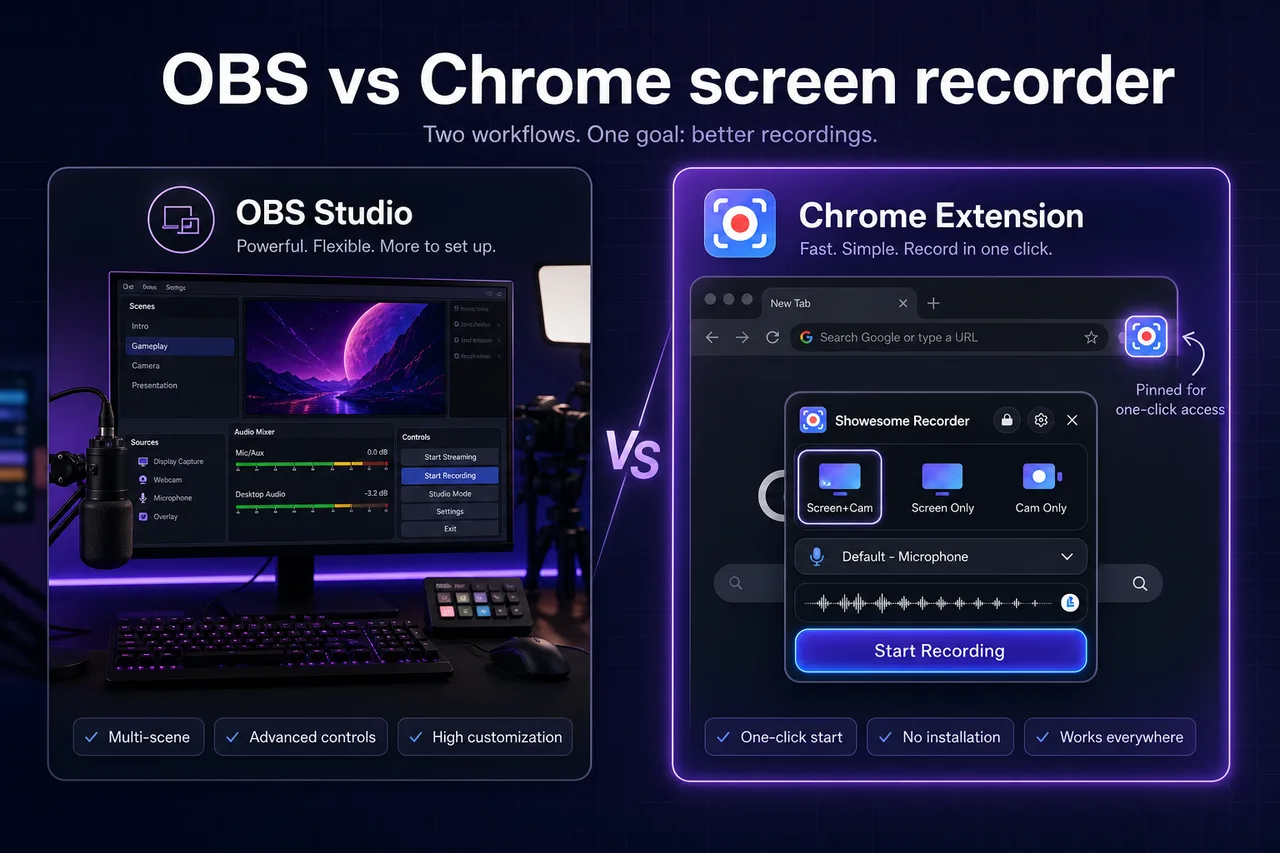
For most Chrome tutorial and demo recordings, a browser extension is faster than OBS. OBS Studio wins when you stream live, mix multiple sources, or need broadcast-style scenes. Showesome and other Chrome extensions win when you open a tab, explain the UI, and export MP4 locally — often in minutes, not after scene setup.
This guide compares OBS and Chrome capture honestly, including when power users run both.
Open on watch page (for search and full-screen viewing)
Quick answer — OBS or Chrome extension?
| Your main job | Start here |
|---|---|
| Record a web app walkthrough | Chrome extension (Showesome, Screenity, etc.) |
| Stream to Twitch / YouTube Live | OBS Studio |
| Multi-camera podcast layout | OBS |
| Click-to-zoom tutorial without editing | Showesome Focus Mode |
| Picture-in-picture webcam over a Chrome tab | Chrome extension — screen + webcam guide |
| Game capture + overlays + replay buffer | OBS |
| Five-minute internal update, local MP4 | Chrome extension |
Still unsure? Read Which screen recorder is right for you? for cloud vs desktop vs browser families.
OBS vs Chrome extension — side by side
| OBS Studio | Chrome extension (e.g. Showesome) | |
|---|---|---|
| Install | Desktop app (Windows, Mac, Linux) | Chrome Web Store extension |
| Best for | Streaming, multi-scene production | Web tutorials, SaaS demos, classroom clips |
| Setup before first clip | Scenes, sources, audio routing — learning curve | Pin extension → Start Recording → Chrome share dialog |
| Capture Chrome tab | Display/window capture (extra steps) | Native Chrome tab share with tab audio (guide) |
| Webcam overlay | Manual scene layout | Screen + Camera bubble — draggable in-page |
| Click-to-zoom during capture | Not built-in | Focus Mode — auto zoom guide |
| Virtual backgrounds | Filters / third-party plugins | Built-in on Camera Only — VB guide |
| Export | You manage files on disk | Local in Chrome → preview → Convert to MP4 |
| Watermark | None from OBS itself | No watermark on Showesome exports |
| Recording length | No OBS-imposed cap | No fixed duration cap in Showesome* |
| Live streaming | Core strength | Not a streaming tool |
| Chromebook | Awkward / Linux-only paths | Works in Chrome on Chrome OS — Chromebook guide |
| Price | Free | Showesome free |
*Long sessions still depend on device RAM, Chrome, and disk — not unlimited magic.
When OBS is the better choice
Choose OBS when:
- You go live on YouTube, Twitch, or Teams with a produced layout
- You need multiple inputs — two cameras, capture card, guest Skype, etc.
- You want scene switching (fullscreen slide → PiP face → BRB screen)
- You record games or full desktop outside the browser regularly
- You already invested in audio interfaces, VST filters, and OBS plugins
OBS is free and powerful. The tradeoff is setup time and operating outside the tab you are demoing unless you configure display or window capture carefully.
When a Chrome extension is the better choice
Choose a Chrome extension when:
- Your subject lives in the browser — SaaS, admin panels, Google Slides, LMS pages
- You want tab audio with one checkbox in Chrome’s share dialog
- You need a fast first recording without building scenes
- You teach with Focus Mode (spotlight + auto zoom) instead of post-production keyframes
- You want local MP4 with no watermark and optional Drive / Dropbox / YouTube upload
- You work on a Chromebook where OBS is not practical
Showesome is optimized for clarity while you record, not broadcast production. For a Chrome-only comparison list, see best free Chrome screen recorders (2026).
Screen + webcam: OBS scene vs Showesome bubble
Both can put your face on screen. The workflow differs:
| OBS | Showesome | |
|---|---|---|
| Setup | Add Display Capture + Video Capture Device, resize layers | Choose Screen + Camera in popup |
| Move webcam | Edit scene between takes | Drag bubble during recording |
| Match Chrome UI | Window capture must frame the browser | Share Chrome tab directly |
Deep dive: Record screen + webcam in Chrome.
Audio: tab sound and microphone
Chrome extensions record tab audio when you enable Also share tab audio in Chrome’s picker — the same path as record Chrome tab with audio.
OBS can capture desktop or application audio, but Chrome tab audio often means window capture or virtual audio cables on some setups — more knobs, more failure modes. If silent exports are your pain point, start with the extension path before routing OBS audio.
Mic issues: Screen recording has no sound?.
Quality and file size
Both can produce sharp files when configured well.
- OBS: you set resolution, encoder (x264, NVENC, etc.), and bitrate manually
- Showesome: captures at native resolution up to 4K when supported; quality presets adjust bitrate — 4K guide
OBS offers more encoder control for power users. Showesome offers good defaults for tutorial creators who do not want to tune x264 settings.
Can I use OBS and Showesome together?
Yes — many creators split by job:
| Task | Tool |
|---|---|
| Weekly live stream | OBS |
| Quick product changelog in Chrome | Showesome |
| Long polished course module | OBS or desktop editor |
| Support clip: “click here in the admin” | Showesome + Focus Mode |
You do not have to pick one forever. Avoid running both capturing the same screen simultaneously — pick one recorder per take.
Do I need OBS for screen recording in Chrome?
No for everyday Chrome tutorials, demos, and async updates. How to record your screen on Chrome (2026) covers install through export without OBS.
Yes (or another desktop studio) when streaming, multi-input production, or game capture is the core workflow — not when the goal is “explain this web UI in five minutes.”
Is OBS harder to learn than a Chrome extension?
Usually yes. OBS rewards upfront investment: scenes, sources, audio meters, and encoder settings. A Chrome extension rewards pin → record → share dialog → stop → MP4.
That does not make OBS “bad” — it is different. Streamers who live in OBS should keep it for live; they still often add a Chrome tool for fast web walkthroughs.
Related reading
- Which screen recorder is right for you? — cloud, desktop, and browser families.
- Best free Chrome screen recorders (2026) — extension comparison table.
- Record a product demo in Chrome — SaaS walkthrough workflow.
- Getting Started — Showesome install through first export.
- Support — FAQs and troubleshooting.
Quick checklist
- Streaming or multi-scene? → OBS.
- Web tutorial in Chrome? → Extension (Showesome or similar).
- Need tab audio + face bubble? → Chrome Screen + Camera.
- Need click-to-zoom without editing? → Showesome Focus Mode.
- Already use OBS for live? → Keep it — add a Chrome tool for fast web clips.
Was this guide helpful?
One vote per browser. No account required.
Be the first to share feedback.
Comments
Join the discussion — comments are moderated to keep things helpful. Be respectful and constructive.
Preparing sign-in…