How to record a product demo in Chrome
Record a product demo in Chrome with Showesome — Screen + Camera for founder face + UI, Focus Mode to spotlight clicks, and short clips instead of one long walkthrough.
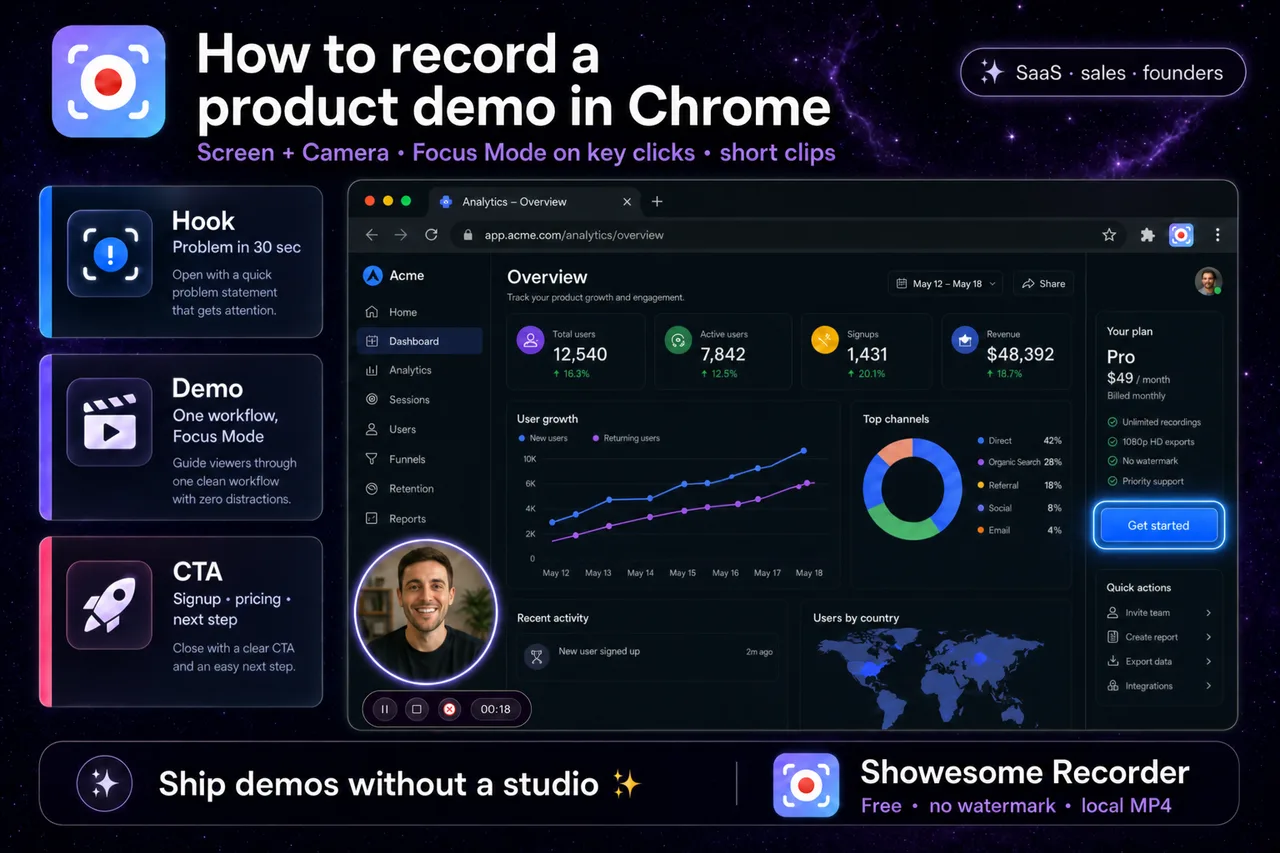
Yes — you can record a product demo in Chrome. Install Showesome, choose Screen + Camera so your face sits in a draggable bubble over the UI, share your app tab in Chrome’s picker, narrate with your microphone, and use Focus Mode to spotlight buttons and workflows as you click. Export MP4 locally — often as short clips (hook, feature, CTA) instead of one fifteen-minute tour.
This guide covers mode choice, tab capture, bubble placement, Focus Mode for SaaS walkthroughs, and a simple three-part demo structure.
Open on watch page (for search and full-screen viewing)
What you need
| Requirement | Notes |
|---|---|
| Your product in a Chrome tab | Web app, admin panel, or marketing site — one tab per demo keeps the share picker clean |
| Showesome installed | Chrome Web Store — free |
| Microphone | Built-in or external — prospects hear your narration |
| Webcam (recommended) | Screen + Camera puts your face in a bubble — builds trust for sales and founder updates |
Optional: blur or replace your room with Virtual Backgrounds before you record — virtual backgrounds guide.
1. Plan three short clips, not one mega-video
Product demos convert better as modular clips than a single long screencast:
| Clip | Goal | Typical length |
|---|---|---|
| Hook | Problem + who it’s for | 30–60 s |
| Feature | One workflow end-to-end | 1–3 min |
| CTA | Pricing, signup, or next step | 30–60 s |
Record each segment separately. If you miss a click, you redo seconds, not the whole demo — why short tutorial clips perform better.
2. Choose Screen + Camera
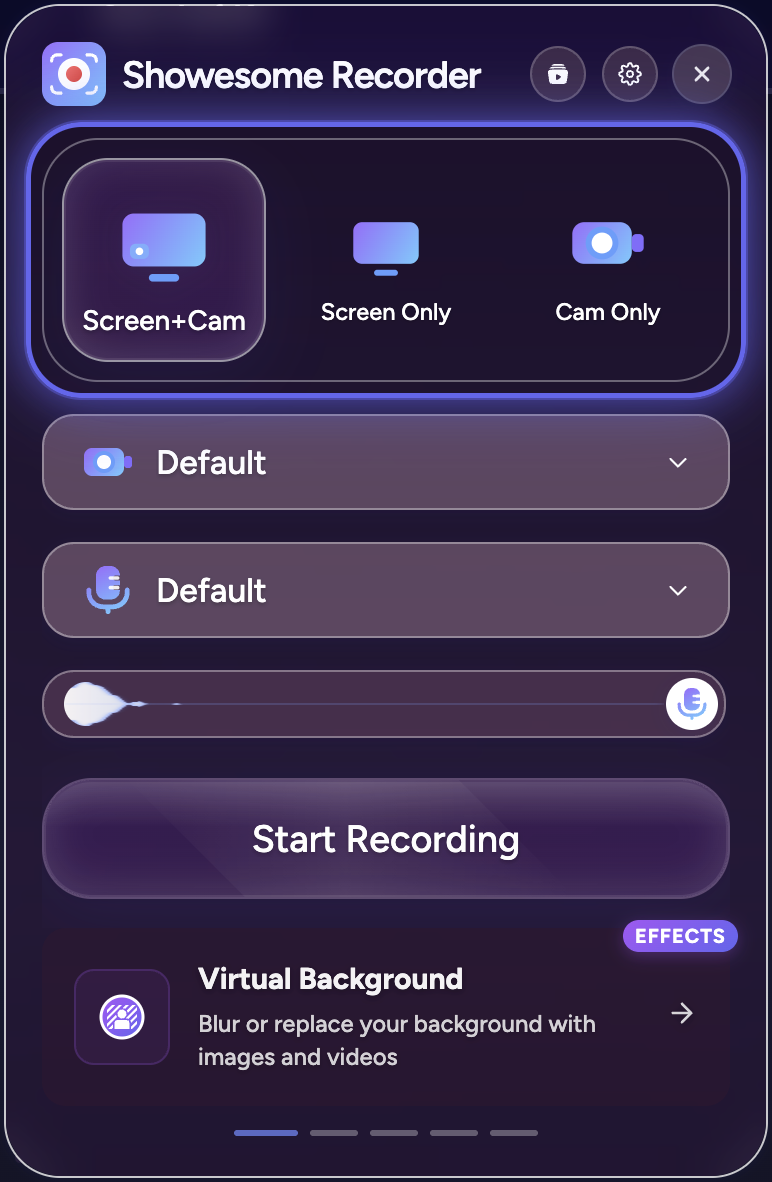
- Click the Showesome icon → select Screen + Camera.
- Pick camera and microphone in the popup.
- Drag the bubble to a corner that does not cover nav, CTAs, or the area you will spotlight.
For screen-only UI captures (no face), use Screen Only — record screen + webcam in Chrome compares both.
Screen + Camera in the popup
Select Screen + Camera at the top of the popup, confirm mic and camera devices, then Start Recording.
3. Share the right Chrome tab
- Click Start Recording.
- In Chrome’s dialog, choose Chrome tab.
- Select the tab with your product (not your email or Slack).
- Enable Also share tab audio only if the demo includes in-app sounds, video, or notification chimes.
- Click Share.
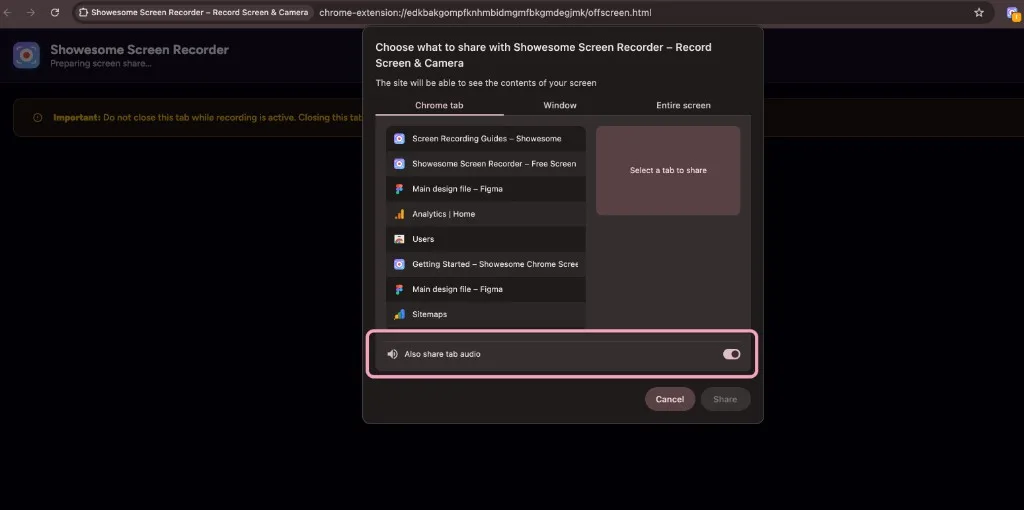
Close sensitive tabs in the same window before you record. For tab-audio details, see record a Chrome tab with audio.
4. Narrate and use Focus Mode on key clicks
Flat UI recordings lose viewers when every panel looks the same size. Focus Mode spotlights what you click — no After Effects required.
- While recording, double-tap Cmd (Mac) or Ctrl (Windows/Linux).
- Click the button, menu, or chart you are explaining.
- Select text for readable copy or error messages.
- Shift + drag when several controls belong in one spotlight.
- Double-tap Cmd/Ctrl or Esc to return to the full view.
Open on watch page (for search and full-screen viewing)
Full reference: Auto zoom for screen recordings in Chrome.
5. Stop, preview, and export MP4
- Stop with the control bar or
Alt+Shift+S. - Open Recordings History → preview each clip.
- Convert to MP4 if needed → Download — convert WebM to MP4 in Chrome.
- Optional: upload to Drive, Dropbox, or YouTube from the preview page — preview and cloud guide.
Screen + Camera vs Screen Only for demos
| Mode | Best for |
|---|---|
| Screen + Camera | Founder updates, sales intros, trust-building walkthroughs |
| Screen Only | Pure UI docs, bug repros, internal how-tos with no face |
| Camera Only | Talking-head teaser linking to a separate UI clip |
Can I record a product demo without Showesome?
Alternatives include Loom (hosted link), OBS (desktop scenes), or Meet/Zoom share (different workflow). Showesome fits local MP4, no watermark, Focus Mode during capture, and Screen + Camera in one extension — see choosing a screen recorder.
Do I need tab audio for a typical SaaS demo?
Usually no — narration comes from your microphone. Turn on Also share tab audio when the product plays video, alerts, or sound effects you need in the recording.
Related reading
- Record screen + webcam in Chrome — bubble placement and devices.
- Short tutorial clips — modular demo structure.
- Engaging tutorials without heavy editing — Focus Mode and pacing.
- Support — modes, Focus Mode, and export FAQs.
Quick checklist
- Outline hook · feature · CTA as separate recordings.
- Showesome → Screen + Camera → mic + camera on → place bubble.
- Start Recording → Chrome tab → your product tab.
- Narrate; Focus Mode on each key click.
- Stop → preview → export MP4 per clip.
Was this guide helpful?
One vote per browser. No account required.
Be the first to share feedback.
Comments
Join the discussion — comments are moderated to keep things helpful. Be respectful and constructive.
Preparing sign-in…