How to record a screen recording bug report in Chrome
Record bug reports as short MP4 clips in Chrome — Screen Only mode, clear reproduction steps, Focus Mode for UI proof, and local export for Jira, Linear, or Slack.
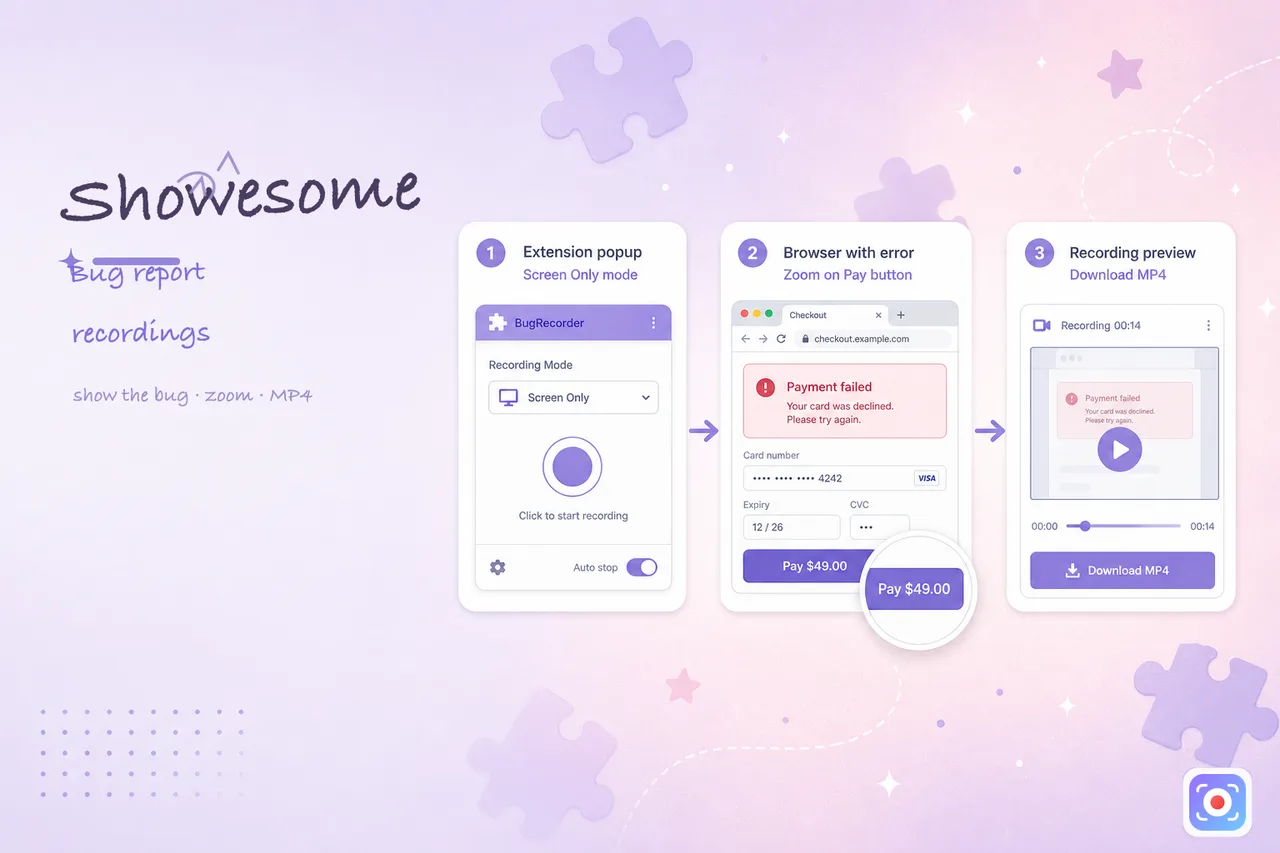
A written bug report often turns into twenty messages: “Which button?” “What did the toast say?” “Can you scroll up?” A short screen recording shows reproduction steps, the broken state, and context in one file — especially when your team is async or across time zones.
This guide is a practical workflow for bug report screen recordings in Chrome with Showesome: what to capture, how to set up Screen Only mode, and how to export MP4 for tickets, Slack, or email.
Why video beats a screenshot thread
Screenshots miss motion, timing, and console output. Text alone cannot show that a spinner never stops or that a modal blocks the wrong layer. A 60–90 second clip with a clear title (“Checkout — payment spinner stuck”) often closes a ticket faster than a paragraph of guesses.
Teams already use screen recording for async updates and remote handoffs. Bug reports are the same idea with a tighter script: reproduce once, narrate briefly, export, attach.
Before you record
- Use Screen Only when the UI alone should tell the story — no camera bubble covering buttons. Compare recording modes if you are unsure.
- Close noise — unrelated tabs, notifications, and desktop clutter compete with the bug. One window or one Chrome tab is usually enough.
- Match the reporter’s environment when it matters — same account type, feature flag, or logged-out state. If the bug only appears in a private window, see recording in Incognito.
- Plan three beats — (1) starting state, (2) steps to reproduce, (3) expected vs what actually happens. You can record in one take or as two short clips if you redo a click.
1. Set up Showesome for a bug repro
- Open the Showesome icon in the Chrome toolbar (pin it if you have not — enable and pin the extension).
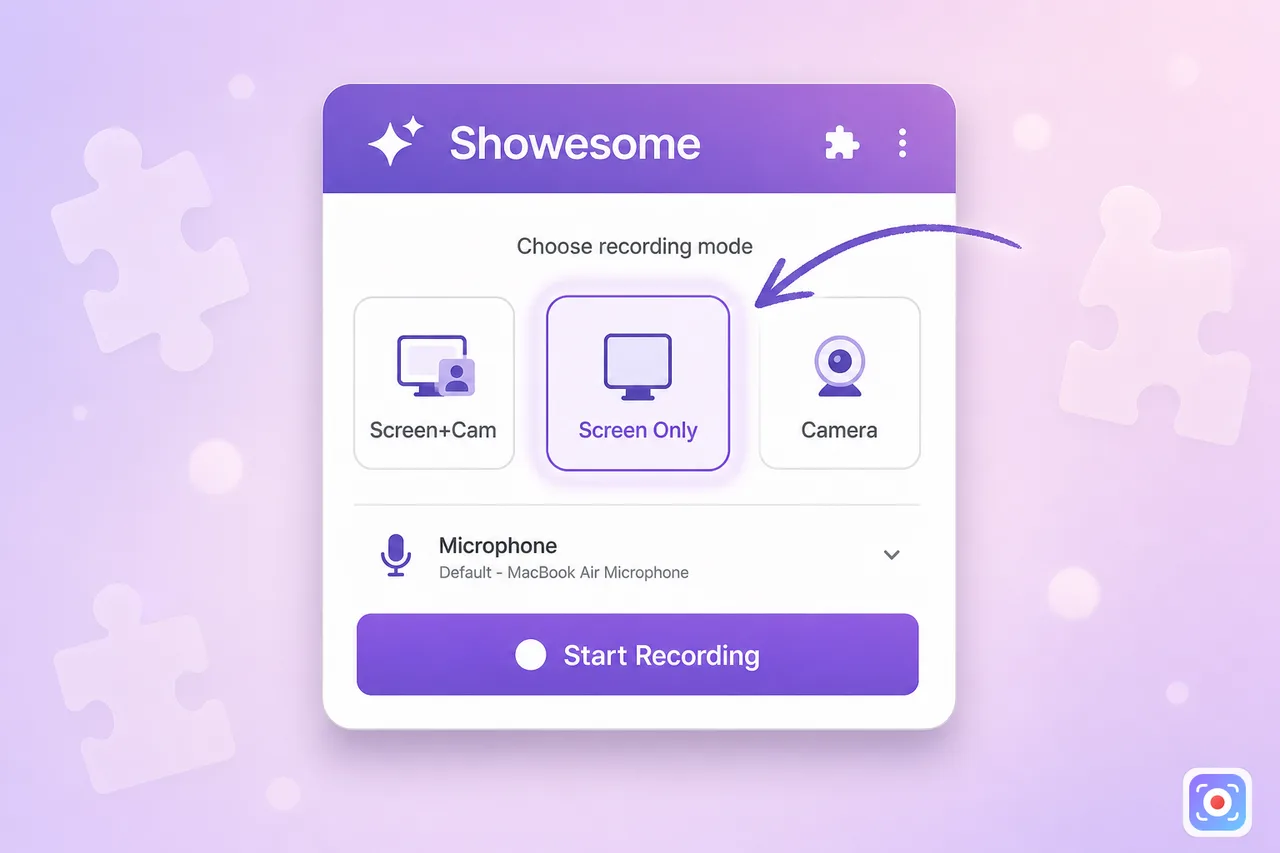
- Choose Screen Only at the top of the popup.
- Pick your microphone if you want a short voiceover (“I click Pay, then the spinner never finishes”). Mute is fine for silent repros — see record screen with audio when you need mic + tab sound.
- Optional: hide the floating control bar in Settings if it would cover the UI you are demonstrating (keyboard shortcuts covers controls visibility).
2. Record the reproduction
- Click Start Recording.
- In Chrome’s share dialog, pick Chrome tab (best when the bug is in one tab) or Window if the issue spans multiple panels in the same app. For tab-specific bugs, enable Also share tab audio only when sound is part of the repro — record a Chrome tab with audio.
- Walk through the steps slowly — pause on each click so viewers can follow.
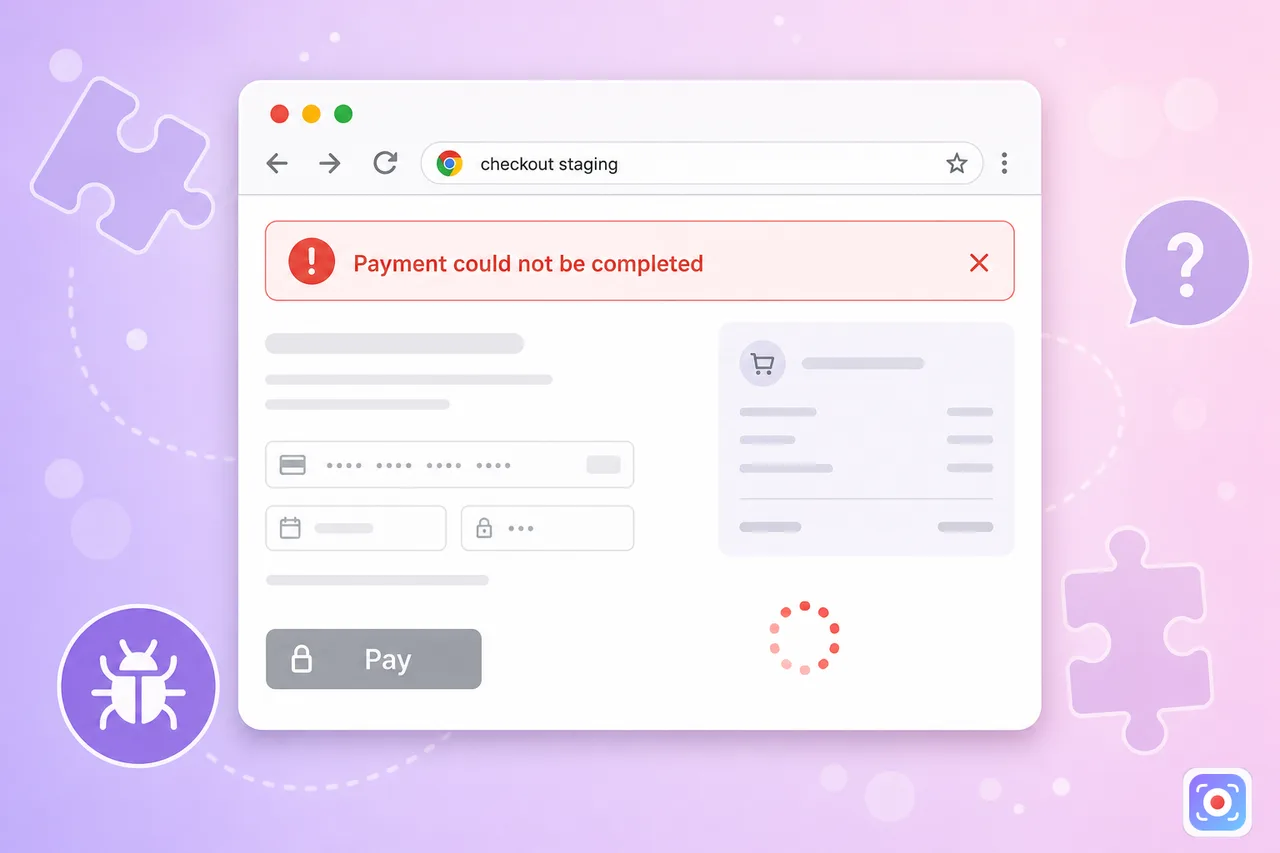
- End on the error state — toast, empty state, wrong data, or frozen spinner. Say out loud what you expected if you are narrating.
Keep it short. One focused clip beats a five-minute tour of the whole product. If you need a second segment (“here is the same flow on staging”), record it separately and label both files clearly.
3. Spotlight the broken control (optional)
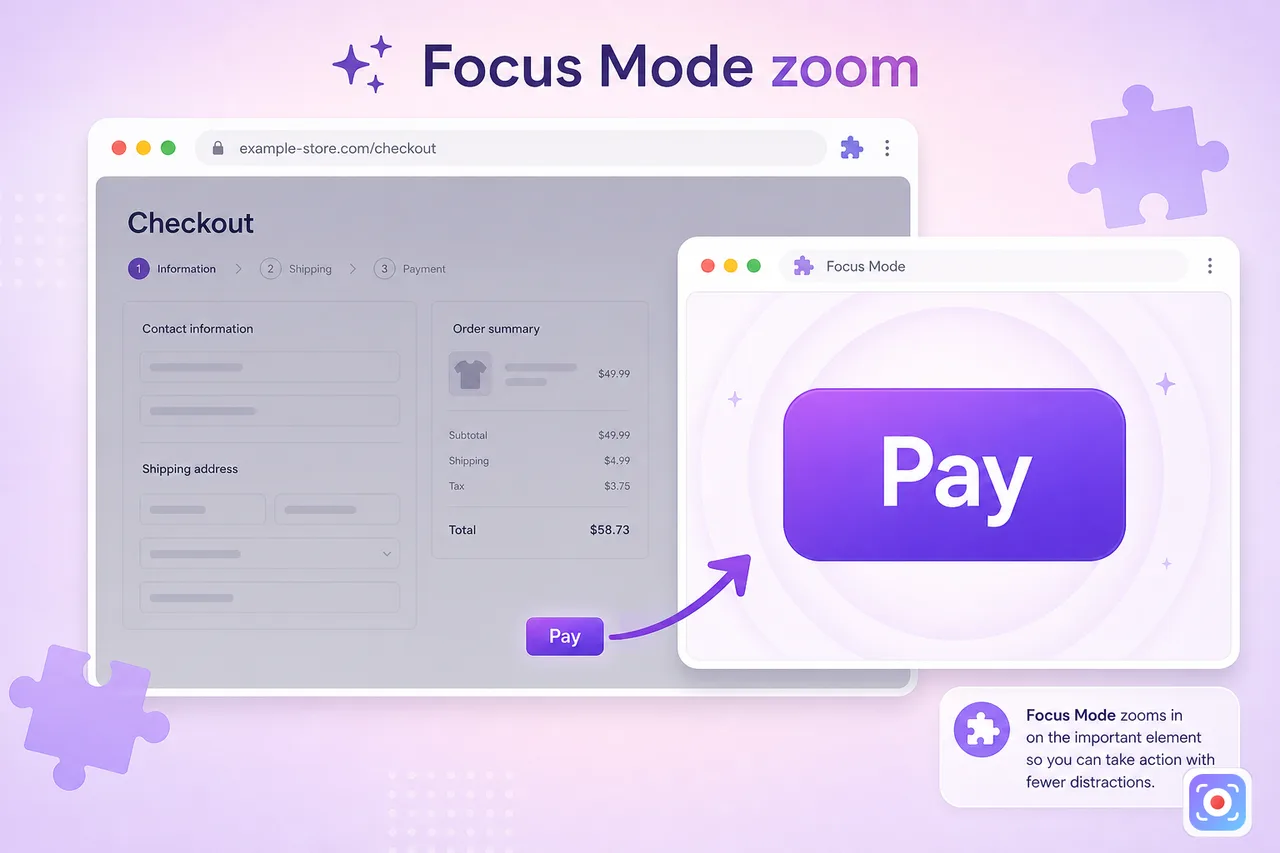
When the screen is busy, viewers still hunt for the right pixel. With Focus Mode, double-tap Cmd or Ctrl, click the button or field that fails, then continue the repro. Press Esc to return to full screen when you are done highlighting.
Use Focus Mode for one or two key moments — not every click — so the clip stays easy to follow.
4. Export MP4 and attach it where your team works
When you stop recording, the clip is already in your Showesome library in Chrome. To share outside the extension:
- Open Recordings History from the popup (library guide).
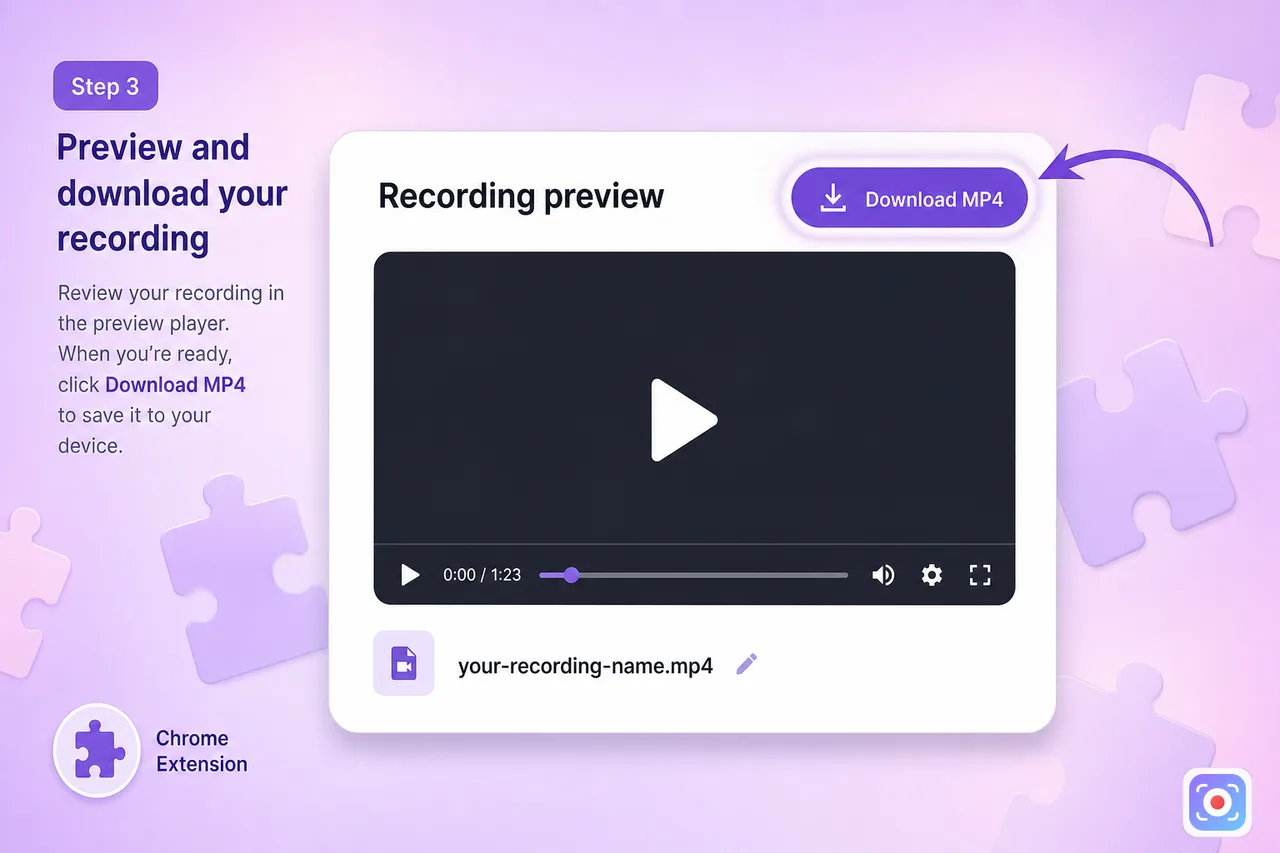
- Open preview for the clip (preview and export).
- Convert to MP4 if needed, then Download MP4.
- Attach the file to Jira, Linear, GitHub, Notion, Slack, or email — or upload to Drive / YouTube if your team prefers a link.
Title the message like a headline: “Settings save — 500 error after Submit”, not “bug video 3”. Link related tickets in the thread so the MP4 stays the proof, not the only source of truth.
What to include in the ticket (besides the video)
| Include | Why it helps |
|---|---|
| Environment | OS, Chrome version, role/account type |
| Steps | Numbered list matching what you recorded |
| Expected vs actual | One line each — reviewers scan this first |
| URLs or build | Staging vs production, feature flag if relevant |
| Console or network | Optional second clip or screenshot if engineers need logs |
The recording shows what happened; the table still gives engineers text they can search and copy.
What recording mode should I use for a bug report?
Screen Only for most UI repros — no bubble covering the bug. Use Focus Mode briefly if you need to highlight one control.
How do I export a bug repro as MP4 for Jira or Slack?
Stop recording → preview → Export MP4. Attach the file to your ticket or upload to your team's file share — local export, no hosted link required.
How long should a bug report screen recording be?
Thirty to ninety seconds is usually enough — repro steps, expected vs actual, one slow pass. Trim by re-recording a tighter take instead of editing.
Quick checklist
- Screen Only in the popup — UI stays unobstructed.
- One tab or window — reproduce the bug, not your whole desktop.
- Three beats — start state → steps → broken result (under ~90 seconds when possible).
- Slow cursor, short narration — or silent if the UI speaks for itself.
- Focus Mode on the one control that matters, if the layout is dense.
- Preview → Convert to MP4 → Download — attach with a clear title in your tracker or chat.
Related reading
- Screen recording tips for remote teams — when async video replaces another meeting
- How to record a Chrome tab with audio — tab picker and tab audio
- Common screen recording mistakes — cursor chaos and cluttered screens
- Your recordings library — find and manage clips
- Preview, export, and optional cloud backup — MP4 and optional upload
- Getting Started — first recording in the real extension UI
- Support — FAQs and contact for extension issues
Was this guide helpful?
One vote per browser. No account required.
Be the first to share feedback.
Comments
Join the discussion — comments are moderated to keep things helpful. Be respectful and constructive.
Preparing sign-in…