Private screen recorder for Chrome: record without uploading
Showesome records screen and camera in Chrome on your device. No account is required. Google Drive, Dropbox, and YouTube receive a clip only when you connect and choose to upload.
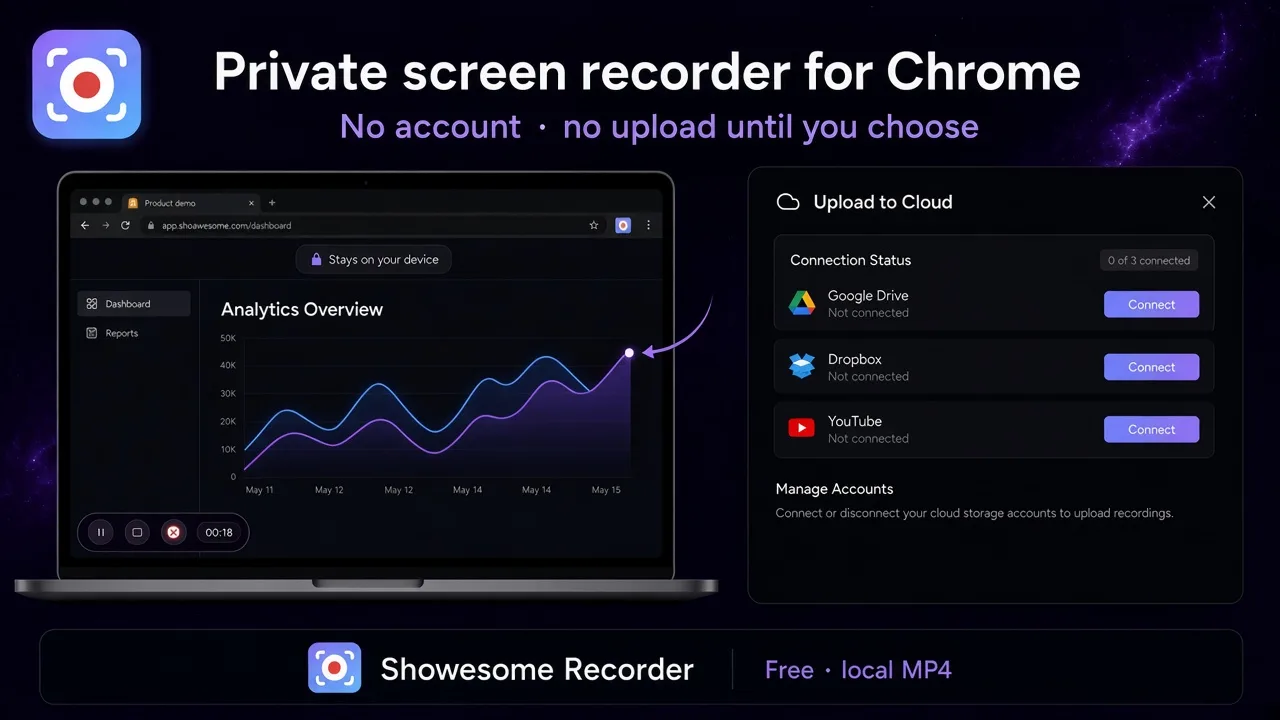
Showesome records in Chrome on your device and does not upload the video unless you connect Google Drive, Dropbox, or YouTube and choose a clip to send. No Showesome account is required to record, preview, or export MP4.
This guide is for anyone comparing a private screen recorder with tools that create a hosted link on every take.
Local recording vs upload-to-share
| Showesome | Loom-style hosted recorder | Upload-to-edit tools | |
|---|---|---|---|
| Account to press record | No Showesome account | Usually required for the library and link | Often required before you can finish or share |
| Where the take goes first | Recordings History in Chrome on your device | Vendor cloud, then a link | Vendor cloud so the editor can open it |
| Default sharing | You download MP4/WebM and share the file yourself | Hosted link as soon as the upload finishes | Link or project in that product’s cloud |
| When a copy leaves the device | Only if you connect Drive, Dropbox, or YouTube and upload a clip | On a normal record | When the product syncs the project to edit or share |
| MP4 conversion | On your device in preview | Handled on their servers | Often on their servers |
| Best fit | Tutorials and demos you want as files you control | Teams that live in instant links and comments | Workflows that require that vendor’s editor |
Loom remains a strong choice when a hosted link and team comments are the point. Showesome fits when the point is a local file and upload is a choice. Longer comparison: free Loom alternative for Chrome. Authoritative wording on data handling: Privacy Policy.
“0 of 3 connected” in Upload to Cloud is the normal starting state. Leave Drive, Dropbox, and YouTube disconnected and nothing is uploaded.
1. Record without an account
- Install Showesome from the Chrome Web Store and pin it. Enable and pin.
- Open the popup, pick Screen Only, Screen + Camera, or Camera Only, and set your microphone.
- Click Start Recording and choose a tab, window, or screen in Chrome’s share dialog.
- Stop when you are done. The clip appears in Recordings History on this device. Where Chrome screen recordings are saved.
There is no Showesome login step in that flow.
2. Export MP4 on your device
- Open the clip in preview.
- Click Convert to MP4. FFmpeg runs in Chrome on your machine — the convert step does not upload the file. Convert WebM to MP4 in Chrome.
- Click Download MP4 (or Download WebM) and share that file in Slack, email, a ticket, or your LMS.
3. Upload only when you choose
Cloud backup is optional and off until you turn it on:
- Open Upload to Cloud from Recordings History or preview.
- Connect only the services you want (Google Drive, Dropbox, or YouTube).
- Upload individual clips. Other recordings stay in the local library.
- Disconnect anytime from the same modal. Disconnecting does not delete local clips.
Full clicks: preview, export, and optional cloud backup.
Once you upload, that provider stores the copy under your Drive, Dropbox, or YouTube account and their terms. Local recording and an optional upload are different steps — do not describe an uploaded clip as if it never left the device.
Does Showesome upload screen recordings automatically?
No. Recording, preview, and MP4 conversion stay in Chrome. A copy goes to Google Drive, Dropbox, or YouTube only after you connect that service and upload a clip.
Do I need an account to record?
No Showesome account. Install the extension, record, and export. Cloud connect uses your Google, Dropbox, or YouTube login, and only if you want that backup.
Is local the same as “never leaves my computer”?
Local is the default. The recording stays in Chrome on your device until you download it, delete it, or upload a copy. A downloaded MP4 is a normal file you can send. An uploaded copy lives with the provider you chose. Uninstalling Showesome or clearing the extension’s data can remove the library copy; it does not recall a file you already downloaded or uploaded.
Quick checklist
- Install Showesome and record a short test clip — no account prompt.
- Confirm the clip is in Recordings History and Upload to Cloud still shows services as not connected.
- Convert to MP4 and Download MP4 on the device.
- Connect Drive, Dropbox, or YouTube only for clips you intend to back up or publish.
- Read the Privacy Policy before you roll the extension out on a team with a data policy.
Related reading
- Where are Chrome screen recordings saved? — library vs Downloads vs cloud.
- Free Loom alternative for Chrome — length, watermark, and local files vs hosted links.
- Preview, export, and optional cloud backup.
- Privacy Policy — authoritative data-handling wording.
- Support — FAQs on storage and upload.
Was this guide helpful?
One vote per browser. No account required.
Be the first to share feedback.
Comments
Join the discussion — comments are moderated to keep things helpful. Be respectful and constructive.
Preparing sign-in…