How to pause a screen recording in Chrome (2026)
Pause and resume a Chrome screen recording in Showesome with Alt+Shift+P or the on-screen control bar. Pause keeps the same session open. Stop saves the clip. Cancel discards it.
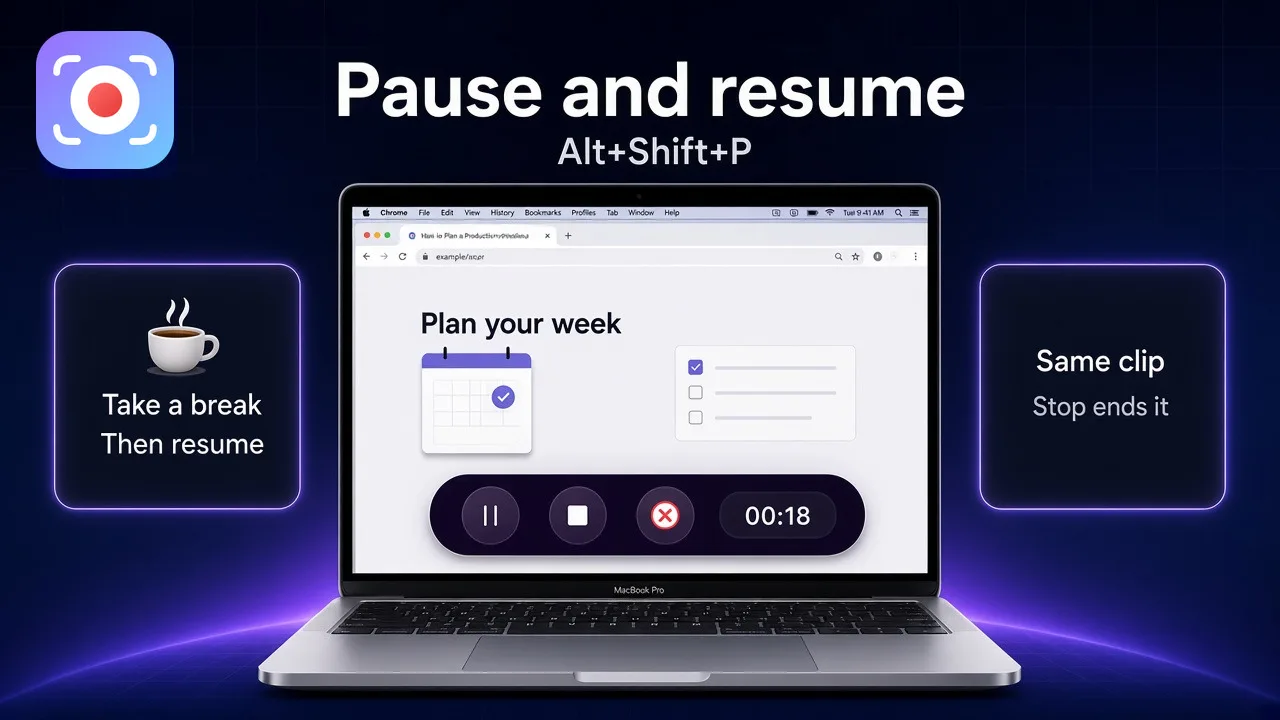
Yes — you can pause a screen recording in Chrome with Showesome. While a recording is active, press Alt+Shift+P (Option+Shift+P on Mac) or use the pause control on the recording bar. Press the shortcut again to resume. Pausing does not end the session.
Stopping is different. Alt+Shift+S finishes the clip and saves it. Alt+Shift+C discards the session without saving.
Pause, stop, and cancel
| Action | Shortcut | What it does |
|---|---|---|
| Pause / resume | Alt+Shift+P |
Pauses an active recording without ending it. Press again to resume. |
| Start / stop | Alt+Shift+S |
Starts a recording. While recording or paused, the same shortcut stops and saves the clip. |
| Cancel | Alt+Shift+C |
Discards the current session without saving. |
On Mac, Chrome shows Option instead of Alt. The pattern is the same. These shortcuts work from any Chrome tab. You do not need the Showesome popup open. Full setup: keyboard shortcuts.
1. Start the recording
- Open the Showesome popup and choose Screen + Camera, Screen Only, or Camera Only.
- Click Start Recording.
- In Chrome’s share dialog, pick a tab, window, or entire screen. For a tab with sound, turn on Also share tab audio.
First-time setup: how to record your screen on Chrome. Modes: Screen + Camera, Screen Only, or Camera Only.
2. Pause from the control bar
While you are recording, Showesome shows one dark control bar:
- Pause — two vertical bars
- Stop — a square
- Cancel — a red X
- Timer — elapsed time on the bar
Click the pause control (the two vertical bars) to pause. Press Alt+Shift+P again to resume. There is no separate button labeled “PAUSE.”
The bar is Showesome’s own stop and pause bar. Hiding it does not hide the page you are recording.
3. Pause from the keyboard
Press Alt+Shift+P to pause. Press Alt+Shift+P again to resume.
If nothing happens, the shortcut is not registered yet:
- Open the Showesome popup → Settings → Shortcuts & System → Set Shortcuts, or open
chrome://extensions/shortcuts. - Under Showesome Screen Recorder, set Pause/Resume recording to
Alt+Shift+P(Option+Shift+Pon Mac). - Click a normal web page so the tab has focus, then try the shortcut again.
Details: Set up or change shortcuts in Chrome.
4. Use pause for a break or the next step
Pause when you need the session to stay open:
- A long take — step away, then resume the same recording. Keyboard shortcuts calls this out for long sessions.
- The next step — pause, open the page or window you want to show, then resume. Viewers stay in one clip. Record a PowerPoint presentation uses the same shortcut between slides.
Pause does not blur, mask, or hide passwords, notifications, email, or anything else on screen. If that content is visible while the recording is running, it is in the capture. Pause is not a redaction tool.
5. Hide the bar and still pause
Turn off Recording Controls in Settings → Recording & Video. The floating bar disappears. Alt+Shift+P still pauses and resumes, Alt+Shift+S still stops, and Alt+Shift+C still cancels.
Hiding the bar only removes Showesome’s controls. It does not remove page content. In Screen + Camera, the camera bubble can stay while the bar is off. Controls hidden — shortcuts only.
6. Stop or cancel
- Done: press Alt+Shift+S or click the stop square. The clip is saved in Recordings History on this device. Where recordings are saved.
- Bad take: press Alt+Shift+C or click the red X. Showesome discards that session. Nothing is saved.
Recordings stay on the device unless you later upload a clip to Google Drive, Dropbox, or YouTube.
Can I pause in Screen Only or Camera Only?
Yes. Pause and resume apply while a recording is active, including Screen + Camera, Screen Only, and Camera Only. The shortcut does not depend on the mode you picked before Start.
Does pause hide passwords or notifications?
No. Showesome does not blur, mask, or redact on-screen content. The control bar is the only thing you can hide, and that only hides Showesome’s own bar. Move private content off screen yourself before it is recorded.
Is pause the same as Focus Mode?
No. Focus Mode spotlights and zooms a click, a text selection, or a dragged area, and dims the surroundings. It uses a double-tap of Cmd or Ctrl, and Esc to exit. Those keys are separate from Alt+Shift+P. Focus Mode does not remove page content. Focus Mode tips.
Quick checklist
- Start a recording — Screen + Camera, Screen Only, or Camera Only.
- Pause with Alt+Shift+P (Option+Shift+P on Mac) or the pause control (two vertical bars) on the bar.
- Resume with Alt+Shift+P again.
- Stop with Alt+Shift+S or the stop square when the clip is finished. Cancel with Alt+Shift+C or the red X if you want to discard it.
- Open Recordings History to preview and export. The file stays on this device until you upload it.
Related reading
- Keyboard shortcuts — start, pause, stop, cancel, and hiding the control bar.
- Recording modes — Screen + Camera, Screen Only, and Camera Only.
- How to record your screen on Chrome (2026) — install, share dialog, and export.
- Where Chrome screen recordings are saved — Recordings History and local MP4.
- Focus Mode tips — spotlight and zoom, separate from pause.
- Support — shortcut and recording FAQs.
Was this guide helpful?
One vote per browser. No account required.
Be the first to share feedback.
Comments
Join the discussion — comments are moderated to keep things helpful. Be respectful and constructive.
Preparing sign-in…