How to record a PowerPoint presentation in Chrome
Record a PowerPoint presentation in Chrome with Showesome — share PowerPoint for the web as a tab or the desktop app as a window, narrate with your mic, spotlight slides with Focus Mode, and export MP4 locally.
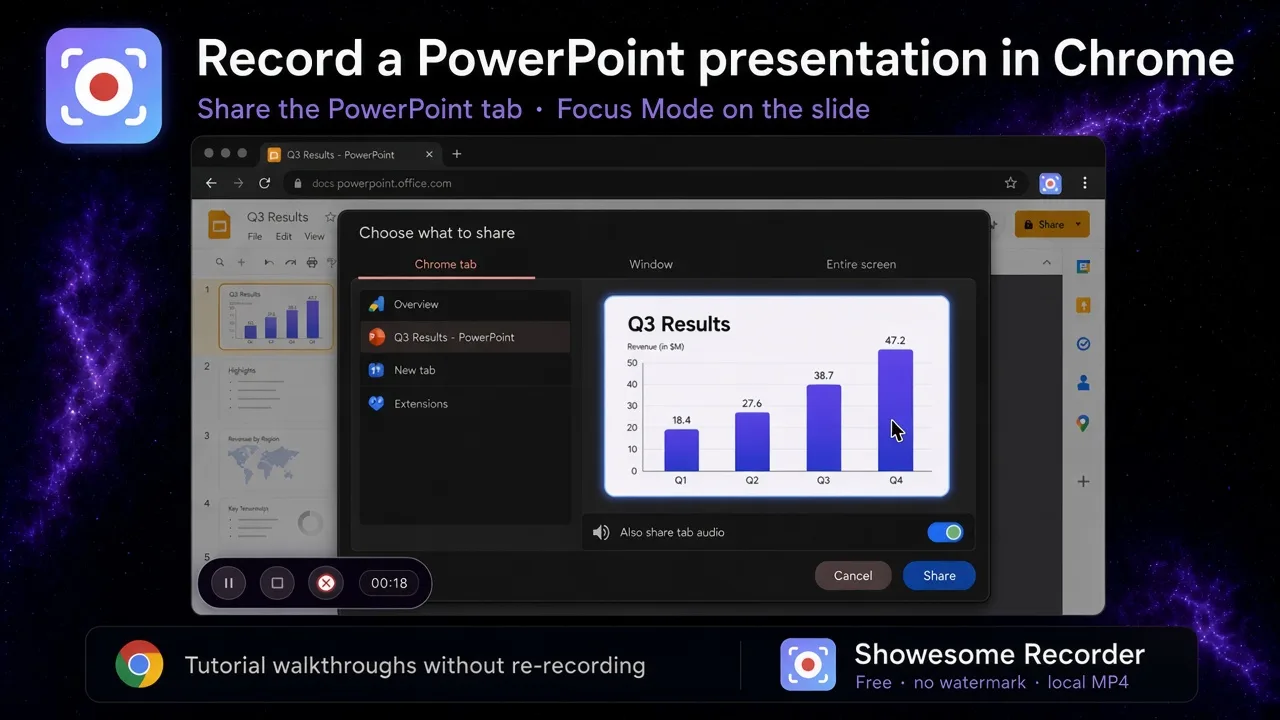
Yes — you can record a PowerPoint presentation in Chrome with Showesome. Share the PowerPoint for the web tab, or the desktop PowerPoint window, narrate with your microphone, spotlight a chart or bullet with Focus Mode, and export MP4 locally.
This is the PowerPoint sibling of record a Google Slides presentation in Chrome. The recorder steps match; the share target changes with where the deck is open.
Open on watch page (for search and full-screen viewing)
What you need
| Requirement | Notes |
|---|---|
| The deck | PowerPoint for the web in a Chrome tab, or the PowerPoint desktop app |
| Showesome installed | Chrome Web Store — free |
| Microphone | Built-in or external — narration comes from the mic, not from PowerPoint |
| Optional: camera | Screen + Camera puts your face in a draggable bubble |
Embedded video or audio in the browser deck needs Also share tab audio. A desktop PowerPoint window does not use that Chrome toggle — mic narration still works.
PowerPoint for the web vs the desktop app
| Deck location | What to share in Chrome | Audio to turn on |
|---|---|---|
| PowerPoint for the web (office.com) | Chrome tab — recommended | Microphone for narration. Also share tab audio only if the slide plays sound |
| PowerPoint desktop app | Window — the PowerPoint window | Microphone for narration. Tab audio does not capture a desktop app |
| Entire screen | Avoid unless you want the desktop and notifications in the clip | Mic, plus whatever the OS routes into a full-screen share |
Google Slides stays a Chrome tab in almost every case. PowerPoint is often a desktop window — pick Window for that app, Chrome tab for the web version.
1. Open the deck in Chrome or as a desktop window
- Web: open the file in Chrome from OneDrive or office.com. Keep one deck per window so the tab picker stays obvious.
- Desktop: open PowerPoint and the file. Put Chrome and PowerPoint on the same display you will share.
- Start Slide Show when you want a full-screen lecture (slideshow in the browser, or F5 / Slide Show in the desktop app). Stay in the editor when you want thumbnails visible while you narrate.
2. Pick Screen Only or Screen + Camera
Click the Showesome icon and choose a mode:
| Mode | Best for |
|---|---|
| Screen Only | Deck-only lessons, LMS uploads, internal training |
| Screen + Camera | Trainer clips with face and slides — recording modes |
| Camera Only | A talking-head intro, not the slide walkthrough itself |
Turn the microphone on and confirm you are not muted. Record your screen with audio.
3. Share the PowerPoint tab or window
- Click Start Recording.
- In Choose what to share:
- Web deck → Chrome tab → the PowerPoint tab → Share.
- Desktop app → Window → the PowerPoint window → Share.
- For a web deck with video or sound on the slide, enable Also share tab audio before Share.
Install-to-export basics: how to record your screen on Chrome (2026).
4. Narrate and spotlight the slide
- Advance slides with the keyboard or click. Your voice is the microphone track.
- Pause with
Alt+Shift+Pwithout ending the take — keyboard shortcuts. - Focus Mode: double-tap Cmd (Mac) or Ctrl (Windows/Linux), then click a chart, bullet, or image. Showesome spotlights and zooms that target while you record. Esc or a second double-tap returns to the full slide.
Walkthrough: auto zoom for screen recordings in Chrome and Focus Mode tips.
Record one section per take when the deck is long, then export each chapter. Short tutorial clips.
5. Export MP4
- Stop (
Alt+Shift+Sor the control bar). - Open Recordings History and preview the clip. Where recordings are saved.
- Convert to MP4, then Download MP4. Convert WebM to MP4 in Chrome.
- Upload to an LMS, Drive, or YouTube only if you want a copy there. Preview and optional cloud.
Can I record PowerPoint the same way as Google Slides?
The Showesome steps match. Slides is almost always a Chrome tab. PowerPoint for the web is a tab; the PowerPoint desktop app is a window. Narration is still your microphone, and Focus Mode still spotlights what you click. Slides walkthrough: record a Google Slides presentation in Chrome.
Do I need tab audio for a normal PowerPoint deck?
Usually no. Narration comes from the microphone. Enable Also share tab audio only for a browser deck that plays video or sound. Desktop PowerPoint sound is not Chrome tab audio — share the window and keep the mic on for your voice.
Quick checklist
- Open the deck in Chrome (web) or PowerPoint (desktop).
- Showesome → Screen Only or Screen + Camera → mic on.
- Start Recording → Chrome tab for the web deck, or Window for the desktop app.
- Narrate; double-tap Cmd/Ctrl and click a chart or bullet for Focus Mode.
- Stop → preview → export MP4.
Related reading
- Record a Google Slides presentation in Chrome — same flow for Slides tabs.
- Record a Chrome tab with audio — Also share tab audio.
- Auto zoom without editing — Focus Mode on slide elements.
- How to record your screen on Chrome (2026).
- Support — FAQs on modes, Focus Mode, and export.
Was this guide helpful?
One vote per browser. No account required.
Be the first to share feedback.
Comments
Join the discussion — comments are moderated to keep things helpful. Be respectful and constructive.
Preparing sign-in…