How to record a video for Google Classroom in Chrome
Record a video for Google Classroom in Chrome with Showesome — a local MP4 with no watermark. Download the file or send a copy to Google Drive, then attach it on the assignment.
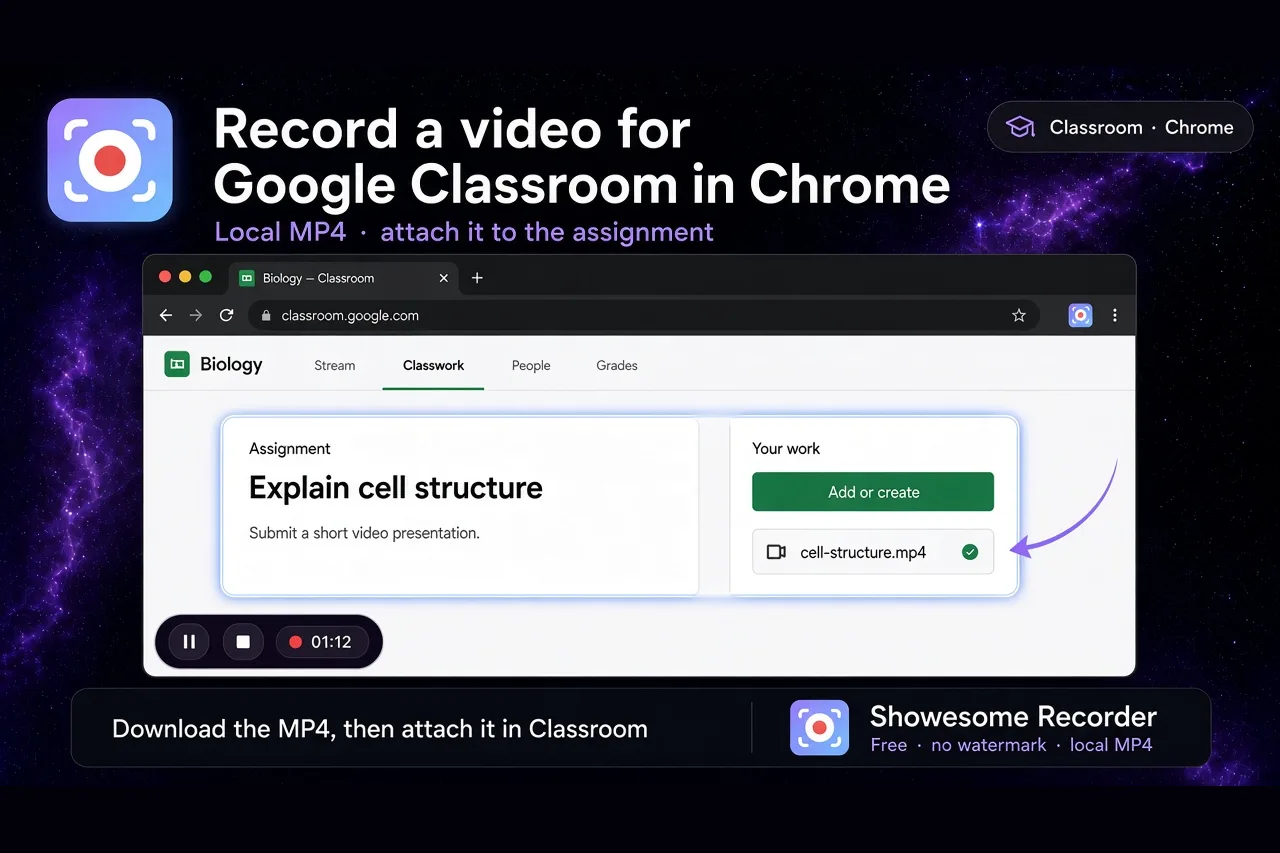
Yes — you can record a video for Google Classroom in Chrome. Showesome saves a local MP4 on your device, with no watermark. Download that file, or send a copy to Google Drive, then attach it on the assignment.
The extension records the lesson or the student response. Classroom is where you attach the finished file. Showesome does not post into the class for you.
Open on watch page (for search and full-screen viewing)
What you are recording
| Job | Mode | What to share |
|---|---|---|
| A spoken explanation | Screen + Camera, or Cam Only if the page should stay off the clip | Your face. Open the assignment behind a Cam Only bubble if you want to read from it |
| A Slides or Docs walkthrough | Screen Only | That Chrome tab |
| A website, lab, or simulation | Screen Only | That Chrome tab. Turn on Also share tab audio when the page plays sound |
Teachers use the same steps for a lesson clip. Students use them for a video assignment. If the school already requires another recorder for official submissions, use that tool for the file you turn in. Screencastify alternative for teachers.
What you need
| Requirement | Notes |
|---|---|
| Google Classroom in Chrome | classroom.google.com, signed in with the class account |
| Showesome installed | Chrome Web Store — free |
| Microphone | Built-in or headset — narration comes from the mic |
| Optional: camera | Screen + Camera for face plus the page, or Cam Only for a talking-head answer |
On a Chromebook, the same Chrome extension applies when the device allows it. How to record your screen on a Chromebook.
1. Open the assignment in Chrome
- Go to classroom.google.com and open the class.
- Open Classwork and the assignment you are answering or teaching.
- Keep that work in one tab. Close unrelated tabs so Chrome’s share picker stays simple.
A slide deck lives in its own tab. Record that tab when the assignment is the deck, not the Classroom home page. Record a Google Slides presentation in Chrome.
2. Pick a recording mode
Click the Showesome icon:
| Mode | Best for |
|---|---|
| Screen + Camera | Face in a bubble over the assignment, slides, or site |
| Screen Only | The page itself, with your voice on the microphone |
| Cam Only | Webcam only. Bubble lets you read the assignment while you talk. The page is not in the file |
Set Microphone on and leave it unmuted. Record your screen with audio.
For a face recording at home, blur or replace the room before you start. Virtual backgrounds.
3. Start recording and share the right tab
- Click Start Recording.
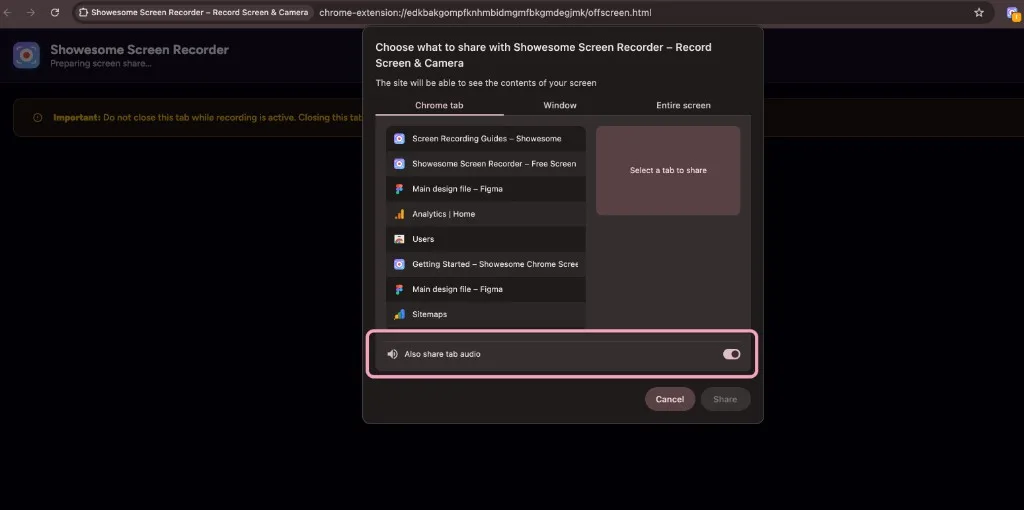
- For Screen Only or Screen + Camera, Chrome opens Choose what to share. Select Chrome tab.
- Pick the assignment, Slides, or site tab.
- If that tab plays video or other sound you need in the file, turn on Also share tab audio.
- Click Share.
Cam Only does not ask you to share a screen. It records the webcam.
Pause with Alt+Shift+P if you need a moment. Stop with Alt+Shift+S or the control bar. Keyboard shortcuts.
4. Spotlight the part you are explaining
When the clip shows a page, Focus Mode zooms the chart, step, or sentence you click. The zoom is in the recording. You do not add it later in an editor.
- While recording, double-tap Cmd (Mac) or Ctrl (Windows, Chromebook, or Linux).
- Click the step, diagram, or button you are talking about.
- Select text when the words need to be large enough to read.
- Double-tap Cmd/Ctrl again, or press Esc, to show the full page.
Skip Focus Mode for a Cam Only answer. The clip is your face. Focus Mode tips.
5. Export an MP4
- Stop the recording. The clip is in Recordings History on this device.
- Open the preview.
- Click Convert to MP4 if the preview is still WebM. Conversion stays on your device. Convert WebM to MP4 in Chrome.
- Click Download MP4 when you want a file you can upload from the computer.
The library copy is not in Downloads until you download it, and it is not in Drive until you upload it. Where Chrome screen recordings are saved.
6. Attach it in Google Classroom
Use the file Classroom already accepts:
| How you share | What to do |
|---|---|
| Upload the MP4 | On the assignment, open Your work → Add or create → File, and choose the downloaded MP4 |
| Google Drive | In Showesome, open Upload to Cloud, connect Google Drive, and upload that clip. In Classroom, choose Google Drive and pick the file |
A Drive upload is a copy in your Google account. It does not create the Classroom post. Upload a Chrome screen recording to Google Drive.
Teachers attach the same MP4 as assignment material or a class resource. Students attach it under Your work. Either way, the class page is where the video becomes the submission.
Check that the school allows the extension before you install it on a managed Chromebook or school account. Share the Privacy Policy if an admin reviews new tools.
Can Showesome post the video into Google Classroom?
No. Showesome records in Chrome and can optionally copy a clip to Google Drive. You attach the MP4, or that Drive file, on the Classroom assignment yourself.
Do I need Screencastify to submit a Classroom video?
No for the recording. Showesome can make the MP4. Your teacher or district may still require a specific tool for the official submission. If they do, export the file from the tool they named. Screencastify alternative for teachers.
Do I need tab audio for a Classroom video?
Usually no. Your voice comes from the microphone. Turn on Also share tab audio only when the shared tab plays sound you want in the file — a clip inside Slides, a simulation, or a video on the page. Record a Chrome tab with audio.
Where is the file before I attach it?
In Recordings History, in Chrome on this device. Download MP4 puts a copy in Downloads. Google Drive gets a copy only after you connect Drive and upload that clip. Nothing goes to Classroom until you attach it there.
Related reading
- Screencastify alternative for teachers — when a district tool and a local recorder do different jobs.
- Record a Google Slides presentation in Chrome — narrate a deck, then attach the MP4.
- Record a Canva presentation in Chrome — narrate a Canva deck, then attach the MP4.
- Upload a Chrome screen recording to Google Drive — optional Drive copy before you attach it.
- How to record Camera Only in Chrome — talking-head answers with the assignment as a script.
- Support — FAQs on modes, export, and cloud upload.
Quick checklist
- Open the assignment in Chrome.
- Showesome → Screen + Camera, Screen Only, or Cam Only → mic on.
- Start Recording → share the tab when the page should be in the clip.
- Stop → preview → Download MP4.
- In Classroom, attach that file or a Google Drive copy under Your work or the assignment materials.
Was this guide helpful?
One vote per browser. No account required.
Be the first to share feedback.
Comments
Join the discussion — comments are moderated to keep things helpful. Be respectful and constructive.
Preparing sign-in…