How to upload a Chrome screen recording to Google Drive
Upload one Showesome recording to Google Drive from Chrome. Connect Drive in Upload to Cloud, send the clip you choose, and keep the library copy on your device.
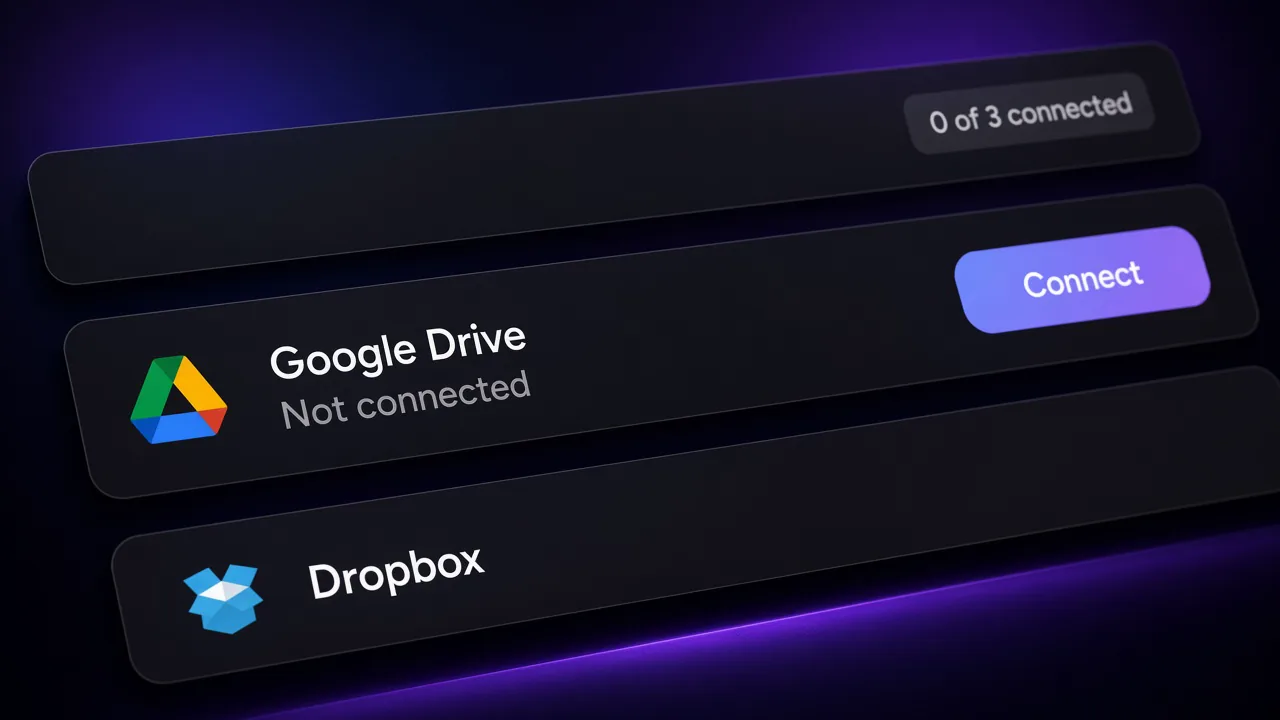
You can upload one Chrome screen recording to Google Drive from Showesome after you connect Drive and choose that clip. The recording is already in Recordings History on your device. Drive gets a copy only when you upload it.
Showesome is a free Chrome extension. It records a Chrome tab, a window, or the entire screen, and it can record Screen Only, Camera Only, or Screen + Camera. The export is a local MP4 or WebM with no watermark. Google Drive, Dropbox, and YouTube are optional, and each one is separate. A Drive upload is a backup in your Google account. It does not publish a YouTube video, and it does not post to Google Classroom.
Where the file is before Drive
| Place | What it holds |
|---|---|
| Recordings History | The clip, on this device, as soon as you stop |
| Downloads | An extra copy only after Download MP4 or Download WebM |
| Google Drive | A copy only after you connect Drive and upload that clip |
Dropbox and YouTube use their own rows. They stay disconnected until you connect them. Where Chrome screen recordings are saved.
1. Record and stop
- Open the Showesome popup and choose Screen + Camera, Screen Only, or Camera Only.
- Set the microphone when you want narration. For sound playing in a site, click Start Recording, pick Chrome tab, and turn on Also share tab audio.
- Stop with the stop square on the control bar, or press Alt+Shift+S. The clip is in Recordings History. It is not in Google Drive yet.
Showesome does not blur, mask, or redact passwords, notifications, or email. If that content is visible in the clip, it is in the file you upload. Move it off the surface you share before you record. Chrome tab, window, or entire screen.
First recording: how to record your screen on Chrome.
2. Open Upload to Cloud
Open Upload to Cloud from either place:
- The cloud icon on Recordings History
- Cloud actions on the preview header
The modal lists Google Drive, Dropbox, and YouTube. 0 of 3 connected is the normal start. A Not connected row has not received a clip.
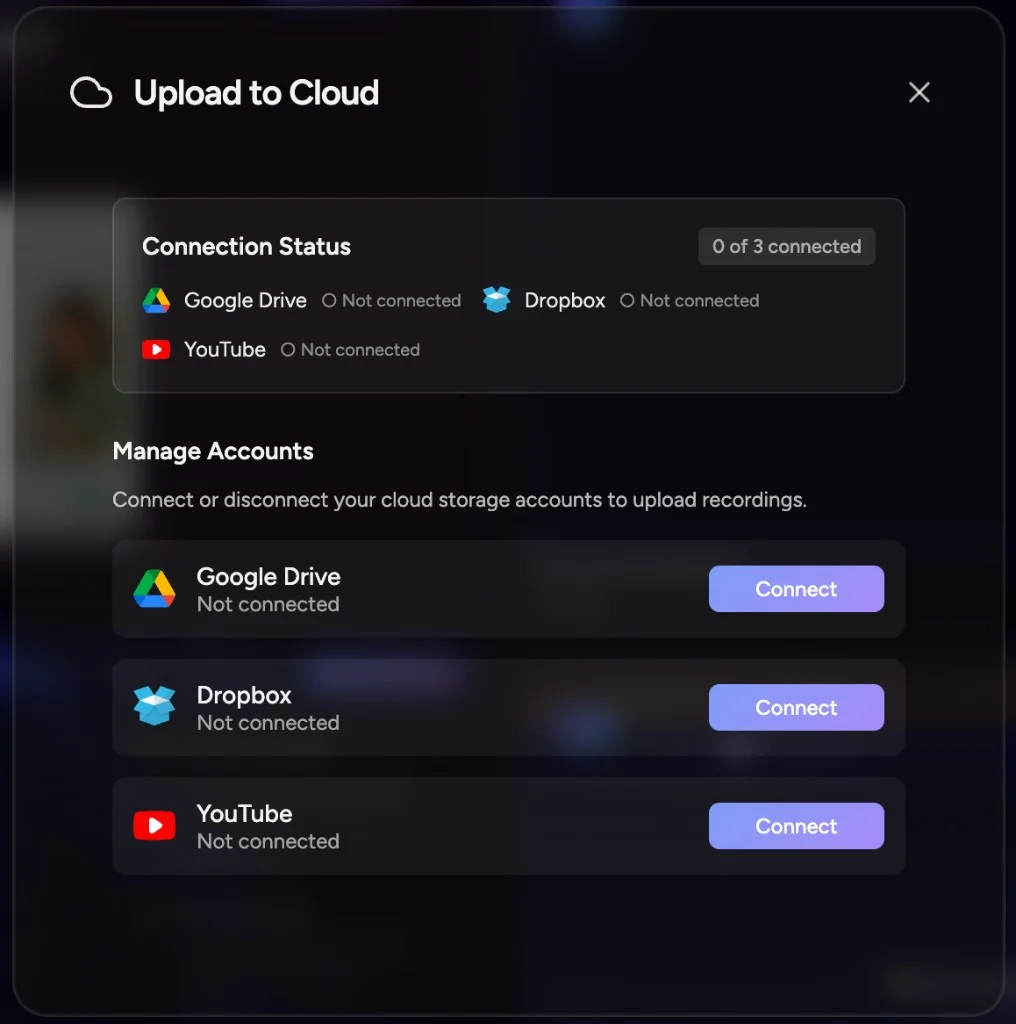
3. Connect Google Drive only
Under Manage Accounts, Google Drive, Dropbox, and YouTube each have a Connect button.
- Click Connect on the Google Drive row.
- Sign in through Google’s prompt in Chrome. That login is your Google account. Recording and MP4 export do not need a Showesome account.
- Leave Dropbox and YouTube on Not connected when you only want Drive. Connecting Drive does not connect the others.
A connected row shows Disconnect. You can connect Drive and still leave Dropbox and YouTube off.
4. Upload the clip you choose
From preview or Recordings History, upload the recording you want in Drive. That send is for the clip you pick. The other recordings stay in the local library.
Progress and sync badges show status while the copy goes out. Google stores that copy under your Google account and Google’s terms.
To keep an MP4 on disk as well, open the clip in preview and click Convert to MP4. Conversion runs on your device. Convert WebM to MP4 in Chrome. Uploading to Drive is a separate step from that conversion.
5. Leave the local copy in place
The library copy stays on the device after the upload. Disconnect Drive from the same Upload to Cloud modal whenever you want. Disconnecting does not delete local clips. Drive still holds the copy you already uploaded.
Delete one clip, or Clear All, in Recordings History when you mean to remove it from the library. That action is separate from the Drive copy.
If storage later reaches 85%, Showesome keeps your 5 most recent library recordings. At 95%, it keeps 2. A copy already in Drive sits with Google, outside that library rule. Download MP4 as well when you need a file that does not depend on the library. What happens when storage fills up.
Does Showesome upload every recording to Google Drive?
No. Recording, preview, and MP4 conversion stay in Chrome. A copy goes to Drive only after you connect Drive and upload that clip.
Do I need a Showesome account?
No. Install the extension, record, and export with no Showesome account. Drive connect uses your Google login, and only when you want that upload.
Does the recording leave Recordings History after upload?
The local clip stays unless you delete it in Showesome. Drive holds the copy you uploaded. A file you already downloaded is another copy, on disk.
Can I connect Google Drive and skip YouTube?
Yes. Each service is optional on its own. Connect Drive, upload the clips you choose, and leave Dropbox and YouTube disconnected. Upload a recording to YouTube is a separate choice.
Does a Drive upload land in Google Classroom?
No. Showesome does not replace Google Classroom. It records in Chrome. You share the file the way your school allows: Download MP4 and attach it, or send a copy to Drive when you choose. Screencastify alternative for teachers.
Does the upload hide passwords or notifications?
No. Showesome does not blur, mask, or redact on-screen content. Drive receives the picture you recorded. Move private content off the shared tab, window, or screen before you start.
Quick checklist
- Stop the recording so it is in Recordings History on this device.
- Open Upload to Cloud. 0 of 3 connected is expected until you connect a service.
- Click Connect on Google Drive and sign in with Google. Leave Dropbox and YouTube off if you do not want them.
- Upload the one clip you want in Drive, and watch the progress badge.
- Keep the local copy. Disconnect Drive from the same modal when you are finished with the connection.
- Download MP4 when you also want a file in Downloads. That download is separate from the Drive copy.
Related reading
- How to upload a Chrome screen recording to YouTube — connect YouTube only when you want to publish.
- Preview, export, and optional cloud backup — preview, MP4, Drive, Dropbox, and YouTube.
- Private screen recorder for Chrome — record with no account and no automatic upload.
- Where are Chrome screen recordings saved? — library, Downloads, and cloud.
- What happens when Showesome runs out of storage? — export a copy before older library clips are removed.
- Screencastify alternative for teachers — Drive backup versus Classroom.
- Support — FAQs on preview and cloud upload.
Was this guide helpful?
One vote per browser. No account required.
Be the first to share feedback.
Comments
Join the discussion — comments are moderated to keep things helpful. Be respectful and constructive.
Preparing sign-in…