How to record Camera Only in Chrome
Record Camera Only in Chrome with Showesome. Bubble keeps the page visible so you can read it. Full screen is a larger camera preview that leaves the browser around it. Both clips are the webcam only.
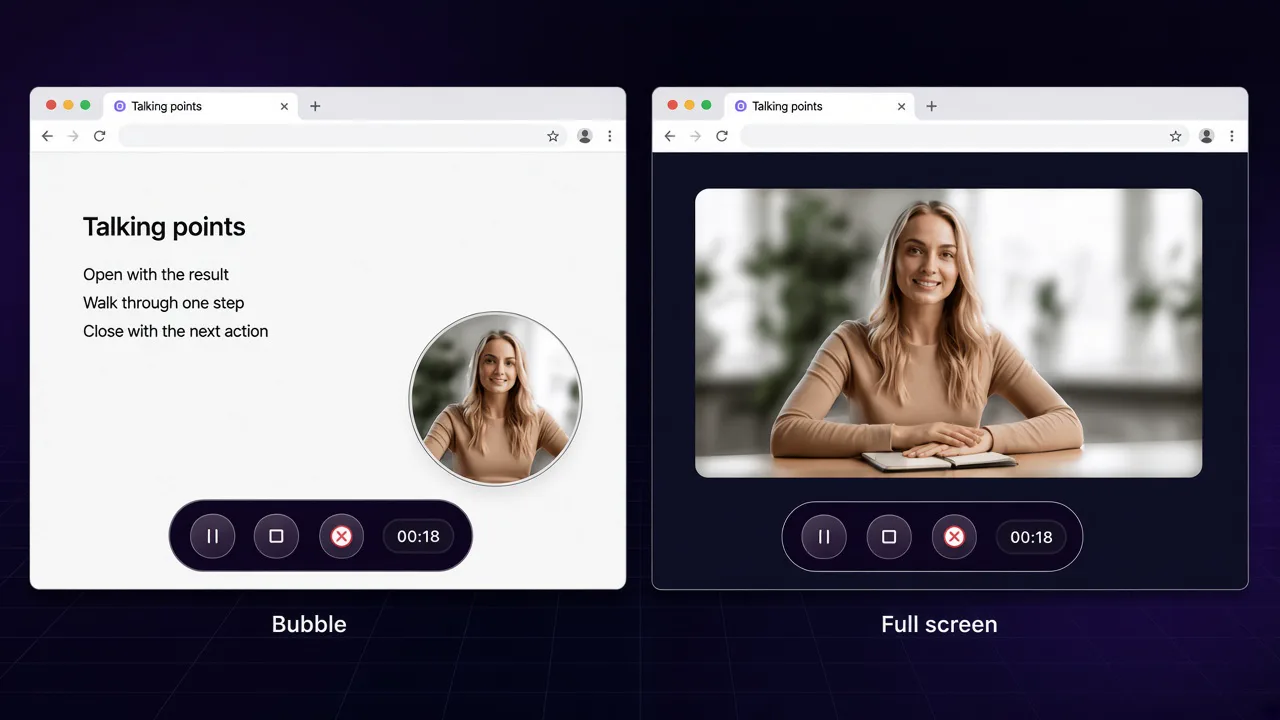
Yes — you can record Camera Only in Chrome. Open the Showesome popup, select Cam Only, and click Start Recording. This mode records the webcam. There is no screen share.
Camera Only has two preview sizes. Bubble puts a small camera on the page so you can read what is behind it. Full screen shows a larger camera preview inside the page. It does not cover the whole browser. Both previews save the same kind of clip: the webcam. Recording modes compares Camera Only with Screen + Camera and Screen Only.
Open on watch page (for search and full-screen viewing)
Bubble and full screen
The preview size is for you while you talk. Viewers get the camera either way.
| Preview | What you see while recording | What the clip contains |
|---|---|---|
| Bubble | A small bubble over the page. Open a site or a document and read from it. The page is a helper, so you do not have to hold the whole script in your head. Drag the bubble off the line you are reading. | The webcam |
| Full screen | A larger camera preview. The picture sits inside the page, with the browser and the page still visible around it. Use this when you already know what to say. | The webcam |
Screen + Camera is a different mode. That one records the display and puts your face in a bubble on the capture. Camera Only does not.
1. Install Showesome and pin it
- Add Showesome Screen Recorder from the Chrome Web Store.
- Click Add to Chrome, then Add extension.
- If the icon is hidden, open the puzzle piece (Extensions) → Manage Extensions, turn Showesome on, and pin it.
Full pin steps: Enable and pin Showesome. Showesome is free and does not add a watermark.
2. Select Cam Only, then Bubble or Full screen
- Click the Showesome icon.
- Select Cam Only (Camera Only).
- On the popup, next to the microphone, set the preview to BUBBLE or FULL SCREEN.
The same choice is in Settings, on the Full Screen Camera row. The label is Camera-only mode preview size. Open what's this? on that row if you want the short explanation: bubble is for reading the page while you record yourself, and full screen is the larger preview when you do not need the page in front of you. Both record the camera. The preview size is there for you during the take.
Stop the current take before you change modes. You cannot switch mid-recording. Pick the new preview, then start again.
3. Choose the microphone
In the popup, pick the microphone you want. Leave it unmuted when you want to talk. Use mute when this take should have no narration.
Showesome records stereo audio with built-in noise suppression. Allow the microphone when Chrome asks the first time. If a clip has no voice, confirm the mic is unmuted and that Chrome still allows microphone access. Record your screen with audio.
4. Optional: blur or a gallery background on the camera
Virtual backgrounds work in Camera Only and Screen + Camera. They do not apply in Screen Only, because that mode has no camera layer.
- Open the popup → Settings.
- Enable Virtual Background.
- Open Background Gallery.
- Choose blur, or one of the 8+ image and video backgrounds.
- Check the real-time preview in the bubble, or in the full-screen camera, before you hit Start Recording.
Blur and gallery backgrounds apply to the camera feed. Showesome does not blur, mask, or redact passwords, notifications, emails, or anything else on a page. In bubble preview the page is only there so you can read it. Move private content off that page yourself if you do not want it in front of you while you record.
Details: Virtual backgrounds.
5. Start, pause, or cancel
- Click Start Recording.
- Allow the camera and microphone if Chrome asks.
Camera Only records you without opening Chrome’s screen picker. You do not pick a Chrome tab, window, or entire screen. Also share tab audio belongs to tab sharing in that picker, which this mode does not use.
While you are recording, Showesome shows one dark control bar:
- Pause — two vertical bars
- Stop — a square
- Cancel — a red X
- Timer — elapsed time on the bar
| Action | Shortcut | What it does |
|---|---|---|
| Start / stop | Alt+Shift+S |
Starts a recording. While recording or paused, the same shortcut stops and saves the clip. |
| Pause / resume | Alt+Shift+P |
Pauses the session. Press again to resume. |
| Cancel | Alt+Shift+C |
Discards the session. Nothing is saved. |
On Mac, Chrome shows Option instead of Alt. Shortcuts work from any Chrome tab. You do not need the popup open. Keyboard shortcuts.
To hide the bar, open Settings → Recording & Video and turn off Recording Controls. Alt+Shift+S, Alt+Shift+P, and Alt+Shift+C still work. Hiding the bar only hides Showesome’s own stop and pause bar. In bubble preview, the bubble stays and remains draggable.
How to pause a screen recording.
6. Preview, export, and optional upload
Click the stop square or press Alt+Shift+S. The clip is saved in Recordings History on this device. It is not in Downloads until you export, and it is not stored on Showesome servers.
- Click the extension icon, then View Recordings in the popup header — or open the RECORDINGS card, then View All & Manage.
- Open the clip. Preview plays automatically.
- Click Download WebM, or Convert to MP4 in the header. Conversion runs on your device.
- Camera Only can take a new background after you stop. On the preview page, pick blur or a gallery background. Showesome applies it on your device. When processing finishes, the updated clip is MP4. Use Download MP4.
Open on watch page (for search and full-screen viewing)
Google Drive, Dropbox, and YouTube receive a copy only after you connect that service and upload the clip you want. Open Upload to Cloud from Recordings History or the preview header. No Showesome account is required to record or export. Disconnecting a cloud account leaves the local clip in place. Preview and optional cloud.
A bad take: press Alt+Shift+C or click the red X. Showesome discards that session.
What is the difference between bubble and full screen?
Preview size. Bubble keeps the page visible so you can read a site or a document while you record yourself. Full screen is a larger camera preview. It sits inside the page and does not cover the whole browser. Use it when you already know the topic. Both clips are the webcam.
Does Camera Only capture the page?
The clip is the webcam. Camera Only does not open Chrome’s share dialog, so the page is not the recording. With Bubble, the page stays on your screen as a reading helper. With Full screen, you see a larger preview of yourself, and the browser around that preview stays visible.
Do virtual backgrounds hide the page?
Blur and gallery backgrounds apply to the camera feed. Showesome does not blur, mask, or redact on-screen content. The page in bubble preview is there so you can read it.
Can I change the background after I stop?
Yes on Camera Only clips. Open the recording from Recordings History and choose blur or a gallery background on the preview page. When processing finishes, the clip is MP4. Screen + Camera and Screen Only use the background you set before Start Recording.
Can I pause a Camera Only recording?
Yes. Press Alt+Shift+P or click the pause control (two vertical bars). Press the shortcut again to resume. Alt+Shift+S saves the clip. Alt+Shift+C discards it.
Does Camera Only work in Incognito?
Only after Allow in Incognito is on. Chrome disables extensions in Incognito by default. On chrome://extensions, open Showesome Details and turn on Allow in Incognito. Recordings still stay on the device. Incognito guide.
Quick checklist
- Pin Showesome and select Cam Only.
- Choose Bubble when you need the page as a reading helper, or Full screen for a larger camera preview that leaves the browser around it visible.
- Set the microphone. Optional: blur or a gallery background on the camera, and preview it.
- Click Start Recording. Pause with Alt+Shift+P. Stop with Alt+Shift+S, or cancel with Alt+Shift+C.
- Open Recordings History, download MP4 or WebM, and upload only if you choose a clip.
Related reading
- Screen + Camera or screen only? — when to use Camera Only, Screen Only, or Screen + Camera.
- Record screen + webcam in Chrome — the display plus a draggable bubble.
- Virtual backgrounds — blur and gallery backgrounds on the camera feed.
- Preview, export, and optional cloud backup — MP4, post-recording backgrounds, Drive, Dropbox, and YouTube.
- Best webcam setup for tutorial videos — light, framing, and bubble placement.
- How to pause a screen recording in Chrome — pause, stop, and cancel.
- Where are Chrome screen recordings saved? — Recordings History on this device.
- Support — recording modes, virtual backgrounds, and export.
Was this guide helpful?
One vote per browser. No account required.
Be the first to share feedback.
Comments
Join the discussion — comments are moderated to keep things helpful. Be respectful and constructive.
Preparing sign-in…