How to change the Focus Mode spotlight color
Pick a Focus Mode spotlight color in Showesome before you record. The highlight and zoom follow a click, a text selection, or a dragged area. The color does not hide the page.
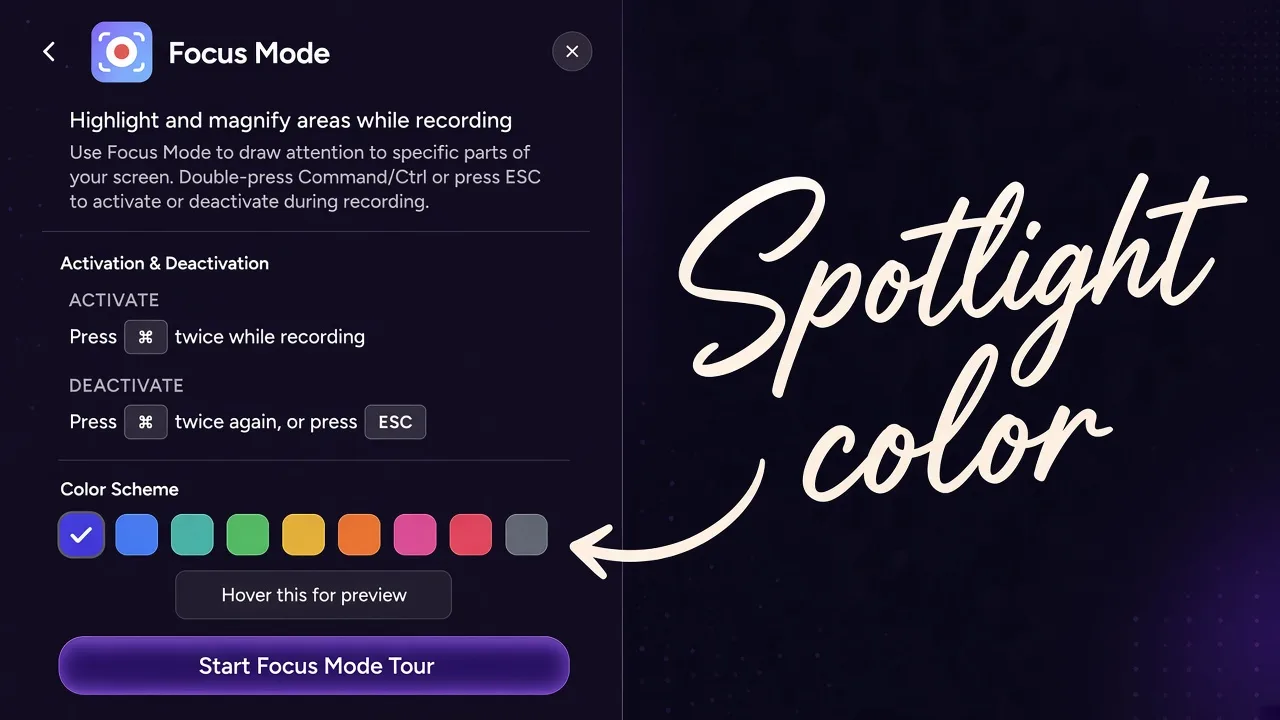
Pick the Focus Mode spotlight color before you record. Open Focus Mode settings in the Showesome popup and choose a color on the Color Scheme row. During the take, double-press Command (Mac) or Ctrl (Windows), then click, select text, or drag an area. Showesome spotlights that target and zooms. The color is the highlight. It does not remove the page.
A highlight that sits too close to the UI you are teaching is easy to miss. Choose the color first, then record the walkthrough. The zoom is already in the capture when you stop. You do not add keyframes later.
What the color changes
| What changes | What stays on screen |
|---|---|
| The spotlight color you pick before the take | The page, the window, or the desktop you shared |
| Spotlight highlighting, the smooth zoom, and the Focus Mode cursor | Passwords, notifications, email, and every other visible detail |
| Dimming outside the spotlight | The content itself. Dimming is not hiding. |
Focus Mode draws attention to part of the screen. It does not blur, mask, or redact anything. Auto zoom for screen recordings covers click, text, and area zoom. This page is only the color you set first.
1. Open Focus Mode settings
Open the Showesome popup from the Chrome toolbar before you click Start Recording. Open Focus Mode settings. That panel is the same one in Getting Started step 6.
The panel title is Focus Mode. The line under it says the mode highlights and magnifies areas while you record. Activation is listed there too: press Command or Ctrl twice while recording. Press it twice again, or press Esc, to leave.
Use Screen Only or Screen + Camera when the spotlight needs to land on a page. Camera Only records the webcam. Focus Mode does not zoom that camera picture, and the page is not in the file. Recording modes.
2. Pick a spotlight color
On that panel, use the Color Scheme row. Pick a swatch. Then use Hover this for preview so you can see the highlight before the take starts.
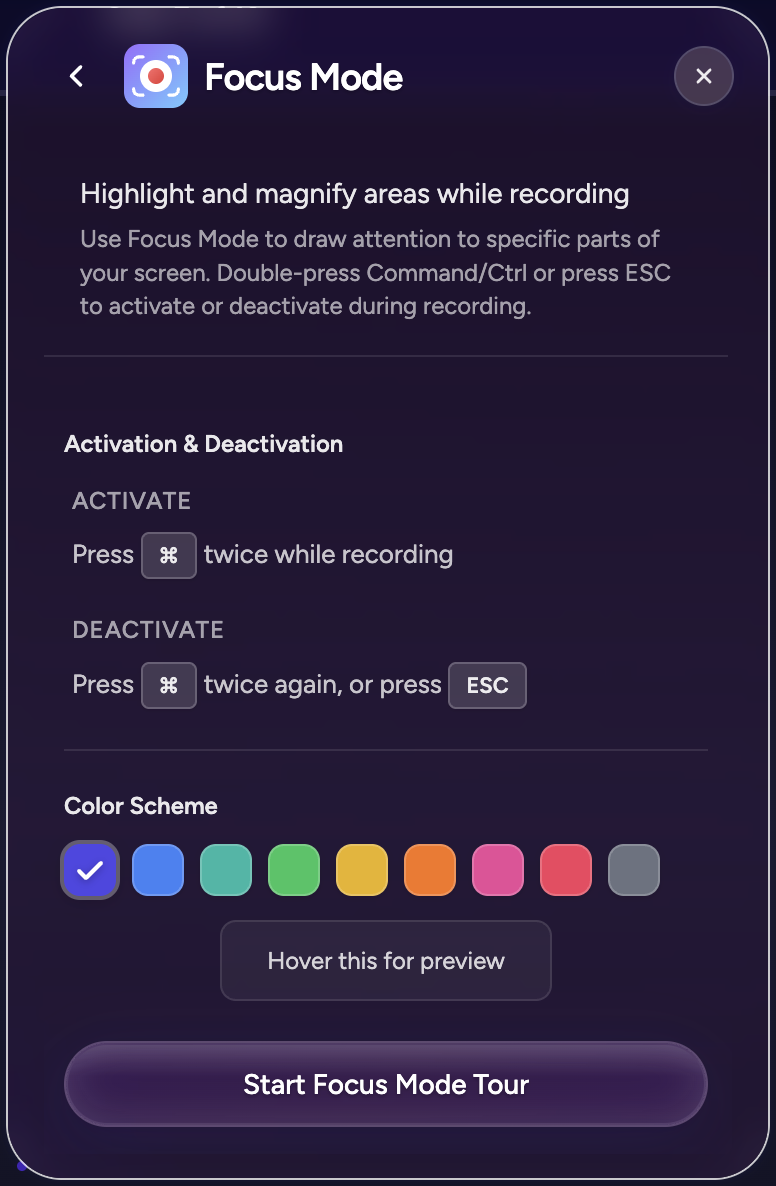
The same panel includes Start Focus Mode Tour. You can also try spotlight and zoom in the browser on the Focus Mode tutorial.
Virtual backgrounds are a different control. Blur and gallery backgrounds apply to the camera bubble only, in Screen + Camera or Camera Only. They do not recolor the page, and they do not replace the spotlight. Virtual backgrounds.
3. Start the recording
- In the popup, choose Screen + Camera or Screen Only. On the mode row the labels read Screen+Cam and Screen Only.
- Set the microphone when you want narration. Leave it unmuted. For sound playing in a site, click Start Recording, pick Chrome tab, and turn on Also share tab audio.
- In Chrome’s share dialog, pick a tab, a window, or the entire screen.
The spotlight color is already set. Entire screen includes the desktop and any notification that appears. Showesome will not cover those up. Share a tab or a window when the rest of the desktop should stay out of the file, or dismiss notifications yourself before you share the whole screen. Chrome tab, window, or entire screen.
4. Spotlight a click, text, or an area
While the recording is running, press Command or Ctrl twice.
| Action | What viewers see |
|---|---|
| Click a button, a label, or an image | A spotlight on that element and a smooth zoom |
| Select text | A zoom framed on the selection |
| Shift + drag | A rectangular area spotlight |
Press Esc, or press Command or Ctrl twice again, to leave Focus Mode and return to the full frame. The area outside the spotlight dims. The page is still there.
These keys are separate from recording shortcuts. Alt+Shift+S starts or stops, Alt+Shift+P pauses or resumes, and Alt+Shift+C cancels. On Mac, Chrome shows Option instead of Alt. Keyboard shortcuts.
5. Stop and keep the clip on your device
Stop with the stop square on the control bar, or press Alt+Shift+S. The clip is saved in Recordings History on this device. The zoom is already in the file.
Open the clip and click Convert to MP4 when you need MP4. Conversion runs on your device. Download MP4 or Download WebM writes an extra copy. Showesome does not add a watermark. Nothing is uploaded until you connect Google Drive, Dropbox, or YouTube and choose a clip. Where Chrome screen recordings are saved.
Hiding the control bar only hides Showesome’s own stop and pause bar. It does not hide the page, and it does not change the spotlight color. Open Settings and turn off Recording Controls when you want the bar gone. The shortcuts still work.
Do I choose the spotlight color before I record?
Yes. Open Focus Mode settings and pick a Color Scheme swatch before Start Recording. Use Hover this for preview on that panel to check the highlight first.
Does the spotlight color hide the page?
No. Focus Mode spotlights and zooms a click, a text selection, or a dragged area, and it dims the surroundings. It does not blur, mask, or redact passwords, notifications, email, or any other on-screen content. Move private content off the surface you share before you record.
Does the color work in Screen Only?
Yes. Focus Mode spotlights the shared screen in Screen Only and in Screen + Camera. The webcam bubble, when you are in Screen + Camera, stays a camera bubble. The spotlight color does not replace it. Camera Only records the webcam, so that page spotlight is not in the clip.
Quick checklist
- Open Focus Mode settings before you record.
- Pick a Color Scheme swatch and use Hover this for preview.
- Start in Screen Only or Screen + Camera, and share a tab, a window, or the entire screen.
- Press Command or Ctrl twice, then click, select text, or Shift + drag.
- Press Esc to leave Focus Mode. Stop with Alt+Shift+S. The clip stays in Recordings History until you export or upload it yourself.
Related reading
- Auto zoom for screen recordings in Chrome — click, text, and area zoom while you record.
- Five Focus Mode tips — spotlight, text zoom, and area focus.
- Interactive Focus Mode tutorial — try the highlight in the browser.
- Keyboard shortcuts — start, pause, stop, cancel, and Focus Mode keys.
- Virtual backgrounds — blur and gallery backgrounds on the camera only.
- Support — Focus Mode questions and recording help.
Was this guide helpful?
One vote per browser. No account required.
Be the first to share feedback.
Comments
Join the discussion — comments are moderated to keep things helpful. Be respectful and constructive.
Preparing sign-in…