How to screen record in Microsoft Edge (2026)
Install the same Showesome extension from the Chrome Web Store in Microsoft Edge. Allow extensions from other stores, then record tab audio, a webcam, Focus Mode, and a local MP4.
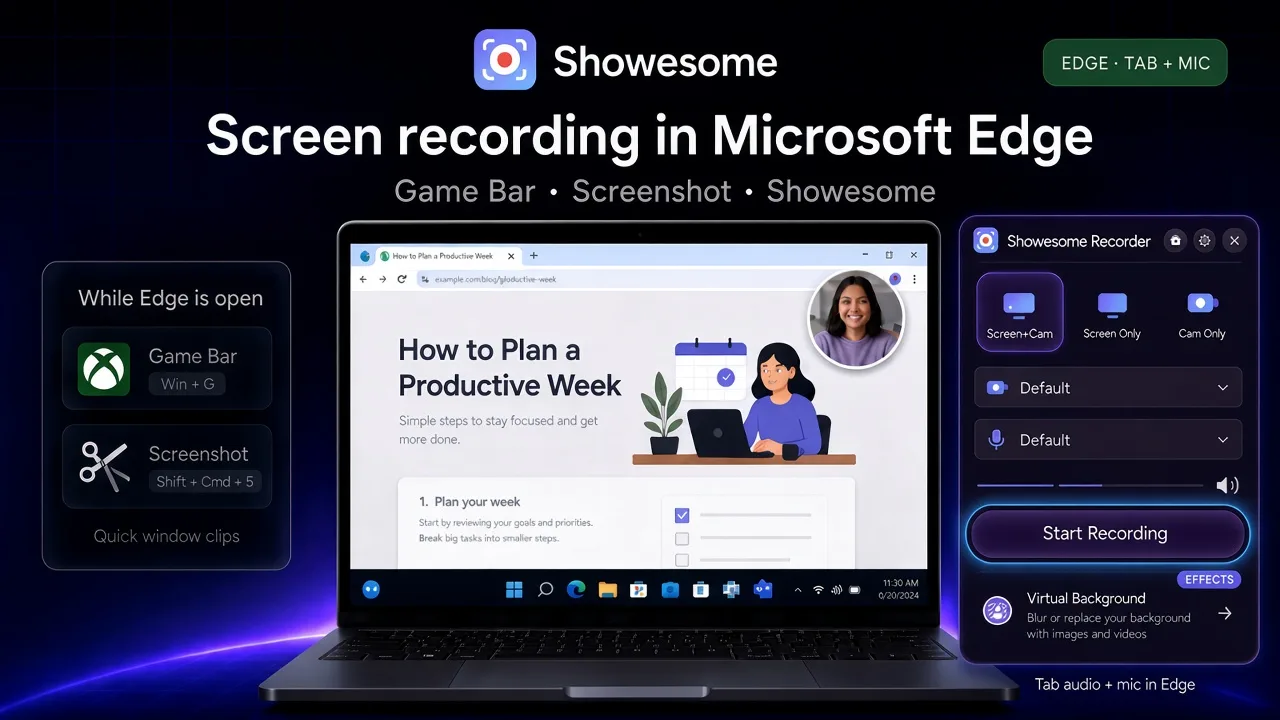
Yes. Microsoft Edge can install the same Showesome extension from the Chrome Web Store. Edge is Chromium. Allow extensions from other stores, then add the Chrome listing. It is not a separate Edge Add-ons product.
Game Bar, Snipping Tool, Screenshot, and QuickTime can still record an Edge window if you do not want an extension. Showesome adds tab audio, a webcam bubble, Focus Mode, and a local MP4 inside Edge.
Open on watch page (for search and full-screen viewing)
Showesome in Edge vs built-in OS capture
| Showesome in Microsoft Edge | Built-in OS capture | |
|---|---|---|
| Install | Same Chrome Web Store listing, added inside Edge | Already on Windows 11 or Mac |
| Fastest path | Allow extensions from other stores → Add extension → Start Recording | Win + G (Game Bar) or Shift + Command + 5 (Mac Screenshot) |
| Browser | Microsoft Edge | Any window, including an Edge window |
| Tab audio | Turn on tab audio in Edge’s share dialog | OS tools record app or system audio, not that tab switch |
| Webcam bubble | Screen + Camera in the same clip | Separate camera widgets, when the OS tool has one |
| Click-to-zoom tutorials | Focus Mode | No |
| Export | Recordings History → Convert to MP4 | Game Bar Videos → Captures, or a Mac .mov |
| Watermark | No watermark | None on Apple and Windows built-in tools |
1. Install the Chrome listing in Edge
Microsoft’s support page says extensions designed for Google Chrome can also be used in Microsoft Edge. Showesome is published on the Chrome Web Store. You will not find a separate Showesome listing in the Edge Add-ons store.
- In Microsoft Edge, open the Showesome Chrome Web Store page.
- Select Get extension or Add to Chrome. The button can still say Add to Chrome while you are in Edge.
- If Edge asks, select Allow extensions from other stores, then Allow.
- Review the permissions and select Add extension.
- Pin Showesome from the Extensions (puzzle) menu so the icon stays next to the address bar.
Local recording does not need a Google account. Microsoft notes that an extension which signs in with a Google account may not behave the same in Edge. A work or school PC can also block extensions from other stores. If the allow step never appears, or Edge turns the extension off immediately, that device policy is the reason.
2. Record an Edge tab
- Open the page in Edge.
- In Showesome, choose Screen Only or Screen + Camera and turn the microphone on for narration.
- Start Recording → share the Edge tab → turn on tab audio in the share dialog. Chrome labels this switch Also share tab audio.
- For tutorials, double-tap Cmd or Ctrl for Focus Mode.
- Stop, then export MP4 from Recordings History. The popup steps match how to record your screen on Chrome (2026).
3. Record with Windows or Mac tools instead
Use these when you want a window clip and do not want to install an extension. Edge can stay open.
Windows — Xbox Game Bar
- Focus the Edge window.
- Press Win + G.
- Click Record, or press Win + Alt + R.
- Stop from the capture widget. The file is in Videos → Captures.
Windows — Snipping Tool
- Press Win + Shift + S or open Snipping Tool.
- Switch to Record, drag a region, then Start.
- Stop and Save.
Mac — Screenshot or QuickTime
- Press Shift + Command + 5, or in QuickTime choose File → New Screen Recording.
- Record the screen or a region that includes Edge.
- Stop from the menu bar. Screenshot saves a .mov, usually on the Desktop.
Game Bar sound: set Settings → Capturing → Audio to record: All and unmute Edge in the volume mixer. Step-by-step: screen record on Windows 11 and screen record on Mac.
Can I install Showesome in Microsoft Edge?
Yes. In Edge, open the Chrome Web Store listing and allow extensions from other stores. The button may say Add to Chrome. That installs the same extension. There is no separate Showesome build in the Edge Add-ons store.
Does Microsoft Edge include a screen recorder?
For a quick window clip, use the operating system. On Windows, Game Bar and Snipping Tool record while Edge is open. On Mac, Screenshot and QuickTime do the same. Edge’s own capture tools are screenshots. For tab audio, a webcam bubble, Focus Mode, and an MP4 from the extension library, install Showesome in Edge.
Will Game Bar capture sound from an Edge tab?
Sometimes, as app audio — not as the share-dialog tab switch. Set Game Bar Audio to record to All and unmute Edge in the volume mixer. If the tab is still silent, record that page in Edge with Showesome and turn on tab audio in the share dialog. Screen recording has no sound?.
Quick checklist
- In Edge, open the Chrome Web Store listing for Showesome.
- Allow extensions from other stores, then Add extension. Pin the icon.
- Start Recording → share the Edge tab → turn on tab audio when the page plays sound.
- Export MP4 from Recordings History.
- For a clip with no extension, use Game Bar, Snipping Tool, Screenshot, or QuickTime.
Related reading
- How to record your screen on Chrome (2026) — the same popup and share dialog.
- How to screen record on Windows 11 (2026) — Game Bar and Snipping Tool.
- How to screen record on Mac (2026) — Screenshot and QuickTime.
- Record a Chrome tab with audio.
- Chrome permissions blocked — camera, mic, and screen capture.
- Support — FAQs and troubleshooting.
Was this guide helpful?
One vote per browser. No account required.
Be the first to share feedback.
Comments
Join the discussion — comments are moderated to keep things helpful. Be respectful and constructive.
Preparing sign-in…