How to rename a Chrome screen recording in Showesome
Rename a Showesome clip from the preview page so Search in Recordings History can find it by title. The file stays on your device. Renaming does not download or upload it.
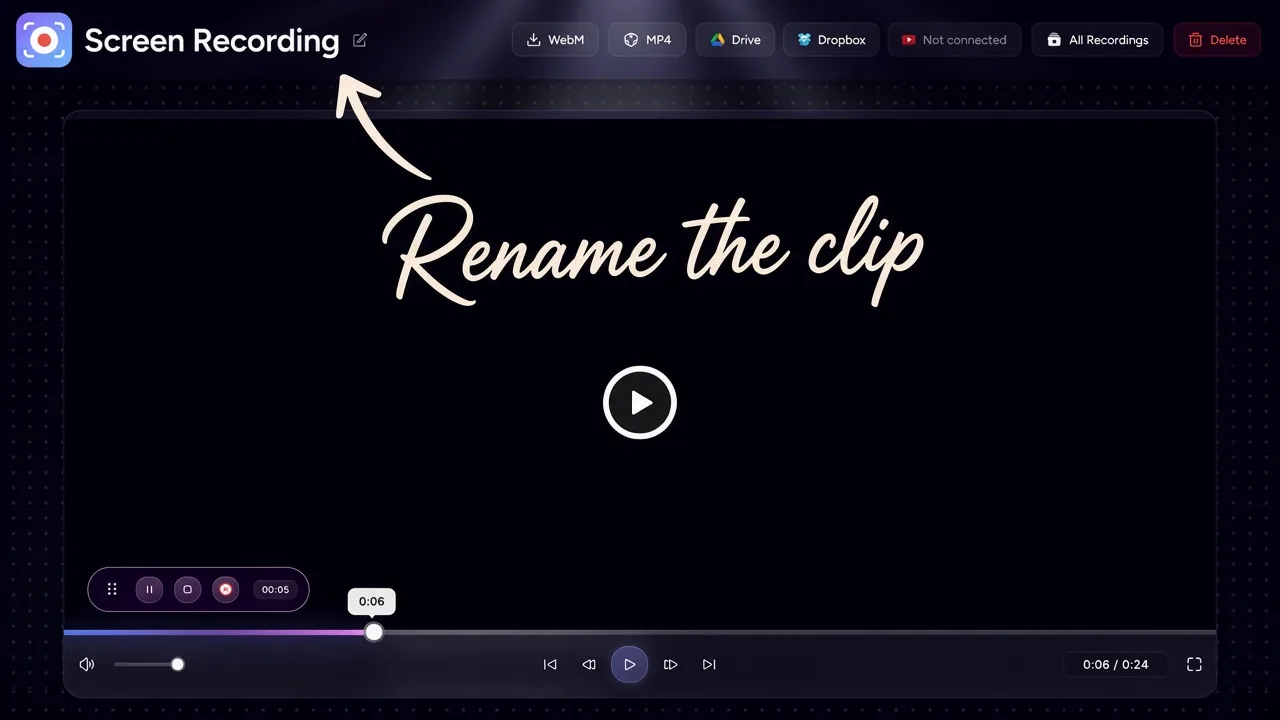
Search in Recordings History filters by title, so two clips with the same name are hard to tell apart. Open the clip on the preview page and use the pencil next to the name. The new title is what you type later in Search recordings….
The clip is already in Recordings History on your device. Renaming it does not download a file, does not upload it, and does not change the picture inside the video.
What the title is for
| Action | What changes |
|---|---|
| Edit title (pencil on preview) | The name in Recordings History, which Search filters by |
| Filter by mode | Which clips you see: All Modes, Screen Only, Camera Only, or Screen + Camera |
| Download MP4 or Download WebM | An extra file on your computer. Separate from the library title |
| Upload to Cloud | A copy in Google Drive, Dropbox, or YouTube, only after you connect that service and choose the clip |
| Delete or Clear All | Removes the library clip. Not a rename |
Showesome records Screen Only, Camera Only, or Screen + Camera. Each finished clip is listed in the same library. Your recordings library covers search, filters, and Compact, Large, or List view.
1. Open Recordings History
- Click the Showesome icon in the Chrome toolbar.
- Click the recordings icon in the popup header (tooltip: View Recordings). Chrome opens Recordings History in a new tab.
You can also open the RECORDINGS card in the popup (“View statistics and manage your recordings”), then tap View All & Manage. Last Recording and Most Recent open that clip in preview without a search. Where Chrome screen recordings are saved.
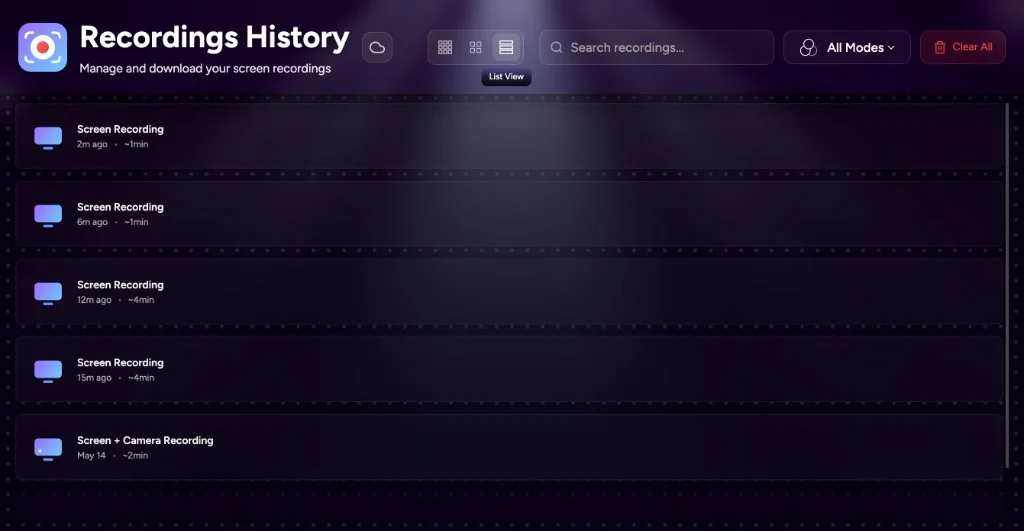
2. Open the clip in preview
Click the tile or row in Recordings History. Preview opens in an extension tab and playback starts, so you can confirm it is the right take before you rename it.
From the statistics panel, tap Last Recording or a Most Recent row. That opens the same preview page.
3. Click the pencil and edit the title
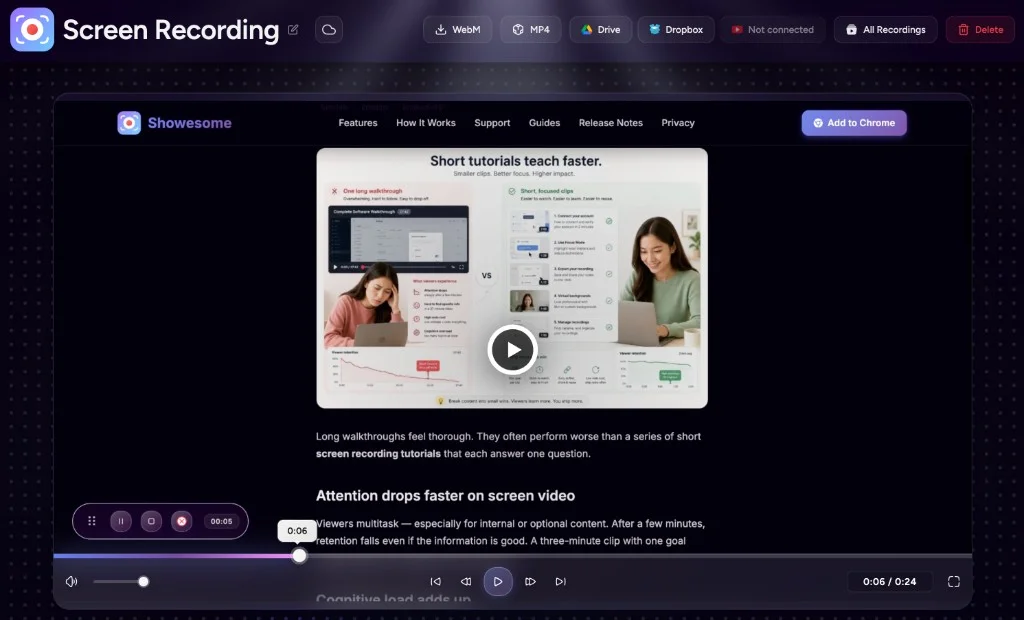
On the preview header, the name sits next to a pencil. Click the pencil and edit the title to a name you will remember, such as the page or the step the clip shows.
All Recordings in that header jumps back to Recordings History. The title you edited is the one search uses. Preview, export, and optional cloud backup.
4. Search for the new title
- Return to Recordings History.
- Click Search recordings… and type the title you just set. Search filters by title.
- If several clips still match, open the mode filter and choose All Modes, Screen Only, Camera Only, or Screen + Camera.
- Switch Compact, Large, or List if a different layout makes the name easier to scan.
No Showesome account is required. The library stays in Chrome on this device.
5. Leave the file where it already is
Renaming does not export a copy and does not send the clip anywhere.
- Download MP4 or Download WebM is what puts an extra file in Downloads, or in a folder you pick. Convert WebM to MP4 in Chrome.
- Google Drive, Dropbox, and YouTube receive a copy only after you connect that service and upload the clip you choose. Private screen recorder for Chrome.
- Delete removes that library clip. Clear All removes the library with confirmation. A file you already downloaded stays on disk. A copy you already uploaded stays with that provider.
The picture inside the clip stays the same. Showesome does not blur, mask, or redact passwords, notifications, emails, or anything else on screen. Move private content off the tab, window, or screen before you record. Chrome tab, window, or entire screen.
Does search use the name I typed?
Yes. Search recordings… filters by title. The pencil on preview is how you set the title Recordings History shows.
Does renaming download or upload the clip?
No. The clip stays in Recordings History on your device. Download and cloud upload are separate steps, and each one happens only when you choose it.
Does a new title hide what is in the video?
No. Showesome does not blur, mask, or redact on-screen content. Editing the title changes the name you search for. It leaves the recording itself unchanged.
Do I need a Showesome account to rename a clip?
No. Recordings History and preview work with no Showesome account. Drive, Dropbox, and YouTube use those accounts only when you connect one and upload a clip.
Quick checklist
- Open Recordings History from the popup header, or from View All & Manage on the RECORDINGS card.
- Open the clip in preview and confirm it is the right take.
- Click the pencil next to the name and edit the title.
- Return with All Recordings and type that title in Search recordings….
- Use the mode filter, or Compact, Large, or List, when several clips still look alike.
- Leave download and cloud upload for later. Renaming does not do either one.
Related reading
- Your recordings library — stats, search, and Compact, Large, or List view.
- Preview, export, and optional cloud backup — watch, rename, MP4, and optional upload.
- Where are Chrome screen recordings saved? — library, Downloads, and cloud.
- What happens when Showesome runs out of storage? — export a copy before older library clips are removed.
- Convert WebM to MP4 in Chrome — local conversion, no upload.
- Support — FAQs on Recordings History, preview, and download.
Was this guide helpful?
One vote per browser. No account required.
Be the first to share feedback.
Comments
Join the discussion — comments are moderated to keep things helpful. Be respectful and constructive.
Preparing sign-in…