ScreenPal alternative for Chrome
Compare ScreenPal (formerly Screencast-O-Matic) and Showesome for Chrome recording — the free 15-minute limit, local MP4 export, Focus Mode, and when ScreenPal’s editor is still the better fit.
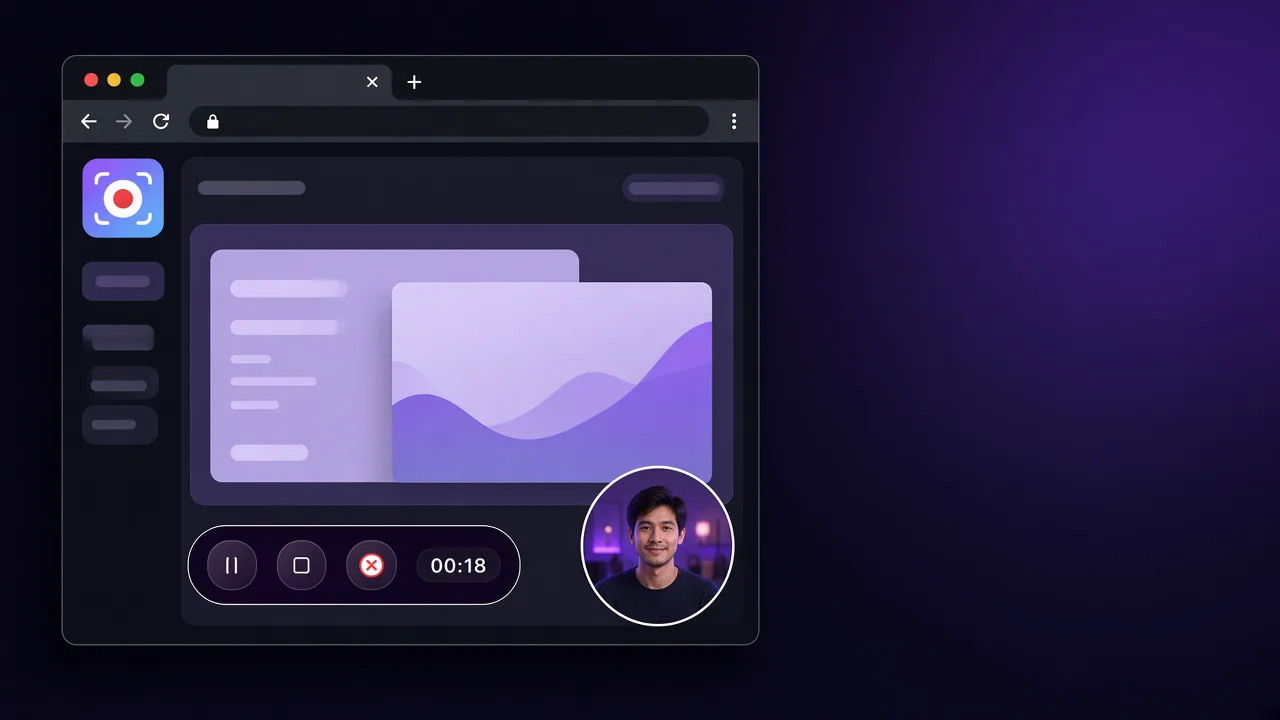
ScreenPal’s free plan records for up to 15 minutes at a time. Showesome is a free Chrome extension with no fixed duration cap in the product, no watermark, and a local MP4 or WebM on your device.
ScreenPal (formerly Screencast-O-Matic) is still the better fit when you want their video editor, drawing tools, and hosted sharing. This guide is for the other case: a Chrome walkthrough that runs past 15 minutes, with the file staying in the browser until you export or upload it yourself.
Open on watch page (for search and full-screen viewing)
When a ScreenPal alternative comes up
People usually hit one of these:
| Situation | What you are trying to do |
|---|---|
| The free take stops at 15 minutes | Finish a product tour or lesson in one recording |
| You want the file first | Keep the clip on this device, then share the MP4 yourself |
| The lesson is a Chrome tab | Narrate a site, with tab sound when the page plays audio |
| Viewers miss the button | Spotlight a click while you record, without a separate edit |
Plans change. The 15-minute figure is what ScreenPal’s plans page lists for the free plan. Confirm it there before you switch.
Quick comparison
| Showesome (free extension) | ScreenPal (free plan) | |
|---|---|---|
| Recording length | No fixed duration cap in the extension. The device, Chrome, and disk still apply. | 15 minutes per recording on the free plan (plans) |
| Watermark | No watermark on MP4 or WebM export | Their screen recorder page says the free recorder does not add a watermark |
| Where the file lives | Recordings History in Chrome, on this device, until you download or delete it | Save on the computer, or upload to ScreenPal hosting or YouTube. Confirm the current free hosting cap on their plans page |
| How you record in Chrome | Popup, then Chrome’s share dialog for a tab, window, or entire screen | A Chrome extension can record a tab, an app, or the screen with a webcam, and can open their desktop recorder |
| Webcam | Screen + Camera puts the webcam in a bubble. Camera Only records the webcam | Screen, webcam, or both (recorder page) |
| Pointing at the UI | Focus Mode spotlights and zooms a click, a text selection, or a dragged area, and dims the surroundings. It does not remove page content | Desktop recorder: draw and annotate, and zoom while recording |
| Editor | No timeline editor. Export the file and edit elsewhere if you need cuts | Free video editor, including trim (plans) |
| Account | No Showesome account | No account required to use their free recorder. An account is how you host on ScreenPal |
Showesome is not a hosted video library. ScreenPal is not only a Chrome extension: the desktop app is where drawing, area capture, and the editor live. Which screen recorder is right for you? puts both kinds of tool in a wider list.
When to stay on ScreenPal
Keep ScreenPal when:
- You trim, draw, or annotate inside the same product. Showesome does not draw on the page and does not edit the timeline.
- You want ScreenPal hosting and a share link as the normal way to send a clip.
- Your recordings fit in 15 minutes, or you already pay to lift that limit.
- You record outside the browser and want their desktop app to capture an area of the screen.
A missing watermark is not a reason to leave. Both products say free exports are clean. Check each vendor’s current page if that is the only thing you care about.
When Showesome fits
Consider Showesome when:
- The walkthrough needs more than 15 minutes and you do not want a paid plan for length.
- The clip should stay in Recordings History on the device. Google Drive, Dropbox, and YouTube get a copy only after you connect that service and upload the clip.
- You are teaching a Chrome tab and want Focus Mode during the take.
- You want a webcam bubble on the capture, or Camera Only when the clip is just you.
Install from the Chrome Web Store, then open Getting Started if you want the popup tour.
1. Install Showesome and pin it
- Add Showesome Screen Recorder from the Chrome Web Store.
- Click Add to Chrome, then Add extension.
- If the icon is hidden, open the puzzle piece (Extensions) → Manage Extensions, turn Showesome on, and pin it.
Full pin steps: Enable and pin Showesome. Showesome is free. It does not add a watermark.
Incognito is off until you turn it on. On chrome://extensions, open Showesome Details and enable Allow in Incognito. Use Showesome in Incognito.
2. Choose a mode
Open the Showesome popup and pick one:
- Screen + Camera — the screen, with your webcam in a bubble you can drag.
- Screen Only — the tab, window, or desktop, with no camera layer.
- Camera Only — the webcam. This mode does not open Chrome’s share dialog.
Stop the current take before you change modes. You cannot switch mid-recording. Recording modes.
Blur and gallery backgrounds apply to the camera only. Open Settings, enable Virtual Background, then open Background Gallery. Choose blur or one of the 8+ image and video backgrounds, and check the preview in the bubble before you start. They do not blur the page. Virtual backgrounds.
3. Start, and choose what Chrome shares
- In the popup, pick the microphone and leave it unmuted when you want to talk.
- Click Start Recording.
- In Chrome’s share dialog, pick Chrome tab, Window, or Entire screen.
- For sound playing in a site, share a Chrome tab and turn on Also share tab audio.
Your voice and tab audio are separate. The microphone is the popup control. Also share tab audio is Chrome’s switch, and it applies when you share a tab. Chrome tab, window, or entire screen.
Entire screen includes the desktop and notifications that appear on it. Showesome does not hide them.
4. Spotlight a click without covering the page
While you are recording, Showesome shows one dark control bar: pause (two vertical bars), stop (a square), cancel (a red X), and a timer.
- Alt+Shift+P pauses and resumes the same session.
- Alt+Shift+S stops and saves.
- Alt+Shift+C discards the session and saves nothing.
On Mac, Chrome labels the modifier Option. Hiding the control bar only hides that bar. Open Settings → Recording & Video and turn off Recording Controls when you want it gone. The shortcuts still work. The page stays in the capture. Keyboard shortcuts.
Focus Mode is separate. Double-tap Cmd (Mac) or Ctrl (Windows/Linux), then click an element, select text, or drag an area. Showesome spotlights that target, zooms, and dims the surroundings. Press Esc or double-tap again to leave. Dimming does not remove or hide page content. Focus Mode tips.
5. Stop and export on this device
- Stop with the stop square or Alt+Shift+S. The clip is in Recordings History. It is not on ScreenPal, Drive, Dropbox, or YouTube.
- Open the clip and click Convert to MP4 if you need MP4. Conversion runs on your device.
- Download MP4 or Download WebM when you want a file in Downloads. The library copy stays until you delete it.
- Open Upload to Cloud only if you want a copy on Google Drive, Dropbox, or YouTube. Connect the service you want. The others stay off.
No Showesome account is required to record or export. Very long sessions still depend on the computer. If storage reaches 85%, Showesome keeps your 5 most recent library recordings. At 95%, it keeps 2. Download a copy of anything you still need before that. Where recordings are saved and what happens when storage fills up.
Does ScreenPal’s free plan limit recording length?
Yes. Their plans page lists 15 minutes per recording on the free plan. Paid ScreenPal plans remove that cap. Confirm the current number on screenpal.com/plans before you decide.
Does Showesome add a watermark or a 15-minute cap?
No watermark, and no 15-minute cap in the extension. Showesome’s product messaging is free use with unlimited recording length. The practical limits are your device, Chrome, and disk, plus the library trim at 85% and 95% storage. Best free Chrome screen recorders (2026).
Does Showesome replace ScreenPal’s video editor?
No. ScreenPal’s free plan includes a video editor and the desktop recorder can draw and annotate. Showesome records, previews, converts WebM to MP4 locally, and optionally uploads. Cuts, drawings, and captions happen in another tool after you download the file.
Can Focus Mode blur passwords or notifications?
No. Showesome does not blur, mask, or redact passwords, notifications, emails, or anything else on the screen. Focus Mode dims the area around a click, a text selection, or a dragged region. Virtual background blur applies to the camera bubble only. Move private content off the shared tab, window, or screen before you start.
Do I need an account?
Not for Showesome. Install the extension and record. A Drive, Dropbox, or YouTube login is only for the service you choose to connect. ScreenPal’s free recorder also runs without an account; hosting on ScreenPal uses one. Private screen recorder for Chrome.
Quick checklist
- Confirm the 15-minute free limit on ScreenPal’s plans page if length is why you are switching.
- Install Showesome, pin it, and pick Screen + Camera, Screen Only, or Camera Only.
- Click Start Recording. Share a Chrome tab, window, or entire screen. Turn on Also share tab audio when the site has sound.
- Use Focus Mode to spotlight a click, selected text, or a dragged area. It does not hide the rest of the page.
- Stop, then Download MP4 from Recordings History. Upload only if you connect Drive, Dropbox, or YouTube.
Related reading
- Free Loom alternative for Chrome — length and local files versus a hosted link.
- Screencastify alternative for teachers — classroom recording in Chrome.
- Which screen recorder is right for you? — cloud, desktop, and browser tools.
- How to record your screen on Chrome — install, share dialog, and export.
- OBS vs Chrome screen recorder — when a desktop studio is the right tool.
- Support — modes, export, and storage FAQs.
Was this guide helpful?
One vote per browser. No account required.
Be the first to share feedback.
Comments
Join the discussion — comments are moderated to keep things helpful. Be respectful and constructive.
Preparing sign-in…